

Get new RSS Feed item alerts via email through Gmail
Get an email in your inbox through Gmail each time a new item appears in an RSS feed you follow, so new posts, releases or announcements reach you without opening a feed reader.
 RSS Feed
 Gmail
2 steps Setup ~5 min Used on 1.2k sites Free to import
What this workflow does
RSS feeds are a simple way to follow a blog, a news section, a changelog or a job board, but you only see new items when you remember to check a reader. If your day already runs through email, it is easier to get each new item there. This workflow sends one email per new feed item from your own Gmail account.
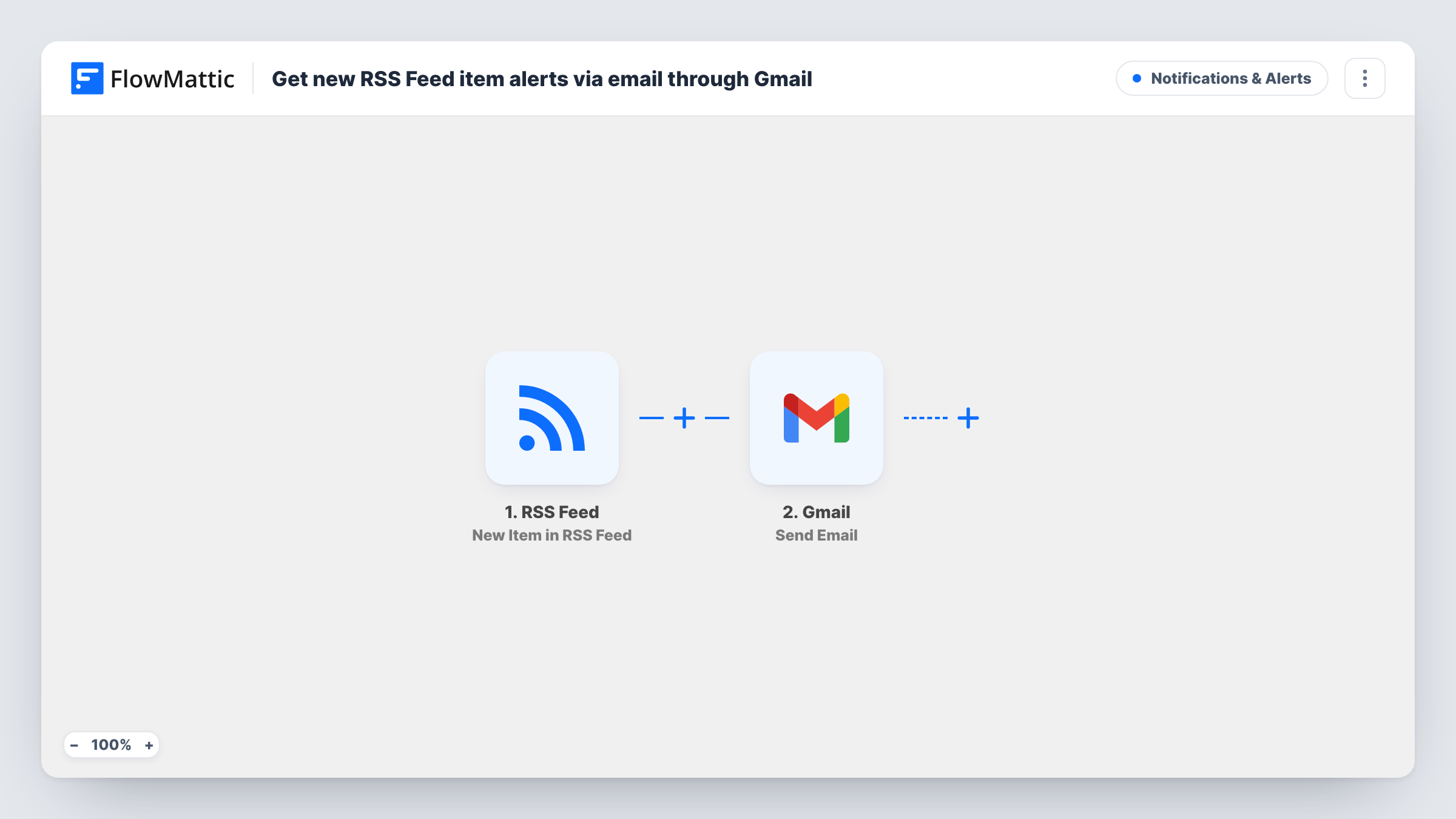
The RSS Feed trigger watches the feed URL you enter and fires when it finds an item it has not seen before. The item's data, such as its title and link, becomes available to map. The next step uses Gmail to send an email, built from those values, to the address you choose. You write the subject and body yourself and place the feed values where you want them.
Every new item produces its own email, so a busy feed means a busy inbox. If you only care about some items, add a Filter between the two steps. Each run shows in Task History, where you can see the feed item that arrived and the email that went out.
Watching a competitor's blog
Put a competitor's blog feed into the trigger. Each time they publish, you get an email with the post title and link.
Release notes for tools you depend on
Follow the changelog feed of a plugin or service your site relies on, so you hear about a new release by email and can plan updates.
Job or tender listings
Many job boards and tender portals publish RSS feeds. Each new listing arrives in your inbox, and you can label or forward it like any other email.
How this workflow runs
What happens at each step once the workflow is on, and what you need before you import it.
 RSS Feed New Item in RSS Feed
Checks the RSS feed you set and fires for each item it has not seen before. The item's details are passed on so you can place them in the email.
- Gmail Send Email
Emails the alert through the Gmail account you connect. Write the subject and body, map in the feed item's title and link, and set the address that should receive the alert.
What you need
- FlowMatticCore
- Gmail AccountAccount
After importing, map your own data. To keep the template universal, not every step is pre-filled. Open each step in the builder and connect your accounts and fields (channels, lists, sheets, recipients) before you switch the workflow on.
Make it yours
Changes worth making after you import it.
- Add a Filter after the RSS trigger that continues only when the item title contains a keyword you track, so you get emails for relevant items only.
- Send to a team address or a Google Group instead of your own inbox if several people should see each new feed item.
- Following more than one feed? Import the workflow again for each feed URL, and put the feed name in the email subject so you can tell them apart.
Questions about this workflow
Will I get an email for every item already in the RSS feed?
The trigger is built to fire on new items. Run a test after import and check Task History to confirm how it treats the items already in the feed.
Which address sends the RSS alert email?
The Gmail account you connect. The Send Email step sends from that account to the recipient you set, which can be the same address.
Can I get one daily digest instead of an email per RSS item?
Not as imported. Each new item starts its own run and sends its own email. A digest would need a different design, such as collecting items in a sheet first.
Which RSS item details can I put in the Gmail message?
Whatever the feed provides for each item, commonly a title, link and summary. Look at a test run to see the exact values your feed sends.
More Notifications & Alerts workflows
Other ready-to-import templates from the same category.





Import this workflow into your WordPress site
Download the JSON, import it from the Workflows screen and connect your accounts. Every run stays on your server, with no per-task fees.
30-day money-back guarantee Unlimited workflows and runs Self-hosted