

Log every new Cal ID booking in a Google Sheets spreadsheet
Each new Cal ID booking becomes a row in a Google Sheets spreadsheet you choose, with the booking fields you map, so you have a running list of appointments outside your scheduling tool.
 Cal ID
 Google Sheets
2 steps Setup ~5 min Used on 1.0k sites Free to import
What this workflow does
Cal ID handles the scheduling, but questions like how many calls you took last quarter or which meeting type people pick most are easier to answer from a spreadsheet. A spreadsheet is also simpler to hand to a bookkeeper or a business partner. This workflow keeps one filling up for you.
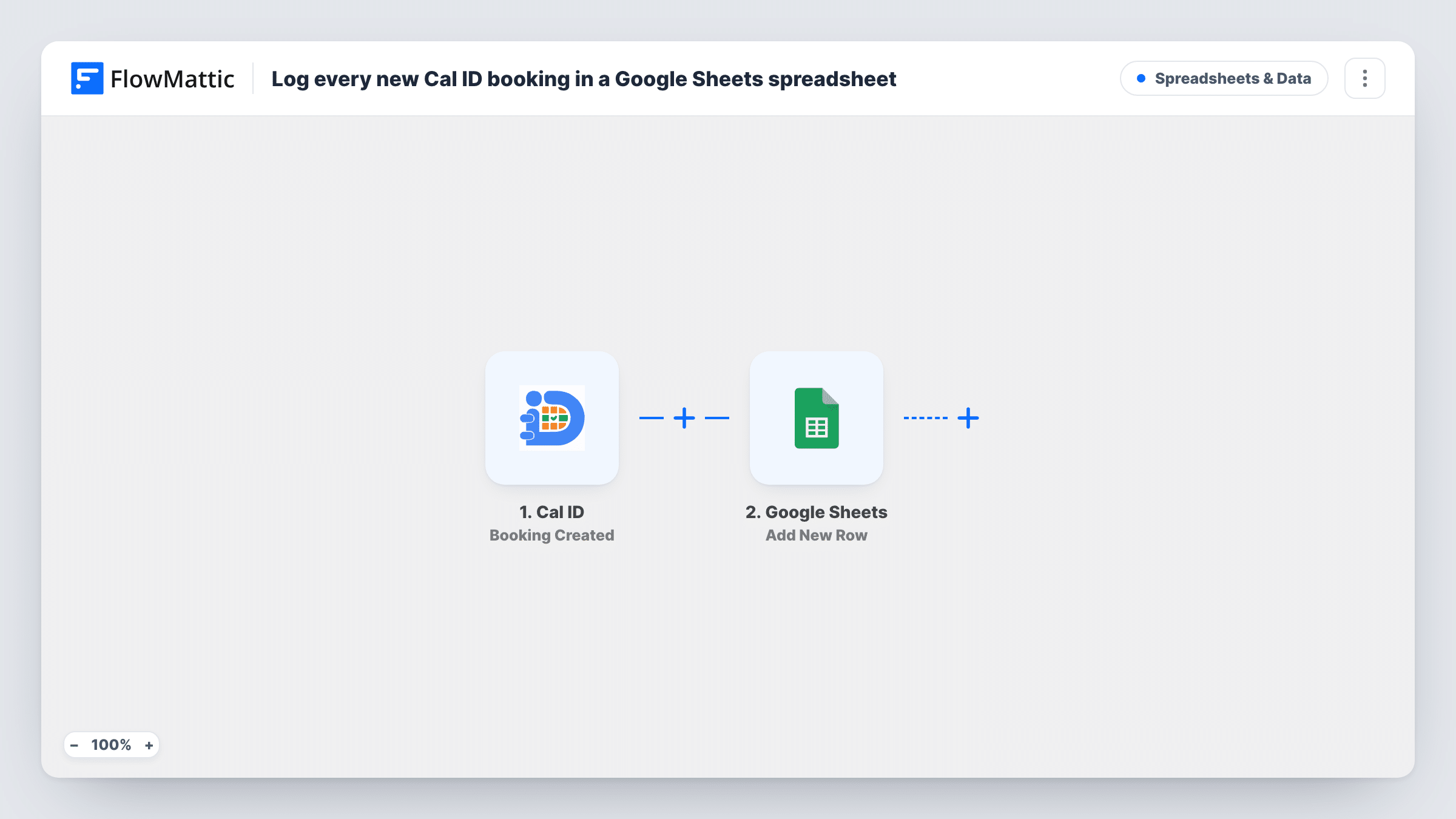
A new booking in Cal ID starts the workflow through its Booking Created trigger. FlowMattic then runs Google Sheets' Add New Row, which appends one row to the sheet you pick. Which details land in which column is up to your mapping: attendee name and email, the meeting title, start time and any answers your booking page collects.
Only new bookings are logged. When someone reschedules or cancels, the original row stays as it was, since this template listens to Booking Created alone. You can review each run, and the data it carried, in Task History.
Tracking client sessions for invoicing
A freelance coach bills at the end of each month and works from the sheet of sessions booked, instead of scrolling back through the Cal ID calendar.
A booking list for the front desk
Reception at a small practice keeps the shared sheet open to see who booked and for what, without needing their own Cal ID login.
Comparing meeting types
A consultant offering short intro calls and longer workshops sorts the sheet by meeting title to see which one people book more.
How this workflow runs
What happens at each step once the workflow is on, and what you need before you import it.
 Cal ID Booking Created
Runs when a new booking is created in Cal ID. Its attendee, meeting and time details are handed on so you can map them into the spreadsheet.
- Google Sheets Add New Row
Appends a row to your chosen Google Sheets spreadsheet for every Cal ID booking. Map booking fields to the columns you want and link your Google account during import.
What you need
- FlowMatticCore
- Cal ID AccountAccount
- Google Sheets AccountAccount
After importing, map your own data. To keep the template universal, not every step is pre-filled. Open each step in the builder and connect your accounts and fields (channels, lists, sheets, recipients) before you switch the workflow on.
Make it yours
Changes worth making after you import it.
- Book a test slot on your own Cal ID page after import, so the trigger has sample data. Then build the sheet's header row around the fields you see.
- Use Cal ID's Booking Cancelled trigger in a second workflow that writes to a cancellations tab, so the main sheet isn't the only record.
- If only one meeting type matters for the log, place a Filter after the trigger that checks the meeting title.
Questions about this workflow
Does the Google Sheet update when a Cal ID booking is rescheduled?
No. Rescheduling fires Cal ID's Booking Rescheduled trigger, which this template doesn't use. Build a second workflow on it if you want those changes recorded.
Will bookings made before I import this show up?
No. Rows are only added for Cal ID bookings created after you switch the workflow on.
Can I log Cal ID out of office entries as well?
Not in this one, but a second workflow can do it. Cal ID has an Out Of Office Entries trigger that fires when a new entry is created, and you can point it at another tab.
Is Cal ID the same app as Cal.com?
FlowMattic lists them as separate apps with their own triggers. Use this template if your bookings run through Cal ID.
More Spreadsheets & Data workflows
Other ready-to-import templates from the same category.




Import this workflow into your WordPress site
Download the JSON, import it from the Workflows screen and connect your accounts. Every run stays on your server, with no per-task fees.
30-day money-back guarantee Unlimited workflows and runs Self-hosted