

When a shop order occurs on Ko-fi, add order details into Airtable for inventory tracking
When someone places an order in your Ko-fi shop, this workflow creates a record in Airtable with the order details you map, giving you a base of sales to track stock and fulfilment from.
 Ko-fi
 Airtable
2 steps Setup ~5 min Used on 1.4k sites Free to import
What this workflow does
Selling prints, stickers or digital goods through a Ko-fi shop is simple, but knowing what has sold, what needs posting and what is running low means keeping your own list. Airtable suits that job, and this workflow adds each order to it as a record.
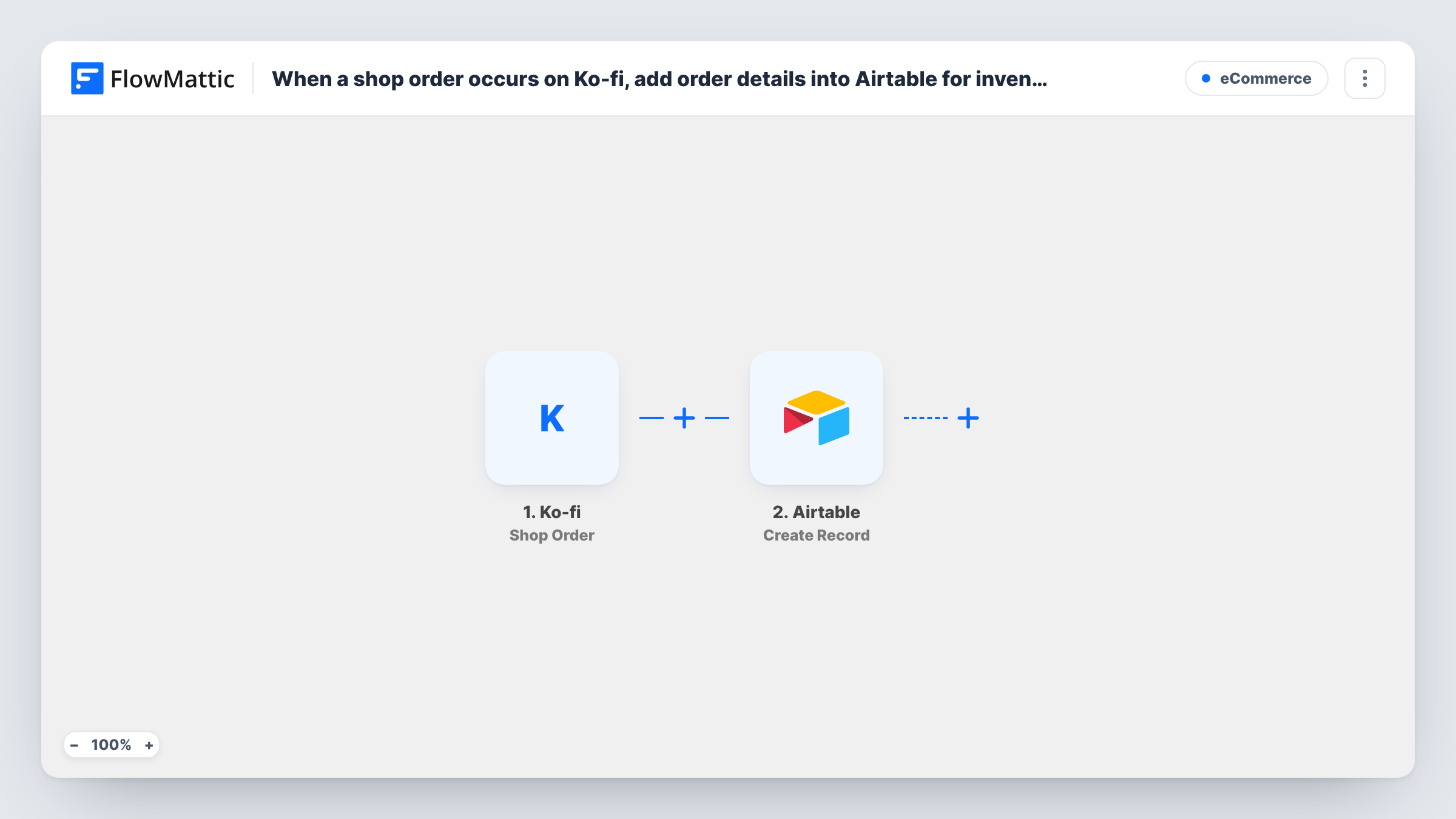
The Ko-fi trigger, Shop Order, fires when someone places an order in your shop. FlowMattic sends the order data to Airtable, whose Create Record step adds a new record to the base and table you choose. You map the order values, such as the buyer, the items and the amount, to your table's fields.
The workflow records sales. It doesn't change stock counts on its own: no step subtracts quantities from an inventory table. If your base works out stock from the order records, those numbers follow each new record. Otherwise, treat the table as a sales log you check against your stock. Task History lists every order the workflow handled.
Packing list for physical goods
An artist selling prints adds a Shipped checkbox to the Airtable table and ticks it off as each order goes out, working straight from the records.
Counting sales per product
A sticker seller groups the Airtable orders by item to see which designs sell and which to reprint.
Keeping buyer details for follow-up
A creator keeps buyer names and emails in Airtable, if Ko-fi sends them, to send a thank-you note or an update on a delayed order.
How this workflow runs
What happens at each step once the workflow is on, and what you need before you import it.
 Ko-fi Shop Order
Fires when someone places an order in your Ko-fi shop. The order data Ko-fi sends, such as buyer and item details, becomes available to map.
- Airtable Create Record
Adds one Airtable record per Ko-fi order to the base and table you pick. Map Ko-fi order values to your table's fields and connect your Airtable account on import.
What you need
- FlowMatticCore
- Ko-fi AccountAccount
- Airtable AccountAccount
After importing, map your own data. To keep the template universal, not every step is pre-filled. Open each step in the builder and connect your accounts and fields (channels, lists, sheets, recipients) before you switch the workflow on.
Make it yours
Changes worth making after you import it.
- Place a low-priced test order in your own Ko-fi shop after import. You'll see exactly which order fields arrive before you set up the Airtable columns.
- An order with several items may arrive as a list in one field. Check a test run, and add an Iterator if you want one Airtable record per item.
- Add a single select field such as Status in Airtable and set it to New in the mapping, so fresh orders are easy to find.
Questions about this workflow
Does this reduce stock counts in Airtable?
No. It only creates an order record. Stock goes down in your base only if your table setup calculates it from the order records.
Are Ko-fi donations added to Airtable as well?
No. The trigger is Shop Order, so donations and memberships don't run this workflow. Ko-fi has separate triggers for those.
Will older Ko-fi shop orders be imported?
No. Only orders placed after the workflow is switched on create Airtable records.
What if my Airtable field types don't match the Ko-fi data?
Airtable may reject a value that doesn't fit the field, for example text in a number field. Task History shows Airtable's response for that run, so you can adjust the mapping or the field type.
More E-Commerce workflows
Other ready-to-import templates from the same category.





Import this workflow into your WordPress site
Download the JSON, import it from the Workflows screen and connect your accounts. Every run stays on your server, with no per-task fees.
30-day money-back guarantee Unlimited workflows and runs Self-hosted