

When a new order is received in WooCommerce, loop through the line items using Iterator, and add the data to Google Spreadsheet
For every new WooCommerce order, this workflow loops through the order’s line items with an Iterator and adds one Google Sheets row per product, giving you item-level sales data in a spreadsheet.
 WooCommerce
 Iterator
 Google Sheets
3 steps Setup ~5 min Used on 3.2k sites Free to import
What this workflow does
A single WooCommerce order can hold several products, and a one-row-per-order export squashes them together. If you want to count units per product or report on sales by item, you need each line item on its own row. This workflow builds that sheet as orders arrive.
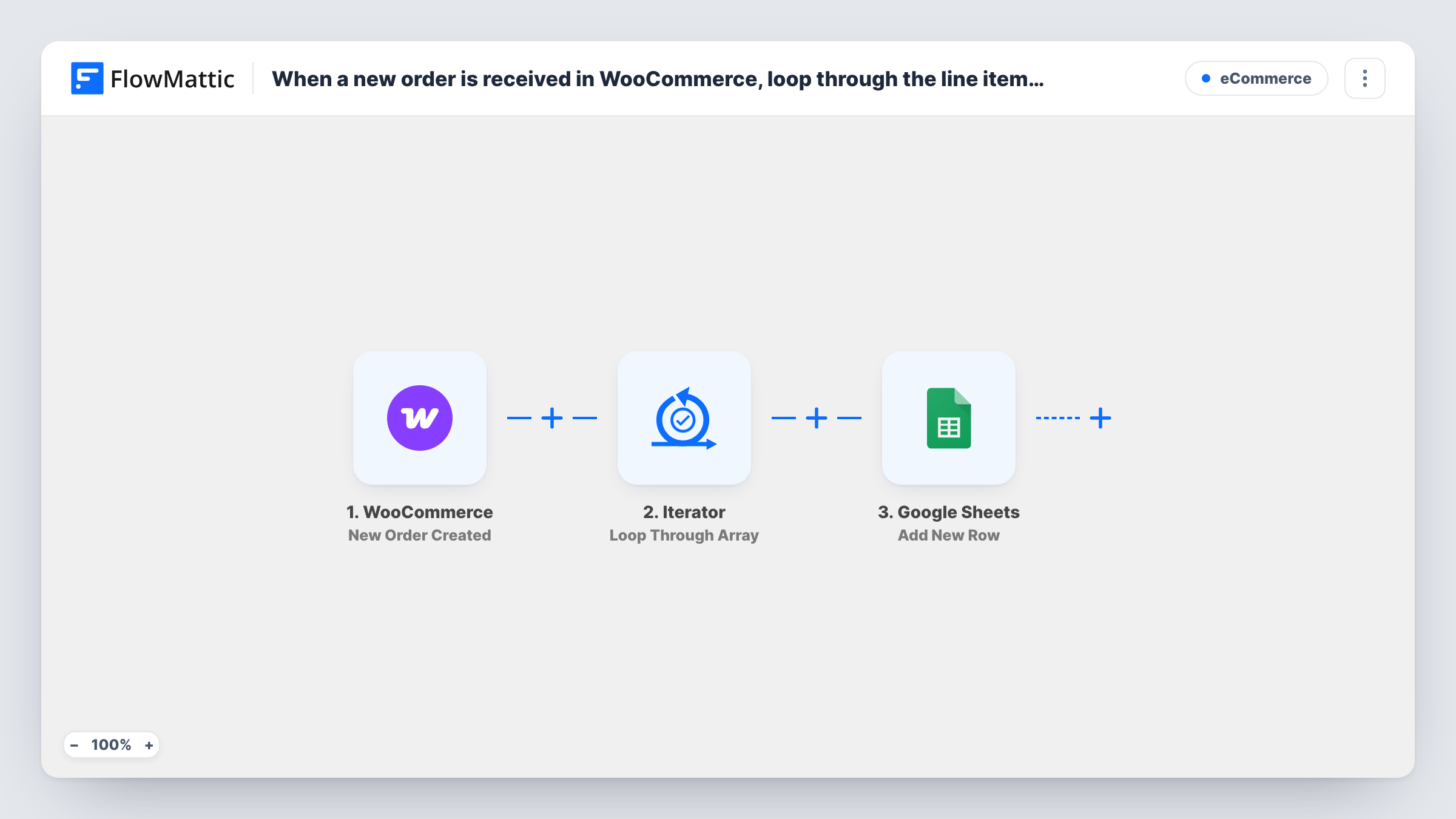
Each run begins with the WooCommerce New Order Created trigger, which picks up the order as it is placed. The Iterator step then takes the order's line items array, which you map into it, and runs the next step once for each item. For every item, the Google Sheets step adds a new row with the data you map, such as product name, quantity and line total.
You can also map order-level details, like the order number or date, into every row so you can group the items back into orders. So a basket of three different products ends up as three separate rows. Task History shows each run and the rows it added.
Units sold per product
A store owner sorts the sheet by product name to see how many of each item sold this month, without opening every order.
Picking lists for a warehouse
Staff read one row per item with its quantity, which is easier to work through than orders holding several products each.
Supplier reorder planning
A shop that resells from several suppliers totals sold quantities per item in the sheet to plan its next purchase order.
How this workflow runs
What happens at each step once the workflow is on, and what you need before you import it.
 WooCommerce New Order Created
Starts on each order created in your store. Place a test order with two products so the line items array is captured for the Iterator.
- Iterator Loop Through Array
Loops through the array you map into it, here the order's line items, and runs the Google Sheets step once for each item.
- Google Sheets Add New Row
Adds a row to your chosen spreadsheet for the current line item. Map the item's fields from the Iterator, plus order details from the trigger such as the order number.
What you need
- FlowMatticCore
- WooCommerce PluginPlugin
- Google Sheets AccountAccount
After importing, map your own data. To keep the template universal, not every step is pre-filled. Open each step in the builder and connect your accounts and fields (channels, lists, sheets, recipients) before you switch the workflow on.
Make it yours
Changes worth making after you import it.
- Put the order number in a column on every row. It ties each line item back to its order when you filter or pivot the sheet.
- To leave some products out, add a Filter after the Iterator. It skips only the items that fail and the loop moves on to the next one.
- Give the product SKU its own column if your products have SKUs, so reports don't depend on product names you might change later.
Questions about this workflow
Does a WooCommerce order with one product still add a row?
Yes. The line items array then has one item, so the Iterator runs the Google Sheets step once.
Will failed or cancelled WooCommerce orders appear in the sheet?
The trigger fires when an order is created, whatever happens to it afterwards, so those orders are written too. Add a Filter on the order status after the trigger if you want only some statuses.
Can I add one row per order instead of per item?
Yes. Remove the Iterator and map the order fields straight into the Google Sheets step. You would then lose the item-level detail.
Will past WooCommerce orders be added to the spreadsheet?
No. Only orders created after the workflow is turned on are looped through and written.
More E-Commerce workflows
Other ready-to-import templates from the same category.





Import this workflow into your WordPress site
Download the JSON, import it from the Workflows screen and connect your accounts. Every run stays on your server, with no per-task fees.
30-day money-back guarantee Unlimited workflows and runs Self-hosted