

When a subscription product is bought in Sellfy, enroll the user in a course in Tutor LMS
When someone buys a subscription product in Sellfy, FlowMattic creates their WordPress account, or reuses the one their email already has, and enrolls that user in the Tutor LMS course you choose.
 Sellfy
 WordPress
 Tutor LMS
3 steps Setup ~5 min Used on 2.9k sites Free to import
What this workflow does
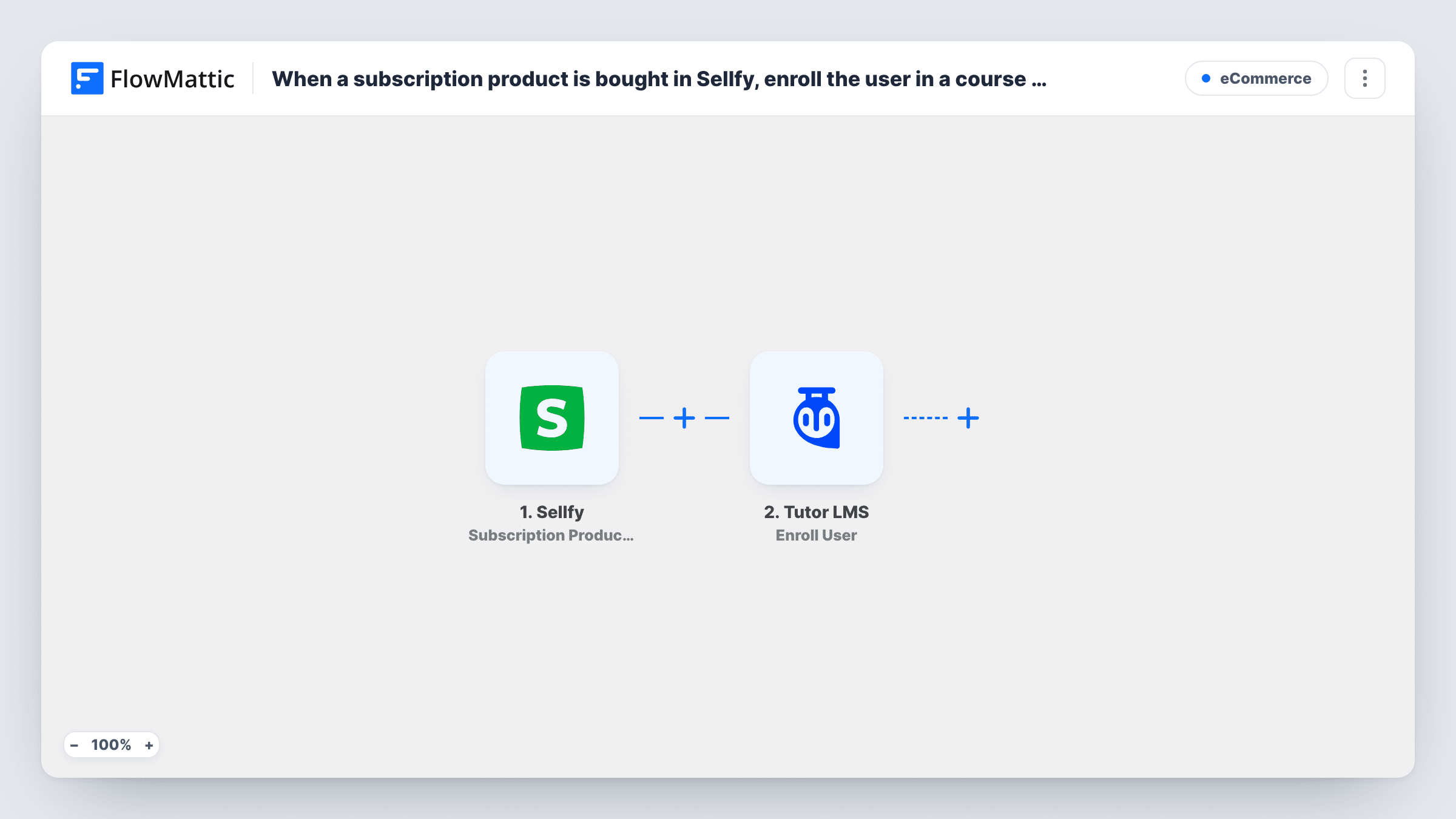
Selling course access as a Sellfy subscription leaves a gap: the payment happens on Sellfy, but the lessons live in Tutor LMS on your WordPress site. This workflow closes that gap by turning each subscription purchase into a WordPress user with a course enrollment.
The Sellfy trigger fires when a customer purchases a subscription product and passes on the buyer's details. A WordPress New User step then creates an account. It ships unmapped, so after import you map the buyer's email and name from Sellfy into it. A buyer whose email is already registered keeps their one account, because WordPress won't make a duplicate; the step's entry in Task History shows the user ID it handed on. Any role you map in the step would be added to that existing account as well.
The last step enrolls that user in a Tutor LMS course. The user ID from the New User step is already mapped in, so the enrollment goes to the account step 2 created or found. You still pick the course after import.
Every subscription purchase starts a run, whichever product was bought. If you sell several subscriptions tied to different courses, add a check on the product before the enrollment. Buy a test subscription and confirm the student can log in and see the course.
Monthly course membership sold on Sellfy
A creator sells a monthly subscription on Sellfy and wants each subscriber to land in the matching Tutor LMS course on their WordPress site straight after paying.
Coaching programme with a members' course
A coach bundles weekly calls with a self-paced Tutor LMS course, and each Sellfy subscription gives the buyer a WordPress login with the course already enrolled.
Returning buyers with an existing login
A past customer who already has a WordPress account buys a new subscription, and the workflow enrolls their existing account rather than making a duplicate.
How this workflow runs
What happens at each step once the workflow is on, and what you need before you import it.
 Sellfy Subscription Product Bought
Fires when a customer buys a subscription product in Sellfy. The buyer's details from the purchase, such as email and name, are passed to the WordPress step.
- WordPress New User
Sets up a WordPress account for the Sellfy buyer. Map the buyer's email and name from Sellfy into it after import. For an email that already has an account, WordPress keeps that account and the step returns its user ID.
- Tutor LMS Enroll User
Adds that WordPress account to the Tutor LMS course of your choice. The user ID from the New User step is pre-mapped; choose the course after import and run a test purchase to confirm the enrollment.
What you need
- FlowMatticCore
- Sellfy AccountAccount
- Tutor LMS PluginPlugin
After importing, map your own data. To keep the template universal, not every step is pre-filled. Open each step in the builder and connect your accounts and fields (channels, lists, sheets, recipients) before you switch the workflow on.
Make it yours
Changes worth making after you import it.
- If each Sellfy subscription maps to its own course, put a Router between the New User step and the Enroll User step, give each route a condition on the product name and move a copy of Enroll User for that course into it. Use names that can't both match.
- Before going live, open the new account from a test purchase in Users and check it has the role you expect for students.
- Add an Email step after the Tutor LMS step that tells the student how to set their password and where to find the course.
- Pair this with a second workflow on Sellfy's Subscription Product Canceled trigger and Tutor LMS's Remove User Enrollment action, so cancelled subscribers lose access.
Questions about this workflow
What if the Sellfy buyer already has an account on my WordPress site?
They keep their one account. WordPress doesn't make a duplicate for a registered email, so the New User step returns the existing user's ID and Tutor LMS enrolls that account. Open the run in Task History to see the ID the step passed on.
How does the new student log in to Tutor LMS?
With the WordPress account the New User step creates. Check that account after a test purchase, then tell students how to sign in, for example with a follow-up email that points them to the Lost your password link on your login page.
Do I have to pick the course in advance?
Yes. The Enroll User step has the user ID mapped but no course chosen, so pick the Tutor LMS course after import. Every purchase is enrolled in that one course unless you add a Router between the New User step and the Enroll User step.
Does cancelling the Sellfy subscription remove the enrollment?
No. The Sellfy trigger here only fires on a subscription purchase. Build a second one on Sellfy's Subscription Product Canceled trigger with Tutor LMS's Remove User Enrollment action to handle cancellations.
More E-Commerce workflows
Other ready-to-import templates from the same category.






Import this workflow into your WordPress site
Download the JSON, import it from the Workflows screen and connect your accounts. Every run stays on your server, with no per-task fees.
30-day money-back guarantee Unlimited workflows and runs Self-hosted