

Send a Slack alert for Qlik app events such as created, reloaded or published
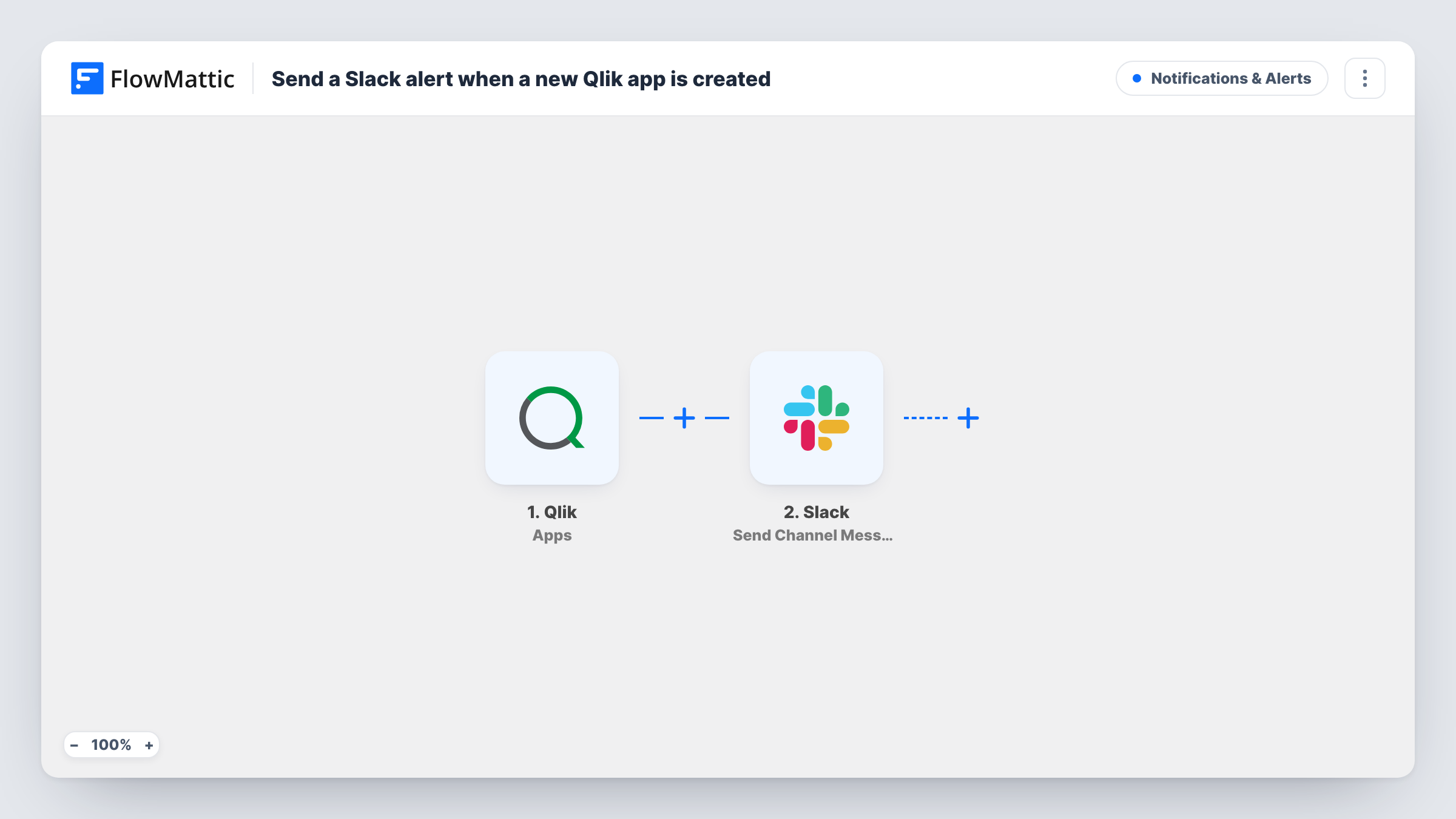
When Qlik reports an app event you subscribed to, such as an app being created, reloaded or published, FlowMattic posts a message about it to the Slack channel you pick.
 Qlik
 Slack
2 steps Setup ~5 min Used on 2.9k sites Free to import
What this workflow does
Analytics teams often learn that a Qlik app was published, reloaded or deleted only when someone asks why a dashboard looks different. This workflow sends those app events to Slack as they happen, so the people who own the data see the change in a channel they already read.
The Qlik Apps trigger receives app events from a webhook you create in Qlik. FlowMattic describes it as firing when an app is created, deleted, data updated, reloaded, published or exported. You choose which of those events the Qlik webhook sends, so pick only the ones your team wants to hear about. Each event's details, such as the app and the event type, are passed on.
The Slack Send Channel Message step posts the alert. It ships unmapped: after import, connect your Slack workspace, choose the channel, and write the message with the Qlik fields you want, such as the app name and what happened to it.
Every event the webhook delivers produces one Slack message. Trigger a test event in Qlik, then look in Task History to see which fields arrived and what Slack returned.
Reload notices for data owners
A BI team subscribes the webhook to reload events so the finance channel in Slack hears each time the revenue app's data has been refreshed.
Publishing log for a Qlik admin
A Qlik administrator sends created, published and deleted events to a Slack admin channel to keep a running record of changes across the tenant.
Export alerts for sensitive apps
A data governance lead subscribes to export events and posts them to a review channel, so someone notices when an app is exported.
How this workflow runs
What happens at each step once the workflow is on, and what you need before you import it.
 Qlik Apps
Receives app events from your Qlik webhook. It can carry created, deleted, data updated, reloaded, published and exported events; select in Qlik only the event types you want alerts for.
- Slack Send Channel Message
Writes the Qlik alert into one Slack channel. The template leaves the channel and text empty, so connect Slack and build the alert from the Qlik event fields, such as the app name and event type.
What you need
- FlowMatticCore
- Qlik AccountAccount
- Slack AccountAccount
After importing, map your own data. To keep the template universal, not every step is pre-filled. Open each step in the builder and connect your accounts and fields (channels, lists, sheets, recipients) before you switch the workflow on.
Make it yours
Changes worth making after you import it.
- Put the event type at the start of the Slack message, so readers can tell a reload from a deletion without opening anything.
- Alerts meant for a private channel need Slack's Send Private Channel Message action instead, and alerts for a single teammate need Send Direct Message.
- For reloads and deletions in separate channels, add a Router between the Qlik trigger and the Slack step with one route per event type, move the existing Slack step into the first route and give the other route its own Slack step. Use conditions no event can match twice.
- Leave noisy events out of the Qlik webhook, such as frequent reloads, if your team only needs to hear about publishing and deletion.
Questions about this workflow
Which Qlik app events reach Slack?
The ones you subscribe the Qlik webhook to. The trigger handles created, deleted, data updated, reloaded, published and exported events, and each event the webhook sends becomes one Slack message.
Can I send only published Qlik apps to Slack?
Yes. When you create the webhook in Qlik, select only the published event. You can also add a Filter between the Qlik trigger and the Slack step that continues only when the event type is the one you want.
What does the Slack alert say as imported?
Nothing yet. The Send Channel Message step ships without a channel or text, so you write the message after import and map Qlik fields into it.
Does this Qlik workflow also cover new users?
No. It uses the Qlik Apps trigger. FlowMattic's Qlik integration has a separate Users trigger, which you could use in a second workflow for user events.
More Notifications & Alerts workflows
Other ready-to-import templates from the same category.




Import this workflow into your WordPress site
Download the JSON, import it from the Workflows screen and connect your accounts. Every run stays on your server, with no per-task fees.
30-day money-back guarantee Unlimited workflows and runs Self-hosted