

Log each Join.me meeting that starts in a Google Sheets spreadsheet
When a Join.me meeting starts, this workflow adds a row to Google Sheets with the meeting data you map, building a running log of your calls for reports, client billing or team records.
 Join.me
 Google Sheets
2 steps Setup ~5 min Used on 2.3k sites Free to import
What this workflow does
Knowing when your calls took place matters for invoices, timesheets and weekly reports. Join.me runs the meeting, but pulling a record of each session back out is a separate chore. This workflow writes the record as each meeting begins.
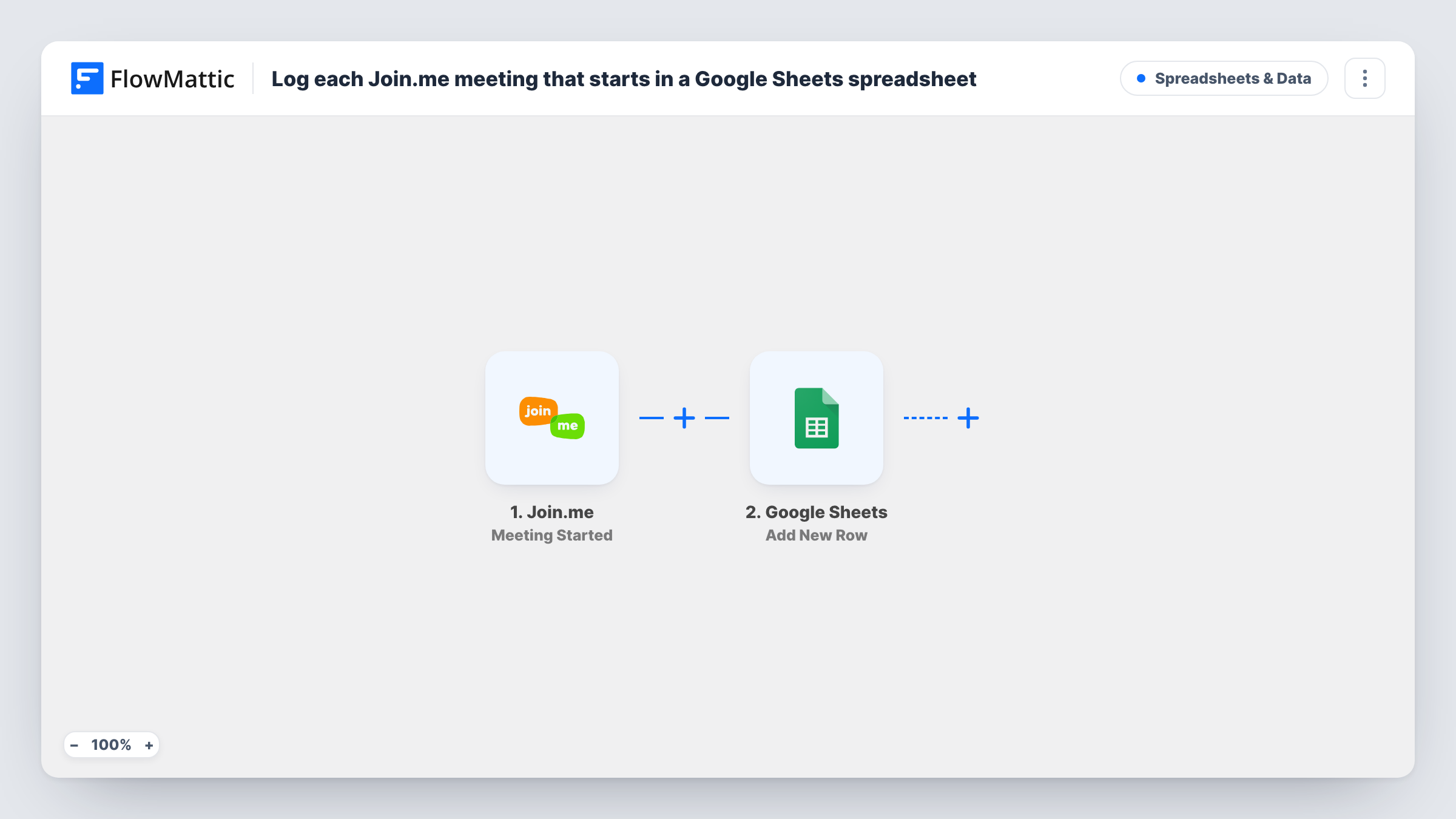
The Join.me trigger fires when a meeting is started. FlowMattic takes the meeting data from that event and hands it to Google Sheets, which adds a new row to the spreadsheet you pick. You choose the columns and which Join.me value goes in each.
Because the workflow runs at the start of a meeting, the row records that the call began, not how long it lasted. If you want end times as well, the Join.me app in FlowMattic also offers a Meeting Ended trigger you can use in a second workflow. Task History lists each run, which helps if a meeting seems to be missing from the sheet.
Billing clients for consulting calls
A consultant runs client calls on Join.me. The sheet lists each one as it starts, ready to check against the hours on the month's invoice.
Support team call log
A help desk uses Join.me for screen-sharing sessions. Each session started adds a row the team lead reviews at the end of the week.
Tutoring session records
A tutor holds lessons on Join.me, and the spreadsheet keeps a dated list of sessions to share with parents or a school.
How this workflow runs
What happens at each step once the workflow is on, and what you need before you import it.
 Join.me Meeting Started
Fires when a meeting starts in your Join.me account. The meeting's data is passed on for mapping in the Google Sheets step.
- Google Sheets Add New Row
Records the meeting on a fresh row of your chosen Google Sheets spreadsheet. Connect your Google account and map the Join.me values into the columns you want to keep.
What you need
- FlowMatticCore
- Join.me AccountAccount
- Google Sheets AccountAccount
After importing, map your own data. To keep the template universal, not every step is pre-filled. Open each step in the builder and connect your accounts and fields (channels, lists, sheets, recipients) before you switch the workflow on.
Make it yours
Changes worth making after you import it.
- Import this template a second time and switch its trigger to Join.me's Meeting Ended, writing to a second tab. Comparing the two tabs shows how long each call ran.
- Start a short test meeting after import so FlowMattic captures what Join.me sends, then map those values to your columns before turning the workflow on.
- Add a Slack or email step after the sheet if your team should also hear when a meeting begins.
Questions about this workflow
Does the Google Sheets row show how long the Join.me meeting lasted?
No. The trigger fires when the meeting starts, so the call hasn't ended yet. Use the Meeting Ended trigger in a separate workflow to record when calls finish.
Are Join.me meetings held before import added to the sheet?
No. Only meetings that start after you turn the workflow on create rows.
Which Join.me meetings end up in the sheet?
Every meeting that starts in the Join.me account you connect. The template has no Filter, so add one after the trigger if only some meetings should be logged, using a value a test run shows.
More Spreadsheets & Data workflows
Other ready-to-import templates from the same category.



Import this workflow into your WordPress site
Download the JSON, import it from the Workflows screen and connect your accounts. Every run stays on your server, with no per-task fees.
30-day money-back guarantee Unlimited workflows and runs Self-hosted