

When Member Removed From Level in Wishlist Member, Create a new contact in Mailchimp
When someone is removed from a Wishlist Member level on your WordPress site, this workflow adds them to a Mailchimp audience, or updates them if they are already there, so former members land on the list you use to reach them.
 Wishlist Member
 Mailchimp
2 steps Setup ~5 min Used on 2.6k sites Free to import
What this workflow does
A member who loses access to a level is still someone you may want to email, whether to explain what changed, offer a lower tier or invite them back. Wishlist Member handles access on your site, but it doesn't keep a separate list of people who left a level. This workflow puts them on one in Mailchimp.
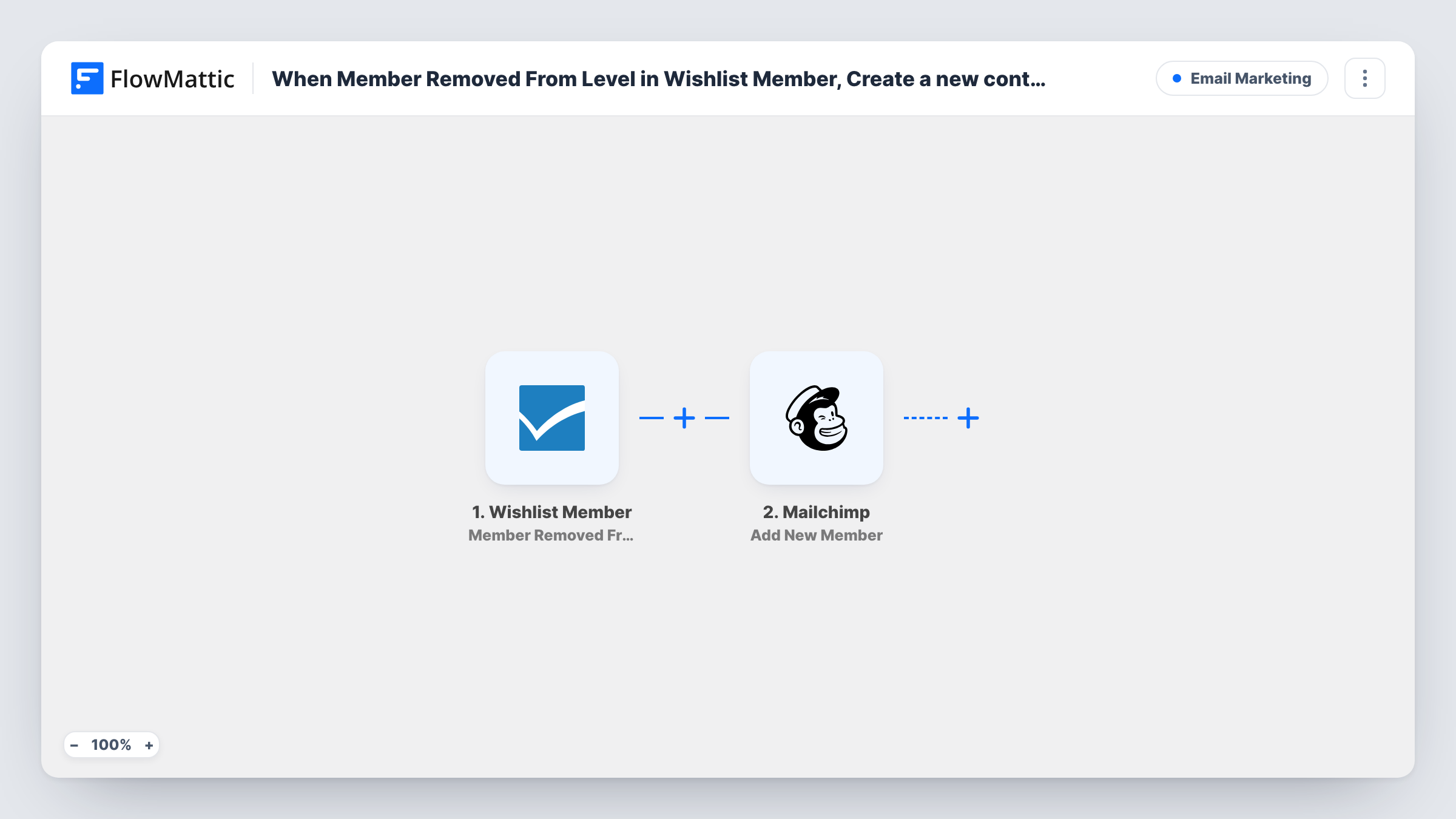
The Wishlist Member trigger fires when a member is removed from one or more levels. FlowMattic passes the member's details to Mailchimp, where Add New Member adds the person to the audience you choose. If that email is already on the audience, Mailchimp updates the existing member instead.
Every removal is handled the same way, whichever level it was. Pick a Mailchimp audience set aside for former members if you want to email them separately. For each removal, Task History keeps the data sent and how Mailchimp answered.
Win-back list for lapsed members
Members dropped from a paid level go onto a Mailchimp audience you use for re-join offers and updates on new content.
Downgrade follow-up
When an admin moves someone off a premium level, they reach a Mailchimp audience that explains what the free level still includes.
Exit survey
Former members are added to an audience that receives a short survey email asking why they left the level.
How this workflow runs
What happens at each step once the workflow is on, and what you need before you import it.
 Wishlist Member Member Removed From Level
Fires when a member is removed from one or more Wishlist Member levels on your site. The member's details are passed to Mailchimp.
- Mailchimp Add New Member
Adds the removed member to the Mailchimp audience you pick, or updates them if their email already exists there. Map the member's email and name; a test removal shows what Wishlist Member sends.
What you need
- FlowMatticCore
- Wishlist Member PluginPlugin
- Mailchimp AccountAccount
After importing, map your own data. To keep the template universal, not every step is pre-filled. Open each step in the builder and connect your accounts and fields (channels, lists, sheets, recipients) before you switch the workflow on.
Make it yours
Changes worth making after you import it.
- Add a Filter after the trigger that checks the level, so only removals from your paid levels reach Mailchimp.
- Map only fields that always hold a value. Because Add New Member updates existing people, a blank name in a later run could overwrite one Mailchimp already has.
- Wishlist Member also has a Member Cancelled From Level trigger in FlowMattic. Build a second workflow on it if cancellations need a different audience.
Questions about this workflow
What if the former Wishlist Member user is already in the Mailchimp audience?
Add New Member updates the existing Mailchimp member rather than adding a second copy, so the person stays on the audience with the details you map.
Does removing a member from a Wishlist Member level delete their WordPress account?
No. This workflow only reacts to the removal. The account and any other levels stay as Wishlist Member leaves them.
Will someone removed from several levels at once be sent to Mailchimp more than once?
The trigger fires when a member is removed from one or more levels. Run a test with a multi-level removal and check Task History to see how many runs you get.
Does Mailchimp email the person automatically?
Only if you set up an automation or campaign in Mailchimp for that audience. The workflow adds the member and sends nothing itself.
More Email Marketing workflows
Other ready-to-import templates from the same category.






Import this workflow into your WordPress site
Download the JSON, import it from the Workflows screen and connect your accounts. Every run stays on your server, with no per-task fees.
30-day money-back guarantee Unlimited workflows and runs Self-hosted