

Subscribe new OptiMonk leads to a MailerLite group for nurturing
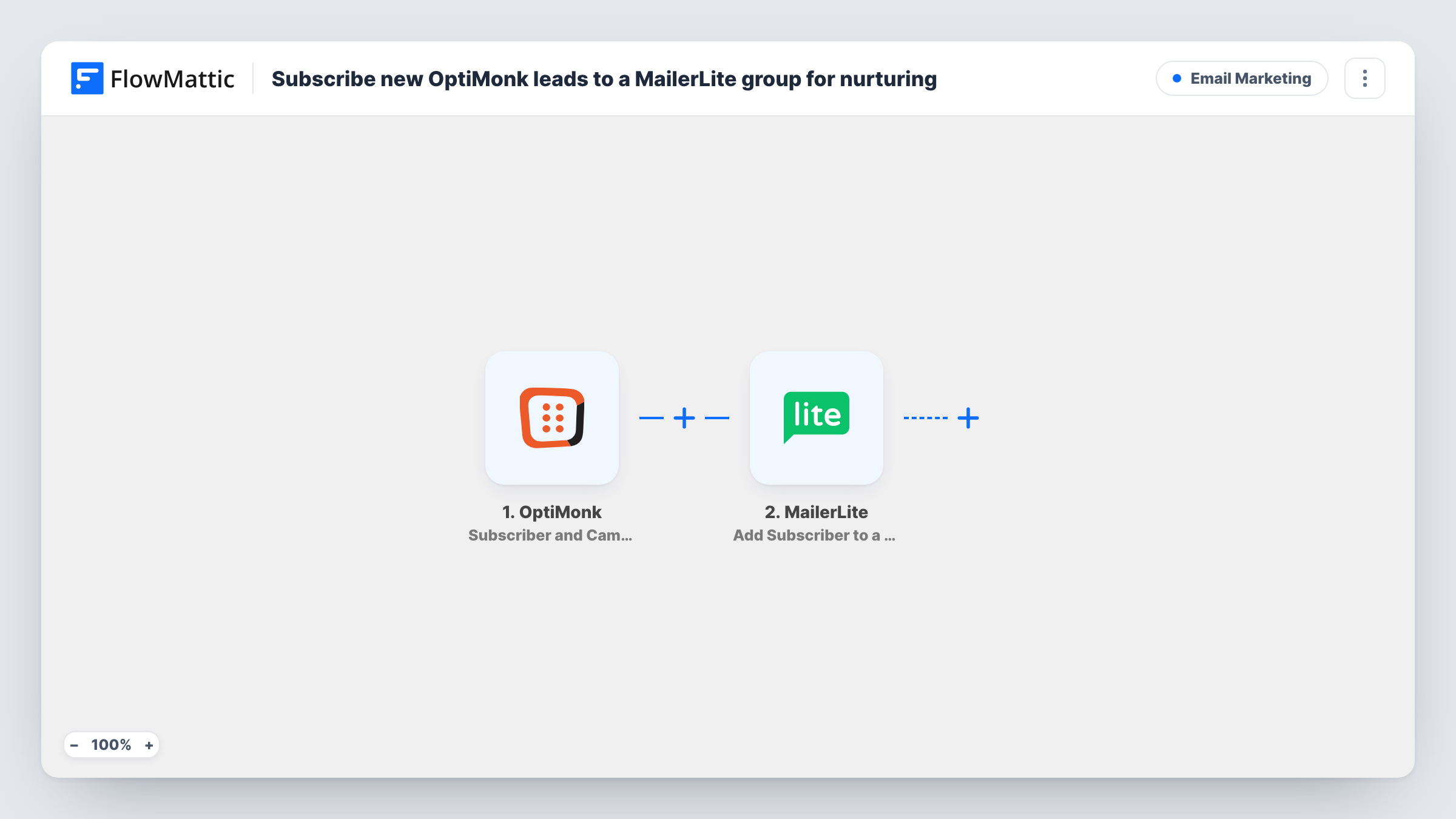
Each time OptiMonk passes new subscriber data from a popup, FlowMattic creates or updates that person in MailerLite and then puts them in the MailerLite group you use for nurture emails.
 OptiMonk
 MailerLite
3 steps Setup ~5 min Used on 3.2k sites Free to import
What this workflow does
A popup that collects emails is only useful if those addresses reach the place where your follow-up emails live. This workflow takes every lead OptiMonk captures and files it in MailerLite, inside a group, so your nurture automation can pick it up without a CSV export.
The OptiMonk trigger fires when new subscriber or campaign data is added, which happens when a visitor fills in one of your campaigns. FlowMattic receives what the visitor entered, such as the email address and any name field your popup asks for.
Two MailerLite steps follow. The first creates the subscriber, or updates the existing one when the address is already in your account, so the person is always there before the next step. The second adds that subscriber to a group. Both steps ship unmapped: after import you connect MailerLite, map the OptiMonk email into the first step, then pick the group and point the second step at the subscriber the first step returned.
Every OptiMonk submission runs the full workflow, so one person who signs up through two popups goes through it twice. MailerLite keeps a single subscriber for the address in that case. Run a test signup and open Task History to see what MailerLite sent back at each step.
Discount popup feeding a welcome sequence
A shop offers a first-order code in an OptiMonk popup. Each visitor who claims it lands in a MailerLite group whose automation sends the code and a short welcome series.
Lead magnet downloads sorted by topic
A blog runs one OptiMonk campaign per free guide and imports this workflow once per guide, each copy pointing at its own MailerLite group.
Exit-intent signups for a newsletter
Visitors who leave their email in an exit-intent popup join the newsletter group in MailerLite and get the next issue with everyone else.
How this workflow runs
What happens at each step once the workflow is on, and what you need before you import it.
 OptiMonk Subscriber and Campaign Data
Starts the workflow when OptiMonk adds new subscriber or campaign data, typically when a visitor submits a campaign. The values the visitor entered are passed to the MailerLite steps.
- MailerLite Create or Update Subscriber
Creates the person as a MailerLite subscriber, or updates them if the address already exists. The step ships unmapped, so map the email from OptiMonk and any name or custom fields you collect.
- MailerLite Add Subscriber to a Group
Puts the person created or updated in step 2 into one of your existing MailerLite groups. After import, choose the group and map the subscriber returned by step 2; a test run shows which value MailerLite returned.
What you need
- FlowMatticCore
- OptiMonk AccountAccount
- MailerLite AccountAccount
After importing, map your own data. To keep the template universal, not every step is pre-filled. Open each step in the builder and connect your accounts and fields (channels, lists, sheets, recipients) before you switch the workflow on.
Make it yours
Changes worth making after you import it.
- Create the nurture group in MailerLite before you set up step 3, since this action adds people to a group that already exists rather than making a new one.
- If some OptiMonk campaigns collect no email, put a Filter between the OptiMonk trigger and the Create or Update Subscriber step that continues only when the email is not empty.
- Map the OptiMonk campaign name into a MailerLite custom field in step 2, so you can later see which popup each subscriber came from.
Questions about this workflow
What happens if the OptiMonk lead is already a MailerLite subscriber?
Step 2 updates the existing subscriber instead of creating a second one, and step 3 still adds them to the group you picked.
Do I need a MailerLite automation for the nurture emails?
Yes. This workflow only puts people in the group. The emails come from whatever automation or campaign you set up in MailerLite for that group.
Can different OptiMonk popups go to different MailerLite groups?
As imported, every submission goes to the one group set in step 3. For separate groups, import a copy per campaign, or add a Router between the Create or Update Subscriber step and the group step, with one route per campaign name and its own group step on each route.
More Email Marketing workflows
Other ready-to-import templates from the same category.






Import this workflow into your WordPress site
Download the JSON, import it from the Workflows screen and connect your accounts. Every run stays on your server, with no per-task fees.
30-day money-back guarantee Unlimited workflows and runs Self-hosted