

When a new email is parsed (per email) in Mailparser, add a new row in Google Sheets
Each time Mailparser finishes parsing an email in your inbox, this workflow writes the extracted fields to a new Google Sheets row, one row per email, so parsed data sits in a spreadsheet you can sort and share.
 Mailparser
 Google Sheets
2 steps Setup ~5 min Used on 1.9k sites Free to import
What this workflow does
Mailparser pulls structured data out of emails such as order notifications, lead alerts and booking confirmations. The parsed results still live inside Mailparser, though, and most teams want them in a spreadsheet next to everything else. This workflow copies each parsed email into Google Sheets as soon as Mailparser has processed it.
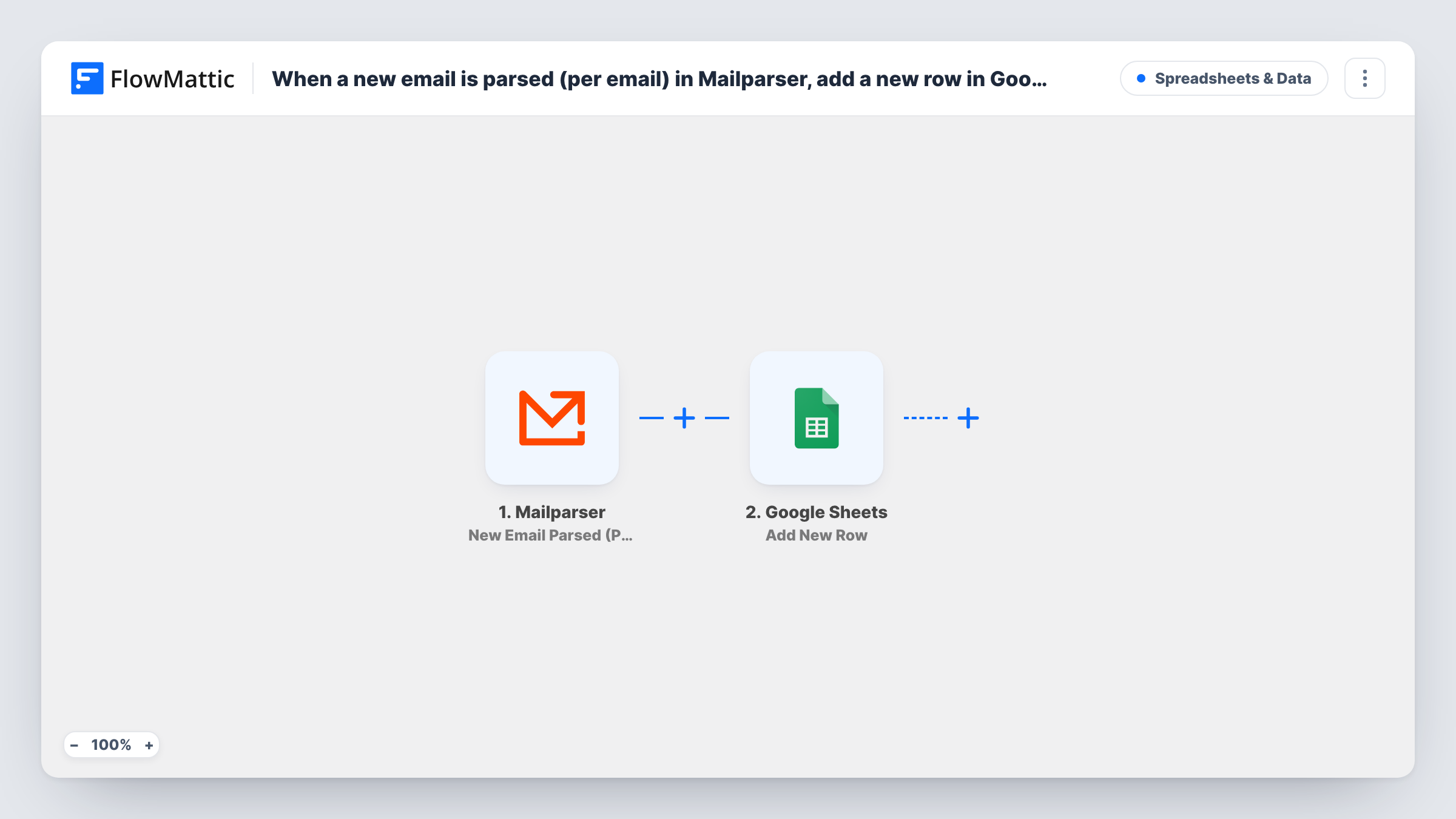
The Mailparser trigger fires when a new email is parsed in one of your Mailparser inboxes. It uses the per-email mode, so FlowMattic gets one request for each email, carrying the fields your parsing rules extracted. The Google Sheets step then adds a new row and fills the columns you map from those fields.
What lands in the sheet depends on your parsing rules. If a rule finds nothing in a particular email, that column stays blank for the row. Emails that arrived before you turn the workflow on are not copied. Task History keeps a record of each run, so you can see what Mailparser sent and what was written.
Order notification emails from a marketplace
A marketplace emails you each sale. Mailparser extracts the buyer, item and amount, and each sale becomes a row your bookkeeper can total.
Lead alerts from a listing site
Property or directory sites send enquiries by email. The parsed name, phone and message go into a shared sheet your sales team works from.
Supplier shipping confirmations
Tracking numbers and dispatch dates parsed from supplier emails collect in one sheet, so you can check what has shipped without searching your inbox.
How this workflow runs
What happens at each step once the workflow is on, and what you need before you import it.
 Mailparser New Email Parsed (Per Email)
Fires when Mailparser parses a new email in your inbox, with one request per email. The fields extracted by your parsing rules become available to map in the next step.
- Google Sheets Add New Row
Adds a row to the spreadsheet and sheet you pick, with each column mapped to a parsed field from Mailparser. Connect your Google account and create the column headers before mapping.
What you need
- FlowMatticCore
- Mailparser AccountAccount
- Google Sheets AccountAccount
After importing, map your own data. To keep the template universal, not every step is pre-filled. Open each step in the builder and connect your accounts and fields (channels, lists, sheets, recipients) before you switch the workflow on.
Make it yours
Changes worth making after you import it.
- Set up and test your Mailparser parsing rules first, then forward one sample email so FlowMattic captures the parsed fields you will map to columns.
- Add a Filter after the trigger that continues only when a key parsed field, such as an order number, is not empty. Emails your rules could not read then stay out of the sheet.
- Map the email's received date or subject into its own column if Mailparser provides it, so you can trace each row back to the original message.
Questions about this workflow
Why per email and not per table row in Mailparser?
This template uses the per-email trigger, so one parsed email gives one row. If your emails hold tables with several line items, all of them arrive in the same run, and you would need an Iterator to write one row per item.
Do I need a paid Mailparser account?
You need a Mailparser account with an inbox and parsing rules set up. Check your Mailparser plan for how many emails it parses.
What happens if Mailparser misses a field in an email?
The run still adds a row. The column mapped to the missing field is left blank, which makes it easy to spot emails your parsing rules need to handle.
Will emails Mailparser parsed before import show up in Google Sheets?
No. The trigger reacts to newly parsed emails, so only emails processed after you turn the workflow on reach the sheet. Export older results from Mailparser if you need them in the same spreadsheet.
More Spreadsheets & Data workflows
Other ready-to-import templates from the same category.



Import this workflow into your WordPress site
Download the JSON, import it from the Workflows screen and connect your accounts. Every run stays on your server, with no per-task fees.
30-day money-back guarantee Unlimited workflows and runs Self-hosted