

Add new Kylas CRM contacts to a Mailchimp audience for nurturing
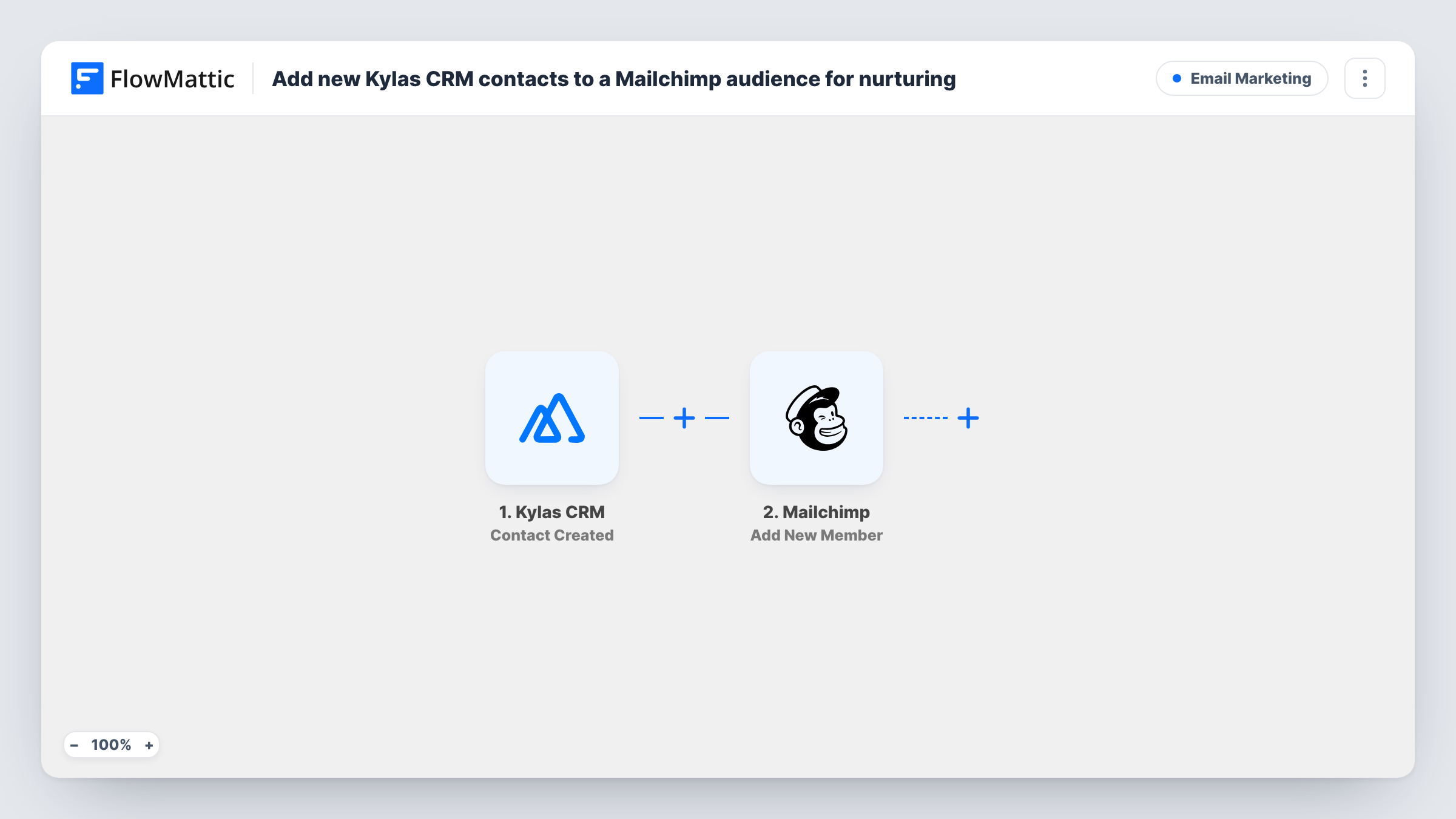
Each contact created in Kylas CRM is added to the Mailchimp audience you choose, or updated there if the address is already a member, so your sales contacts can receive nurture emails.
 Kylas CRM
 Mailchimp
2 steps Setup ~5 min Used on 1.9k sites Free to import
What this workflow does
Sales teams add contacts to Kylas CRM all day, from calls, meetings and imports. Marketing needs those same people in Mailchimp to send newsletters and nurture sequences. This workflow copies each new Kylas contact into a Mailchimp audience, so the two lists stop drifting apart.
The Kylas CRM trigger receives the contact events Kylas sends to FlowMattic. FlowMattic describes it as firing when a contact is created, updated or deleted, depending on what Kylas is set to send. When you set up the webhook in Kylas, subscribe it only to the Contact Created event. If you also tick updated or deleted, edits and deletions would run the workflow and send those contacts to Mailchimp too.
The Mailchimp step runs Add New Member, which adds the person to the audience or updates them if they already exist. It ships unmapped: after import you connect Mailchimp, choose the audience and map the contact's email, plus first and last name if you want them as merge fields.
Create a test contact in Kylas and check Task History. You'll see the fields Kylas sent and Mailchimp's response for the member.
Nurture emails for contacts from sales calls
A B2B team logs each new prospect in Kylas after a discovery call, and the person joins the Mailchimp audience that receives a monthly product update.
Event leads added by the sales team
After a trade show, reps enter the people they met as Kylas contacts, and each one is added to Mailchimp for the post-event email.
One audience for CRM and newsletter
A small agency keeps its Mailchimp audience in step with the Kylas contact list without exporting a CSV every month.
How this workflow runs
What happens at each step once the workflow is on, and what you need before you import it.
 Kylas CRM Contact Created
Fires for the contact events your Kylas webhook sends. Subscribe the webhook only to Contact Created, so each new contact starts one run and edits or deletions don't.
- Mailchimp Add New Member
Adds the Kylas contact to your Mailchimp audience, or updates the member if the email is already there. The step ships unmapped, so select your audience and map the Kylas email plus first and last name.
What you need
- FlowMatticCore
- Kylas CRM AccountAccount
- Mailchimp AccountAccount
After importing, map your own data. To keep the template universal, not every step is pre-filled. Open each step in the builder and connect your accounts and fields (channels, lists, sheets, recipients) before you switch the workflow on.
Make it yours
Changes worth making after you import it.
- Map the contact's first and last name into Mailchimp's merge fields so your nurture emails can open with the person's name.
- If only some Kylas contacts should get marketing email, put a Filter between the Kylas trigger and the Mailchimp step that checks a field you set in Kylas, such as a source or a consent flag.
- Before you turn the workflow on, create a Kylas test contact with your own address and confirm it shows up in the right Mailchimp audience with the name filled in.
Questions about this workflow
Will editing a Kylas contact send it to Mailchimp again?
Not if the Kylas webhook is subscribed only to Contact Created. If it also sends updates, each edit starts a run, and Add New Member updates that person in Mailchimp again.
What if the Kylas contact is already in my Mailchimp audience?
Add New Member updates the existing member instead of adding a duplicate, using the fields you map.
Which Mailchimp audience do Kylas contacts join?
The audience you select in the Add New Member step after import. Nothing is preset in the template, including the email and name mapping.
Do Kylas contacts without an email reach Mailchimp?
Mailchimp needs an email address to add a member, so it may return an error for those runs, shown in Task History. A Filter between the trigger and the Mailchimp step that checks the email is not empty avoids that.
More Email Marketing workflows
Other ready-to-import templates from the same category.





Import this workflow into your WordPress site
Download the JSON, import it from the Workflows screen and connect your accounts. Every run stays on your server, with no per-task fees.
30-day money-back guarantee Unlimited workflows and runs Self-hosted