

Send a Slack alert to your sales team when an Insites analysis is completed
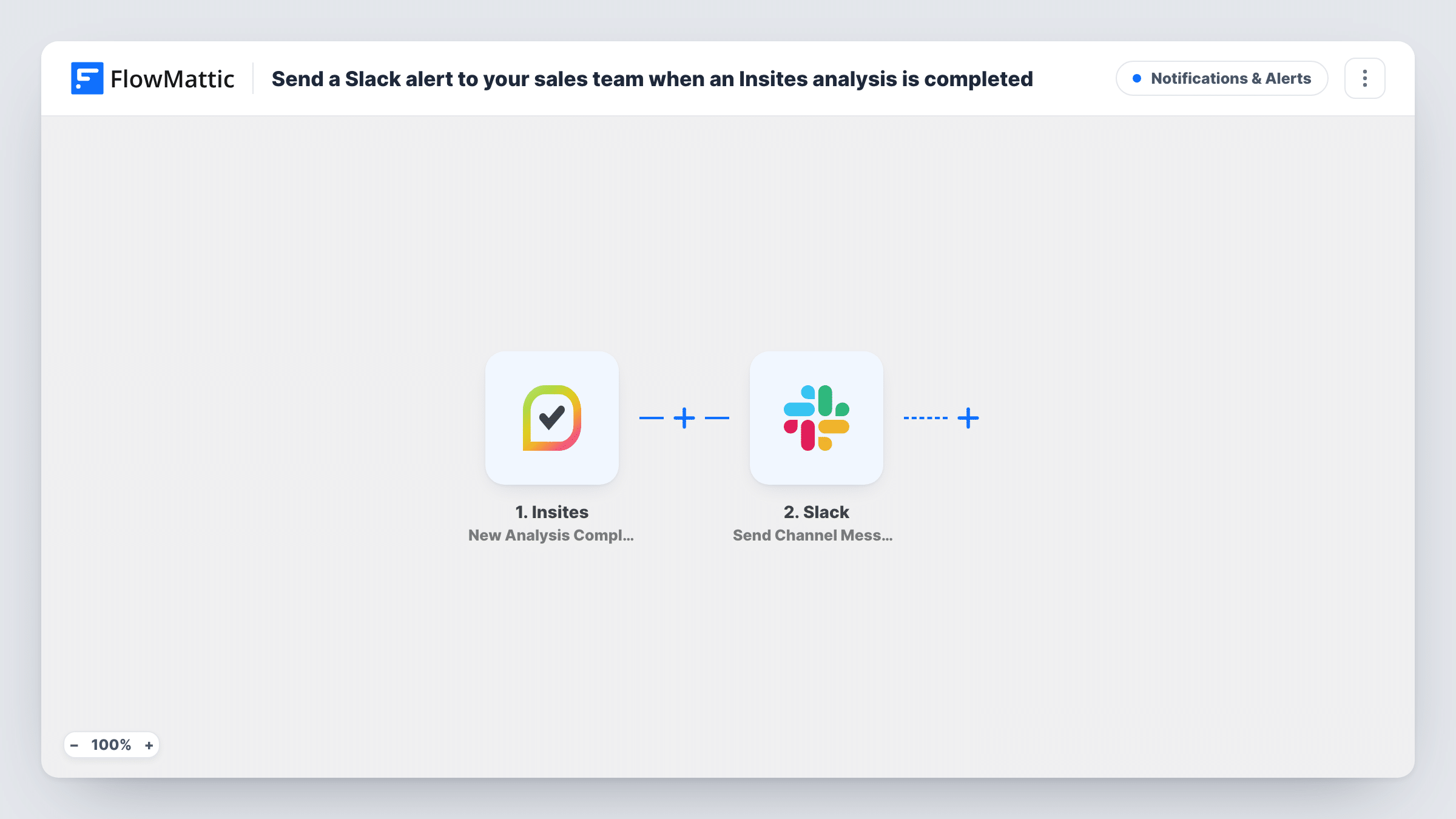
When Insites finishes a new website analysis, this workflow posts a message in the Slack channel your sales team uses, with the details you choose to pull from the report.
 Insites
 Slack
2 steps Setup ~5 min Used on 2.6k sites Free to import
What this workflow does
Insites analyses a prospect's website and produces a report your sales people can open a conversation with. That report only helps if someone knows it's ready. This workflow tells your sales channel in Slack each time an analysis completes, so nobody has to keep checking Insites.
The Insites trigger fires when a new analysis is completed. FlowMattic receives the analysis data and passes the values you map to Slack. The Send Channel Message action then posts your message, filled with those values, to a public channel your team reads.
Every completed analysis sends a message, including ones run for testing or for existing clients. A Filter placed right after the trigger can hold back the analyses you'd rather not announce. For a private sales channel, use Slack's Send Private Channel Message action instead. Each post is recorded in Task History with the text that went to Slack.
Agency sales channel
A web agency runs Insites reports on prospects' sites. The #sales channel gets a message for each finished report, with the site address, so a rep can claim it.
Outbound prospecting sprints
During a prospecting push, a team runs dozens of analyses. Slack shows each one as it completes, giving reps a running queue to call through.
Account managers checking client sites
Account managers analyse client websites before renewal meetings. The message in Slack tells them the report is ready to review.
How this workflow runs
What happens at each step once the workflow is on, and what you need before you import it.
 Insites New Analysis Completed
Fires when Insites completes a new website analysis in your account. The data from that analysis is passed on so you can use it in the Slack message.
- Slack Send Channel Message
Announces the finished analysis in Slack. Connect your Slack workspace, write the message and drop in Insites values, such as the site analysed, so the team knows which report is ready.
What you need
- FlowMatticCore
- Insites AccountAccount
- Slack AccountAccount
After importing, map your own data. To keep the template universal, not every step is pre-filled. Open each step in the builder and connect your accounts and fields (channels, lists, sheets, recipients) before you switch the workflow on.
Make it yours
Changes worth making after you import it.
- Use a Router with one Slack step per route to post agency prospects and existing clients in different channels, based on a value your test run shows in the Insites data.
- If the trigger data includes a report link, put it in the message so a rep can open the analysis straight from Slack.
- To ping one sales rep instead of the whole channel, swap the step for Slack's Send Direct Message action and pick the person.
Questions about this workflow
Which Slack channels can this Insites alert post to?
The step in this template, Send Channel Message, targets public channels. Slack's Send Private Channel Message action covers private ones, and Send Direct Message reaches a single rep.
Does every Insites analysis send a Slack message?
Yes, as imported. There is no Filter, so each completed analysis posts one message. Add a Filter if you want only certain analyses announced.
How do I word the Insites alert in Slack?
You write it yourself in the Slack step. Combine your own text with values from the Insites analysis that a test run shows, so the alert reads clearly in your channel.
Can I get Slack alerts for Insites lead generation form leads?
This template listens to New Analysis Completed. Insites has a separate Lead Generation Details Submitted trigger in FlowMattic, so build a second workflow on it if you want an alert carrying the prospect details from that form.
More Notifications & Alerts workflows
Other ready-to-import templates from the same category.





Import this workflow into your WordPress site
Download the JSON, import it from the Workflows screen and connect your accounts. Every run stays on your server, with no per-task fees.
30-day money-back guarantee Unlimited workflows and runs Self-hosted