

Send a Twilio SMS reminder when a Planyo payment is received
When Planyo records a payment, Twilio sends a text message to the number you map, so customers get a reminder of their booking details by SMS right after they pay.
 Planyo
 Twilio
2 steps Setup ~5 min Used on 652 sites Free to import
What this workflow does
People who book and pay through Planyo get an email, but a text message is harder to miss. A short SMS after payment can repeat the key details of the reservation, such as where to go and what to bring. This workflow sends that message for each payment.
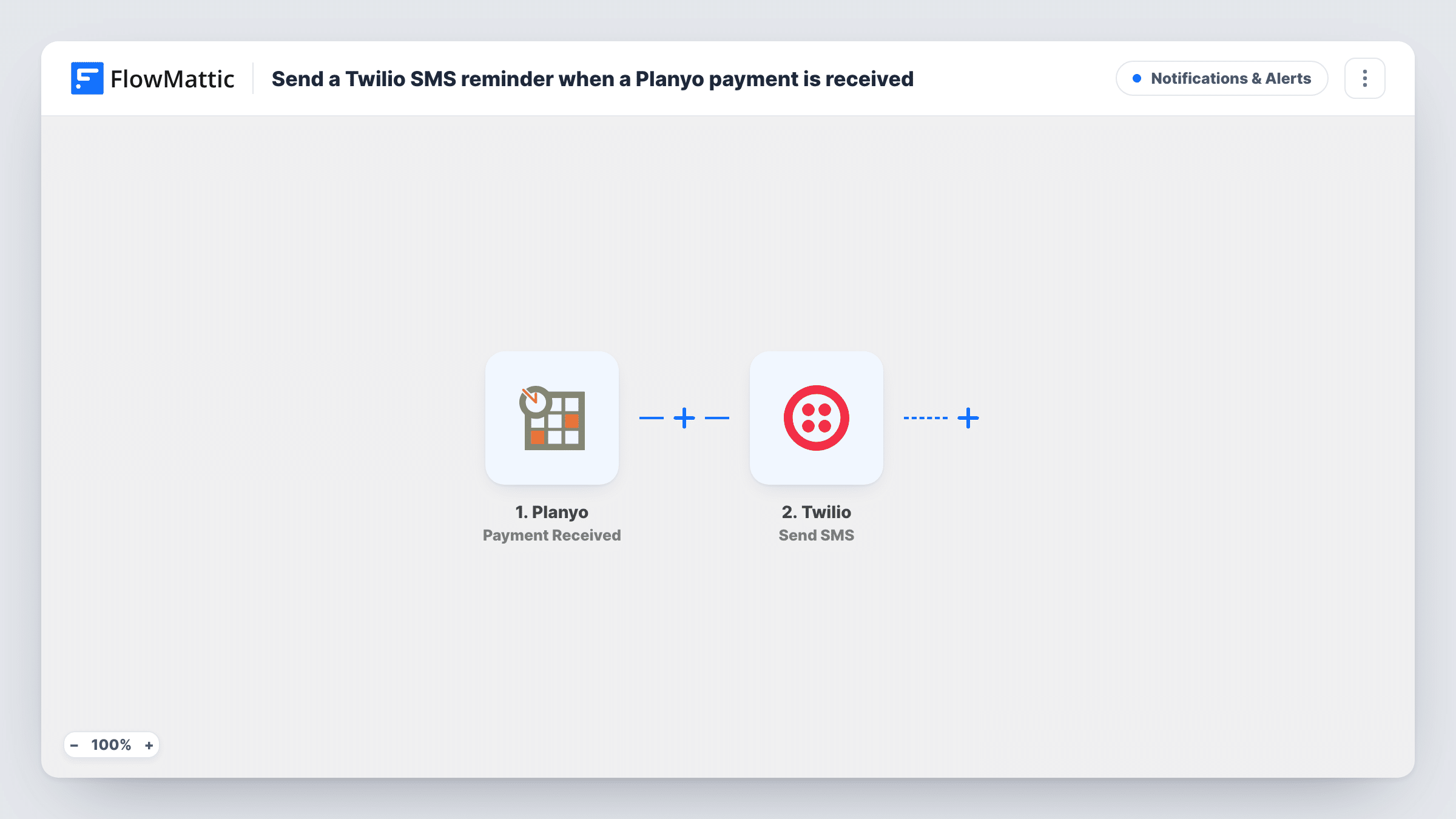
The Planyo trigger fires when a payment is received. FlowMattic passes the payment data to the Send SMS action in Twilio. You map the customer's phone number as the recipient and write the text, inserting Planyo details where they help.
The SMS goes out when the payment is recorded, not on a schedule before the booking. If you want a reminder closer to the date, add a Delay, as the tips explain. A customer who pays in parts, such as a deposit and then the balance, starts one run per payment and gets one text each time. Task History shows each run and Twilio's response.
Equipment rental pick-up details
A customer pays for a bike rental in Planyo and receives an SMS with the shop address and pick-up time to keep on their phone.
Holiday apartment check-in
Guests who pay for their stay get a text with check-in instructions and the host's contact number.
Class and tour bookings
Each paid place on a tour triggers an SMS reminding the guest of the meeting point and start time.
How this workflow runs
What happens at each step once the workflow is on, and what you need before you import it.
 Planyo Payment Received
Fires when a payment is received in Planyo. The payment data is passed on for mapping in the SMS.
- Twilio Send SMS
Texts the customer from your Twilio sender number. Map the customer's phone number from Planyo as the recipient, then write the message with booking details inserted.
What you need
- FlowMatticCore
- Planyo AccountAccount
- Twilio AccountAccount
After importing, map your own data. To keep the template universal, not every step is pre-filled. Open each step in the builder and connect your accounts and fields (channels, lists, sheets, recipients) before you switch the workflow on.
Make it yours
Changes worth making after you import it.
- Make a test payment, or wait for a real one, after import so FlowMattic captures the Planyo data and you can see whether the customer's phone number is included.
- For a reminder nearer the booking date, add a Delay step before Twilio set to wait until a date taken from the reservation, if Planyo sends one.
- Store customer phone numbers in Planyo with the country code, since Twilio needs the full international number to deliver the text.
Questions about this workflow
When is the Twilio SMS sent?
As soon as Planyo reports the payment. The template has no Delay, so the text arrives right after payment, not just before the reservation.
Will a deposit and a final Planyo payment send two texts?
Yes. Each payment Planyo reports starts its own run, so the customer gets one SMS per payment. Adjust the message so it reads well either way.
Which number does the Planyo payment text come from?
A phone number from the Twilio account you connect. Send yourself a test text after import to confirm which of your Twilio numbers the step uses.
More Notifications & Alerts workflows
Other ready-to-import templates from the same category.



Import this workflow into your WordPress site
Download the JSON, import it from the Workflows screen and connect your accounts. Every run stays on your server, with no per-task fees.
30-day money-back guarantee Unlimited workflows and runs Self-hosted