

Create MailerLite subscribers from new Zoho CRM leads
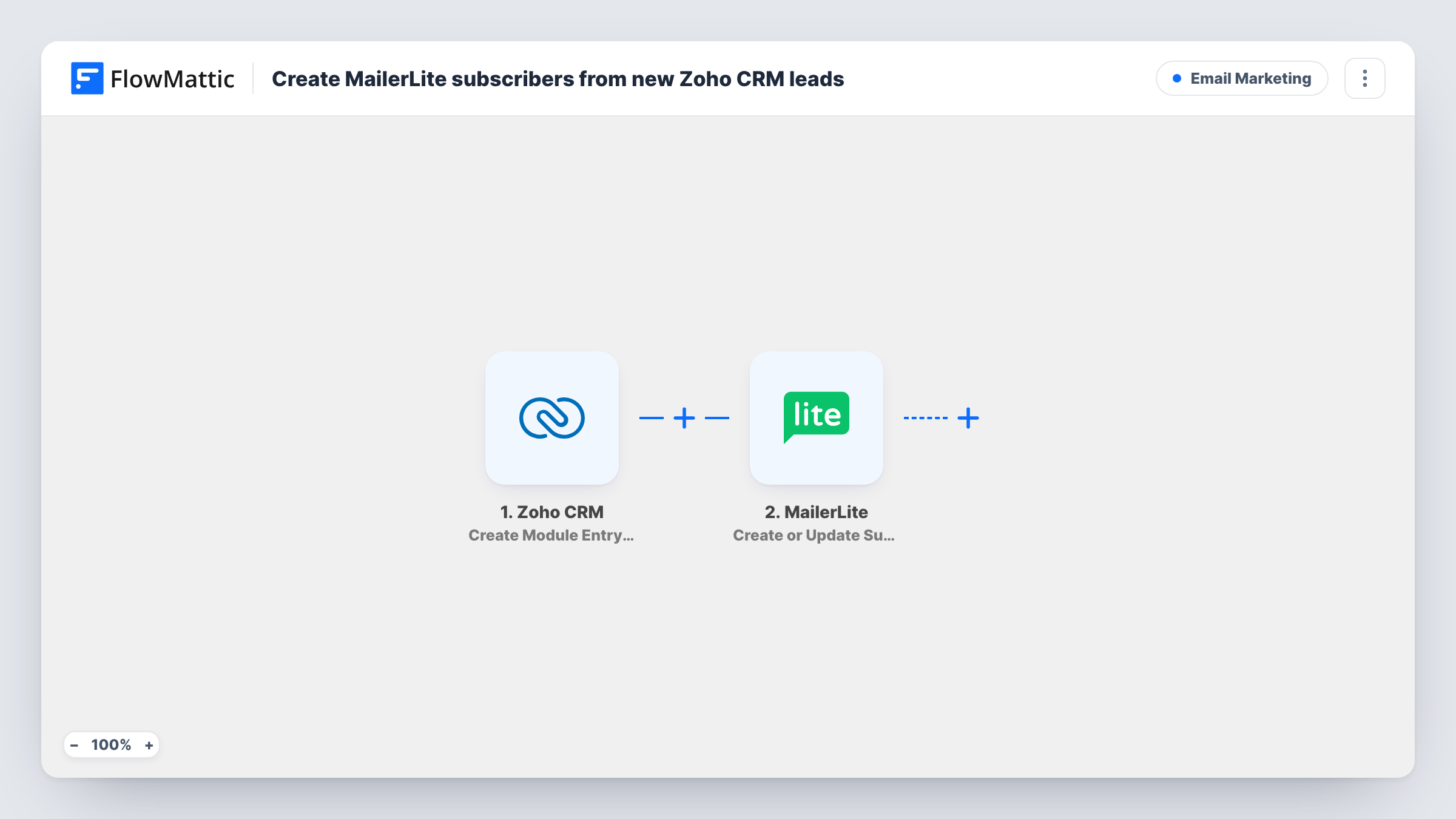
When a new lead is created in Zoho CRM, this workflow adds that person to MailerLite as a subscriber, or updates them if they are already there, so your email list keeps up with sales.
 Zoho CRM
 MailerLite
2 steps Setup ~5 min Used on 605 sites Free to import
What this workflow does
Sales teams add leads to Zoho CRM all day, while the newsletter and nurture emails go out from MailerLite. Exporting leads and importing them into MailerLite works, but the list is always a step behind. This workflow moves each new lead across as it is created.
The Zoho CRM trigger is Create Module Entry (Webhook), which fires when a new entry is created in a specific module. For this flow, that module is Leads. FlowMattic then passes the lead's details to MailerLite, whose Create or Update Subscriber action adds a new subscriber or updates the existing one with the same email, including any custom fields you map.
Each new lead runs the step once. Edits to the lead later don't fire this trigger, so changes made in Zoho CRM after creation won't reach MailerLite. Leads without an email address can't become subscribers, and Task History shows the MailerLite response for those runs.
Nurture emails for inbound leads
Marketing runs a welcome sequence in MailerLite. Every lead the sales team logs in Zoho CRM is added as a subscriber, ready for that sequence.
Leads imported from trade shows
After an event, reps enter the leads they met into Zoho CRM. Each one also becomes a MailerLite subscriber, so the post-event email reaches all of them.
One contact record across sales and marketing
A small business keeps Zoho CRM as the place leads start. MailerLite follows along, so nobody keeps a separate spreadsheet of email addresses.
How this workflow runs
What happens at each step once the workflow is on, and what you need before you import it.
 Zoho CRM Create Module Entry (Webhook)
Fires when a new entry is created in the Zoho CRM module the trigger is set to watch. Set it to Leads, and follow the trigger's setup in FlowMattic so Zoho CRM sends the event.
- MailerLite Create or Update Subscriber
Creates a MailerLite subscriber from the lead, or updates the subscriber if that email is already on your account. Map the lead's email, name and any custom fields you use.
What you need
- FlowMatticCore
- Zoho CRM AccountAccount
- MailerLite AccountAccount
After importing, map your own data. To keep the template universal, not every step is pre-filled. Open each step in the builder and connect your accounts and fields (channels, lists, sheets, recipients) before you switch the workflow on.
Make it yours
Changes worth making after you import it.
- Add MailerLite's "Add Subscriber to a Group" step after this one. The subscriber exists by then, so leads land in a group you can target with a campaign.
- Add a Filter after the trigger that continues only when the lead's email is not empty, so leads logged from a phone call alone don't produce failed runs.
- If the lead has a consent field in Zoho CRM, add a Filter on it, so only leads who agreed to emails are added to MailerLite.
Questions about this workflow
What if the Zoho CRM lead is already a MailerLite subscriber?
The step is Create or Update Subscriber, so MailerLite updates the existing subscriber with the mapped details instead of adding a second one.
Do lead edits in Zoho CRM update MailerLite?
Not with this trigger, which fires on new entries only. Zoho CRM also has an Update Module Entry trigger, which you could use in a second workflow for changes.
Can I use this for Zoho CRM contacts instead of leads?
Yes. The trigger watches one module, so point it at Contacts instead of Leads and remap the fields in the MailerLite step.
Will leads created before I turn this on be added to MailerLite?
No. Only leads created after the workflow is on reach MailerLite. Move older leads with a one-time import in MailerLite.
More Email Marketing workflows
Other ready-to-import templates from the same category.








Import this workflow into your WordPress site
Download the JSON, import it from the Workflows screen and connect your accounts. Every run stays on your server, with no per-task fees.
30-day money-back guarantee Unlimited workflows and runs Self-hosted