

When Elementor Pro form submission is received, create a new lead in MailBluster
Every Elementor Pro form submission on your WordPress site is sent to MailBluster as a new lead, so visitors who fill in your page forms land on your email list without CSV exports.
 Elementor
 Mailbluster
2 steps Setup ~5 min Used on 2.2k sites Free to import
What this workflow does
Elementor Pro forms are quick to drop onto landing pages, but the entries stay on your site unless you send them somewhere. If MailBluster is where you send newsletters and campaigns, each visitor has to be moved across. This workflow moves them as soon as they submit.
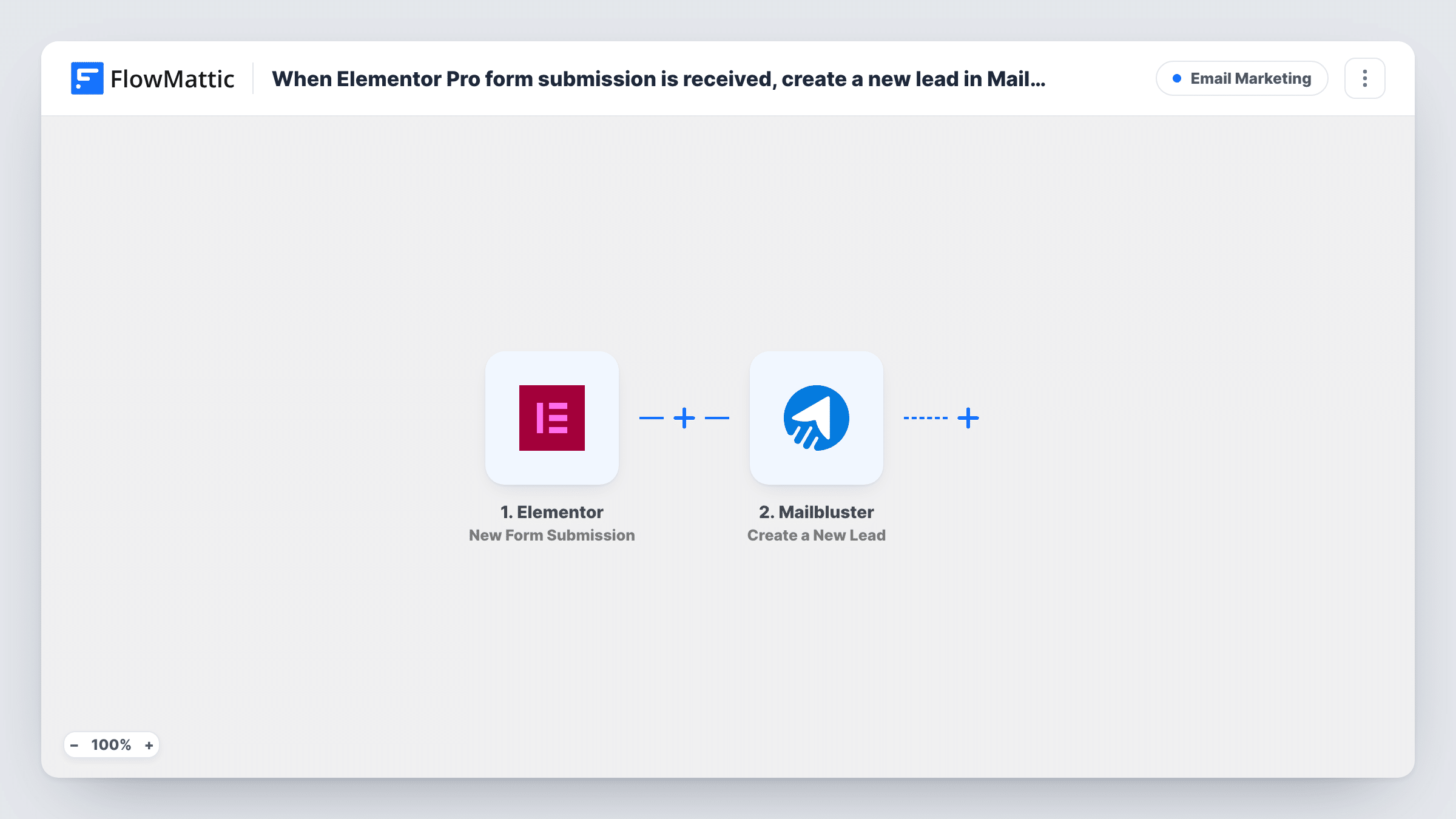
The Elementor trigger fires when a visitor submits a form built with Elementor Pro, and FlowMattic receives the submitted fields. The second step uses Create a New Lead in MailBluster. You decide which form fields fill the lead, with the email field as the one you cannot leave out.
Nothing in the template checks the entry first, so every Elementor Pro submission that reaches the workflow is sent to MailBluster. On a site with several forms, or forms that ask for consent, add a Filter between the two steps. Task History logs each run and MailBluster's reply, which is where you look if a lead did not appear.
Landing page lead magnets
An Elementor landing page offers a checklist in exchange for an email. Each sign-up becomes a MailBluster lead you can send the download and later campaigns to.
Footer newsletter form
The newsletter form in your Elementor footer template feeds MailBluster directly, so new subscribers from every page join the same list.
Product launch waitlist
A coming-soon page built in Elementor collects interest before launch. Each person who signs up is added to MailBluster for the launch announcement.
How this workflow runs
What happens at each step once the workflow is on, and what you need before you import it.
 Elementor New Form Submission
Starts a run whenever someone sends one of your Elementor Pro forms. FlowMattic receives the submitted fields, ready to map into MailBluster.
- Mailbluster Create a New Lead
Sends the visitor to MailBluster as a new lead. Connect MailBluster, then map the Elementor email field and any other fields you want on the lead. Check a test run to see what the step accepts.
What you need
- FlowMatticCore
- Elementor PluginPlugin
- Mailbluster AccountAccount
After importing, map your own data. To keep the template universal, not every step is pre-filled. Open each step in the builder and connect your accounts and fields (channels, lists, sheets, recipients) before you switch the workflow on.
Make it yours
Changes worth making after you import it.
- If your site has more than one Elementor Pro form, add a Filter after the trigger on a value that identifies the form, so only the right one feeds MailBluster. Check the trigger data for that value.
- Add a Filter on your consent checkbox so visitors who did not agree to marketing email stay out of MailBluster.
- Use a Router after the trigger to send leads from different landing pages to different follow-up steps, with route conditions that cannot overlap.
Questions about this workflow
Will the free Elementor plugin work with this MailBluster template?
No. Forms are an Elementor Pro widget, and the trigger listens to those forms, so Elementor Pro must be active on the site where FlowMattic runs.
What if the Elementor visitor is already a MailBluster lead?
The step creates a lead, and how MailBluster treats a known address decides the result. Submit the form with an address already on your list and read MailBluster's response in Task History.
Do my Elementor form's own after-submit actions keep working?
Yes. FlowMattic picks up the submission alongside them. Email notifications or redirects you set on the Elementor form carry on as before.
Will earlier Elementor submissions be added to MailBluster?
No. Only forms submitted after you turn the workflow on start a run, so past entries need to be moved by hand.
More Email Marketing workflows
Other ready-to-import templates from the same category.








Import this workflow into your WordPress site
Download the JSON, import it from the Workflows screen and connect your accounts. Every run stays on your server, with no per-task fees.
30-day money-back guarantee Unlimited workflows and runs Self-hosted