

Log Zoho CRM deal updates to Google Sheets and Notion databases
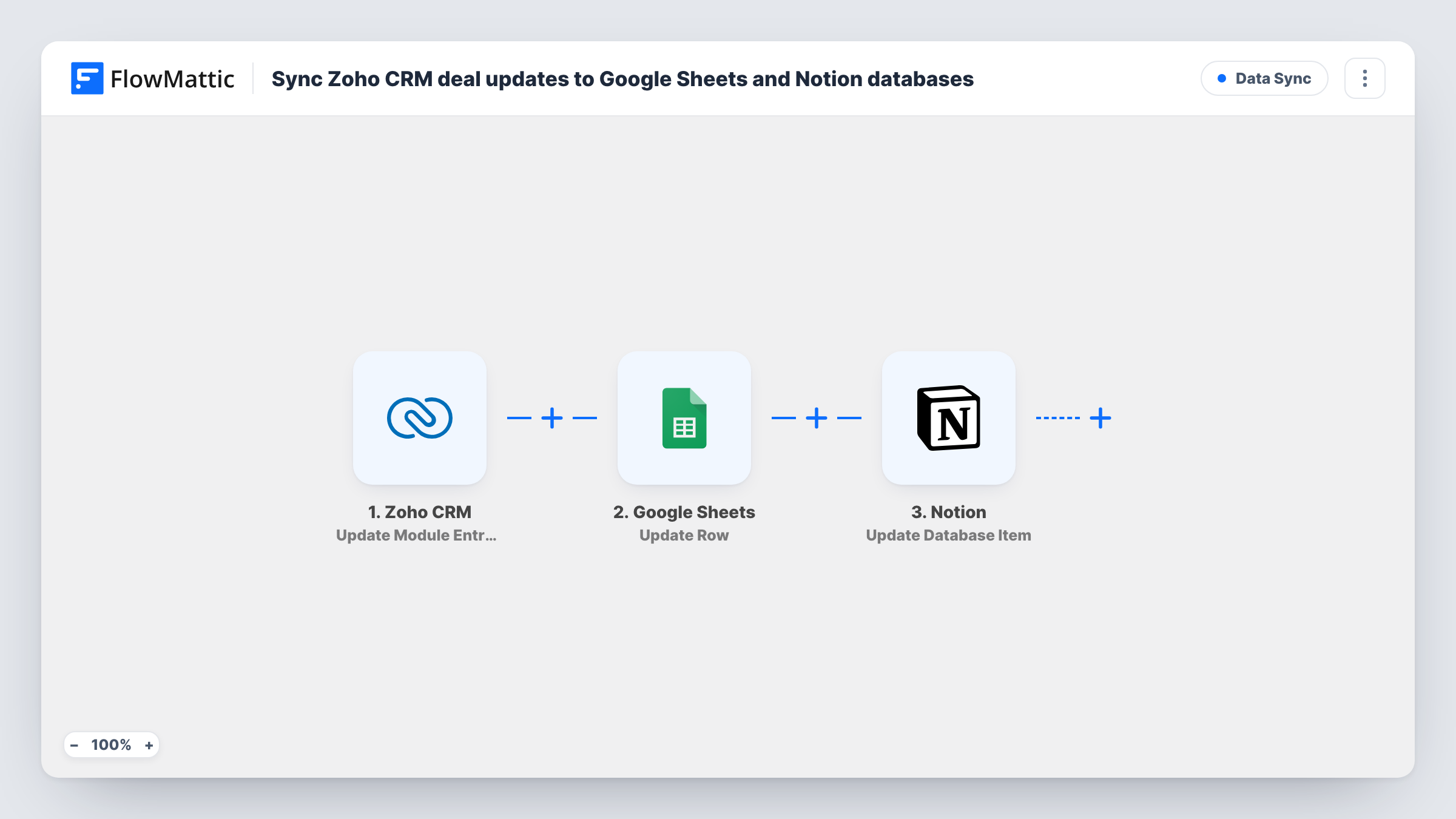
Each time a deal is updated in Zoho CRM, FlowMattic adds a row to Google Sheets and a new item to a Notion database, giving you a running log of every change to your pipeline.
 Zoho CRM
 Google Sheets
 Notion
3 steps Setup ~5 min Used on 3.2k sites Free to import
What this workflow does
Zoho CRM shows a deal as it is now, but sales leaders often want a history: when the amount changed, when the stage moved, who touched it. This workflow writes a log entry to two places each time a deal is edited, a Google Sheet for numbers and a Notion database for the team's notes.
The Zoho CRM trigger fires when an existing entry is updated in the module you choose. Set the module to Deals when you configure it, and the deal's fields are passed on with each update, such as the deal name, stage, amount and owner.
The Google Sheets step then adds a new row, and the Notion step creates a new item in a database. Both ship unmapped: after import you pick the sheet and the Notion database and map the deal fields into columns and properties.
This is a log, not a sync. Every update adds another row and another Notion item, so a deal edited five times appears five times, and the existing entries are never changed. Edit a test deal and check Task History to confirm both entries arrived.
Pipeline history for forecasting
A sales director charts how deal amounts and stages change over a quarter from the Google Sheet, which keeps every edit with its date.
Deal timeline in Notion
An account team keeps a Notion database of deal changes next to its meeting notes, so the history of each deal is easy to read.
Audit of who changed what
An operations manager maps the deal owner and modified time into both logs to review how deals are being updated.
How this workflow runs
What happens at each step once the workflow is on, and what you need before you import it.
 Zoho CRM Update Module Entry (Webhook)
Fires when an existing entry is updated in the Zoho CRM module you pick. Choose Deals so each deal edit starts a run and passes the deal's fields on.
- Google Sheets Add New Row
Adds a new row to your Google Sheets log for each deal update. The step ships unmapped: pick the spreadsheet and map the deal name, stage, amount and other fields to columns.
- Notion Create Database Item
Creates a new item in a Notion database for the same update. Choose the database after import and map the deal fields into its properties, since the Notion step comes empty.
What you need
- FlowMatticCore
- Zoho CRM AccountAccount
- Google Sheets AccountAccount
- Notion AccountAccount
After importing, map your own data. To keep the template universal, not every step is pre-filled. Open each step in the builder and connect your accounts and fields (channels, lists, sheets, recipients) before you switch the workflow on.
Make it yours
Changes worth making after you import it.
- Map the Zoho deal ID into both logs, so you can group all the entries that belong to one deal.
- To log only deals in certain stages, such as Negotiation, put a Filter on the stage field between the Zoho CRM trigger and the Google Sheets step. It checks the current stage, so every edit to such a deal is still logged.
- Map Zoho's modified time, or the run date, into a date column and a Notion date property, so each log entry shows when the change happened.
Questions about this workflow
Does this update the same Google Sheets row each time a deal changes?
No. Every update adds a new row and a new Notion item. That keeps a history but means one deal can have many entries.
Do new Zoho CRM deals start this workflow?
The trigger fires when an existing entry is updated. FlowMattic's Zoho CRM integration also has Create Module Entry and Create Or Update Module Entry triggers if you want new deals logged too.
Can I log contacts or leads instead of deals?
Yes. The trigger works on the module you choose, so pick Contacts or Leads when you configure it and map that module's fields.
More Data Sync workflows
Other ready-to-import templates from the same category.






Import this workflow into your WordPress site
Download the JSON, import it from the Workflows screen and connect your accounts. Every run stays on your server, with no per-task fees.
30-day money-back guarantee Unlimited workflows and runs Self-hosted