

When a new form result is received in Formsite, store the data in Google Sheets
Every result submitted to your Formsite form becomes a new row in a Google Sheets spreadsheet, so you can sort, share and chart responses without exporting them from Formsite by hand.
 Formsite
 Google Sheets
2 steps Setup ~5 min Used on 915 sites Free to import
What this workflow does
Formsite keeps its results inside Formsite, which is fine until someone outside your account needs them, or you want to combine them with other data. Copying results into a spreadsheet by hand is slow and easy to forget. This workflow writes each new result into Google Sheets as it is submitted.
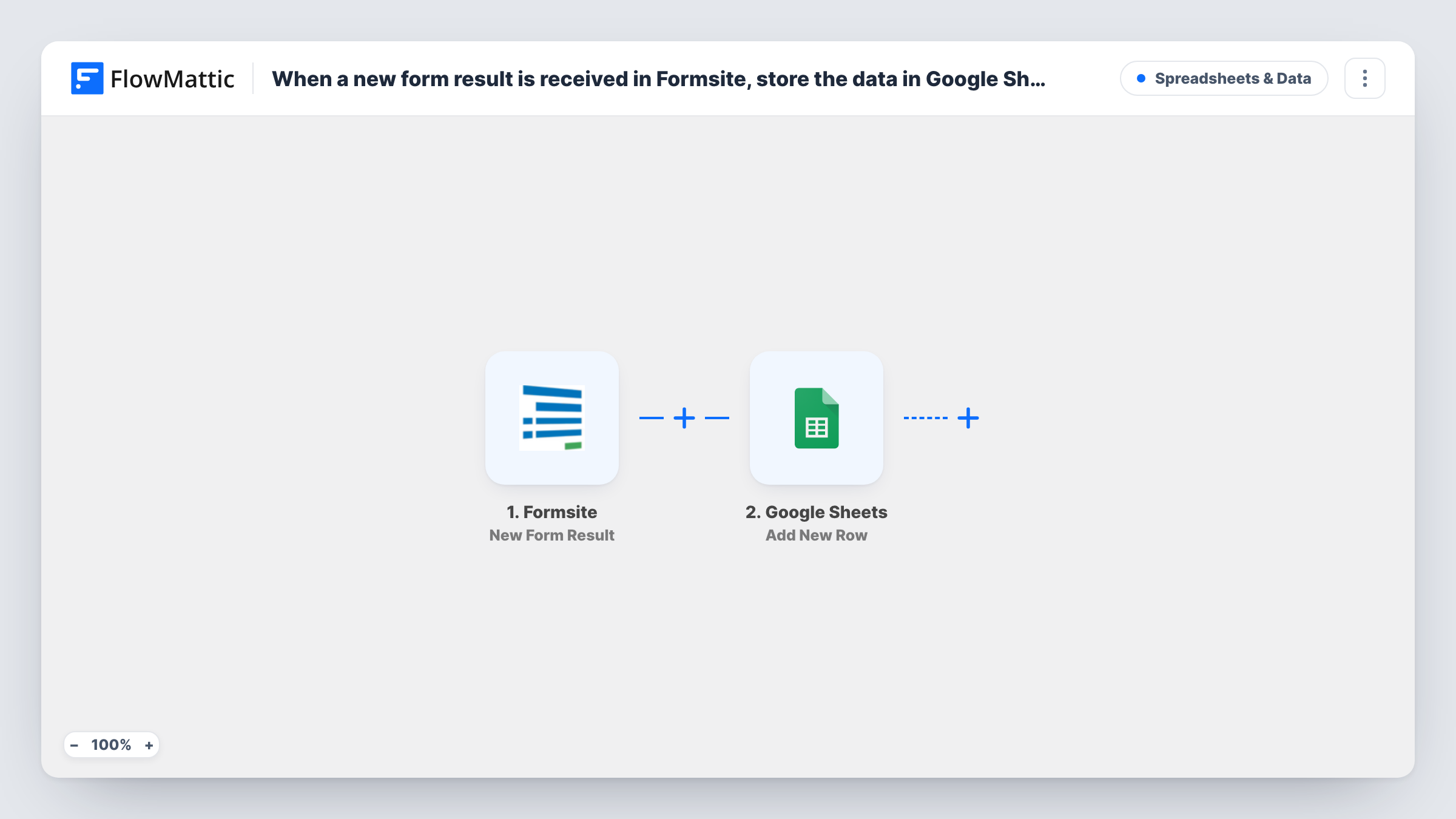
The Formsite trigger fires when a user submits a new form result and passes the answers to FlowMattic. The Google Sheets step adds a row with that data. It ships unmapped, so after import you choose the spreadsheet and sheet, then match each Formsite answer to a column header.
Each Formsite result fills exactly one row. Results already stored in Formsite before you turn the workflow on are not copied, so export those once if you want a complete sheet. When you change the form later, such as adding a question, add a matching column and map it in the step too.
Submit a test result after import and look in Task History to see the fields Formsite sent and the row that Google Sheets created.
Event registrations for the organising team
A conference team collects sign-ups with Formsite and works from the Google Sheet to plan badges, seating and dietary needs.
Survey answers ready for charts
A research group gathers feedback in Formsite and builds charts and pivot tables on the sheet as responses come in.
Order or request forms for a small office
An office manager takes supply requests through Formsite and tracks which ones are filled in an extra column of the sheet.
How this workflow runs
What happens at each step once the workflow is on, and what you need before you import it.
 Formsite New Form Result
Starts a run each time a user submits a new result to your Formsite form. The answers from that result are passed on for mapping.
- Google Sheets Add New Row
Writes the Formsite result into the spreadsheet you pick as a single new row. The column mapping is left to you after import: connect Google, choose the sheet and match each answer to a column.
What you need
- FlowMatticCore
- Formsite AccountAccount
- Google Sheets AccountAccount
After importing, map your own data. To keep the template universal, not every step is pre-filled. Open each step in the builder and connect your accounts and fields (channels, lists, sheets, recipients) before you switch the workflow on.
Make it yours
Changes worth making after you import it.
- Create the sheet's header row with one column per Formsite question before you set up the step, so the mapping screen lists your column names.
- Map the submission date into its own column, if Formsite sends one, so you can sort results by when they arrived.
- Add your own columns to the right of the mapped ones, such as status or owner, for notes the team fills in later.
Questions about this workflow
Do I need to map every Formsite question to a Google Sheets column?
No. Map the answers you want to keep. Questions you leave out are still in Formsite but won't appear in the sheet.
Will results submitted before I import this be added to the sheet?
No. Only new results after the workflow is turned on start a run. Export older results from Formsite and paste them into the sheet once.
What happens when I add a new question to the Formsite form?
The answer arrives with the next result, but it only reaches the sheet once you add a column for it and map it in the Add New Row step.
Can I send Formsite results to more than one sheet?
Yes. Add a second Google Sheets step after the first and map it to another spreadsheet or tab.
More Spreadsheets & Data workflows
Other ready-to-import templates from the same category.



Import this workflow into your WordPress site
Download the JSON, import it from the Workflows screen and connect your accounts. Every run stays on your server, with no per-task fees.
30-day money-back guarantee Unlimited workflows and runs Self-hosted