

Log every completed SendOwl order in a Google Sheets spreadsheet
Every SendOwl order that completes, with payment cleared and products ready to download, is written to a new Google Sheets row, giving you a running sales log outside SendOwl.
 SendOwl
 Google Sheets
2 steps Setup ~5 min Used on 2.1k sites Free to import
What this workflow does
SendOwl handles delivery of your digital products, but its order list is not where you do your bookkeeping or share numbers with a partner. Copying sales into a spreadsheet each week is slow and easy to get wrong. This workflow adds each completed order to Google Sheets as soon as SendOwl marks it done.
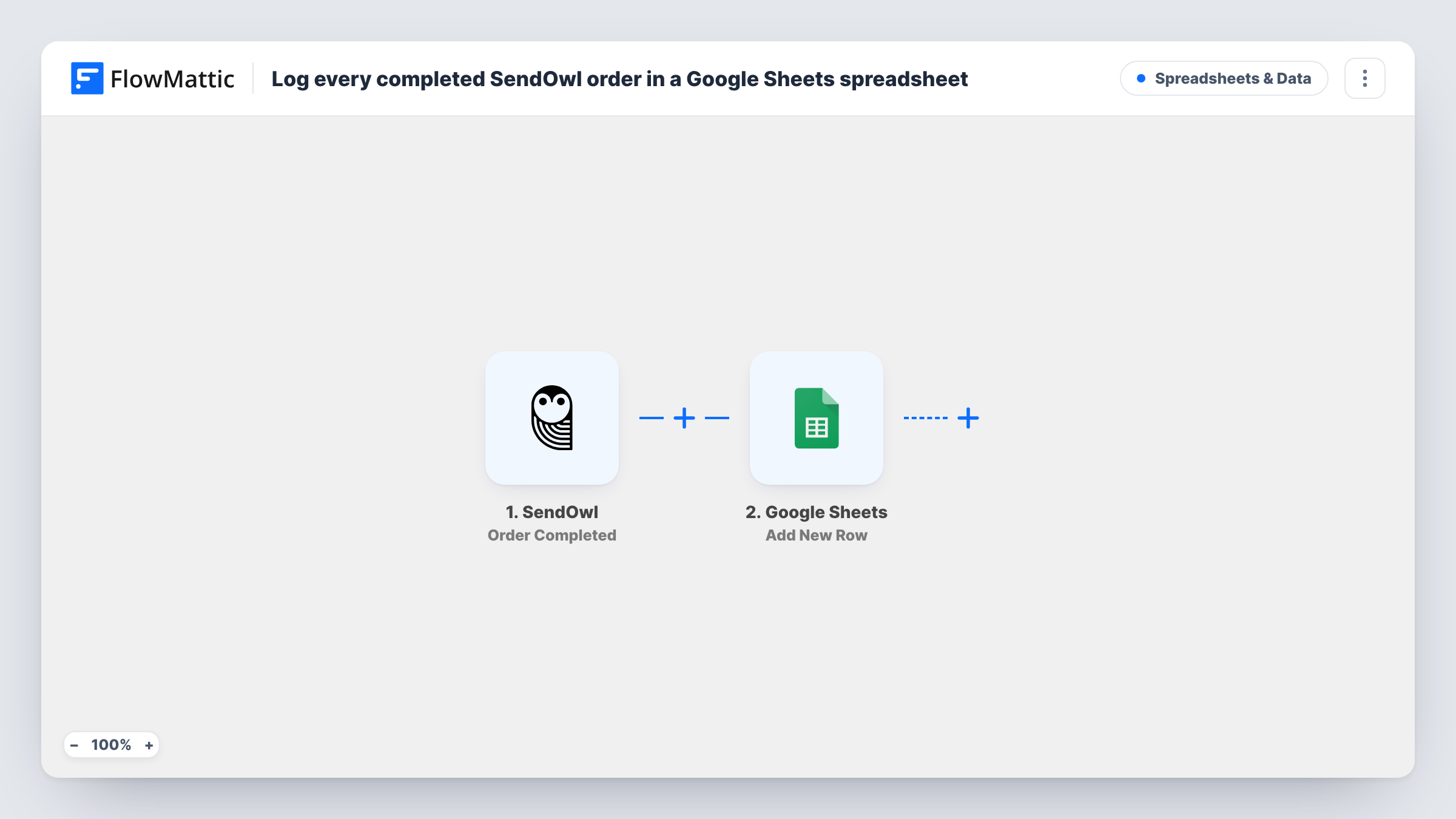
The SendOwl trigger fires when an order is completed, which SendOwl defines as payment cleared and products available for download. FlowMattic takes the order data from that event and hands it to Google Sheets, where the Add New Row step writes one row in the spreadsheet and sheet you select.
An order that is still pending or has failed does not fire this trigger, so the sheet reflects sales that went through. A refund issued later does not remove or change the row. You can review each run in Task History, including the fields SendOwl sent, which helps when you set up your columns.
Monthly revenue sheet for an ebook seller
Each completed ebook sale adds a row, and a SUM formula at the top of the sheet shows the month's takings without opening SendOwl.
Sharing sales with a co-author
Two authors split income from a course bundle sold through SendOwl, and both read the same Google Sheet to check every completed order.
Tracking which product sells
A designer selling templates maps the product name to its own column, then uses a pivot table to see which items move each week.
How this workflow runs
What happens at each step once the workflow is on, and what you need before you import it.
 SendOwl Order Completed
Fires when a SendOwl order is completed: the payment has cleared and the products are available to the buyer. The order details are passed to the next step.
- Google Sheets Add New Row
Writes a row to the Google Sheets spreadsheet you pick for each completed order. Connect your Google account and map columns such as buyer email, product and amount.
What you need
- FlowMatticCore
- SendOwl AccountAccount
- Google Sheets AccountAccount
After importing, map your own data. To keep the template universal, not every step is pre-filled. Open each step in the builder and connect your accounts and fields (channels, lists, sheets, recipients) before you switch the workflow on.
Make it yours
Changes worth making after you import it.
- Create the header row in your sheet before mapping, so each column name appears in the Add New Row step and lines up with an order field.
- Want refunds on record too? Add a second workflow with the SendOwl Refund Issued trigger that writes to another tab of the same spreadsheet.
- Complete one low-priced test purchase after import so FlowMattic captures real order fields to map.
Questions about this workflow
Does a refunded SendOwl order get removed from the sheet?
No. The workflow only adds rows when orders complete. A later refund leaves the existing row as it is, so record refunds separately if you need net figures.
Do I need to keep the Google Sheet open for rows to appear?
No. FlowMattic writes to the spreadsheet through your connected Google account, so rows are added whether or not anyone has the sheet open.
Which SendOwl order details can go into the spreadsheet?
Whatever the Order Completed event carries. Run a test order, then open Task History to see the full list of fields before you map columns.
More Spreadsheets & Data workflows
Other ready-to-import templates from the same category.




Import this workflow into your WordPress site
Download the JSON, import it from the Workflows screen and connect your accounts. Every run stays on your server, with no per-task fees.
30-day money-back guarantee Unlimited workflows and runs Self-hosted