

Log every new Wyng form entry in a Google Sheets spreadsheet
Every new Wyng form entry is added to a Google Sheets spreadsheet as its own row, so your team can sort, share and review campaign responses outside Wyng.
 Wyng
 Google Sheets
2 steps Setup ~5 min Used on 501 sites Free to import
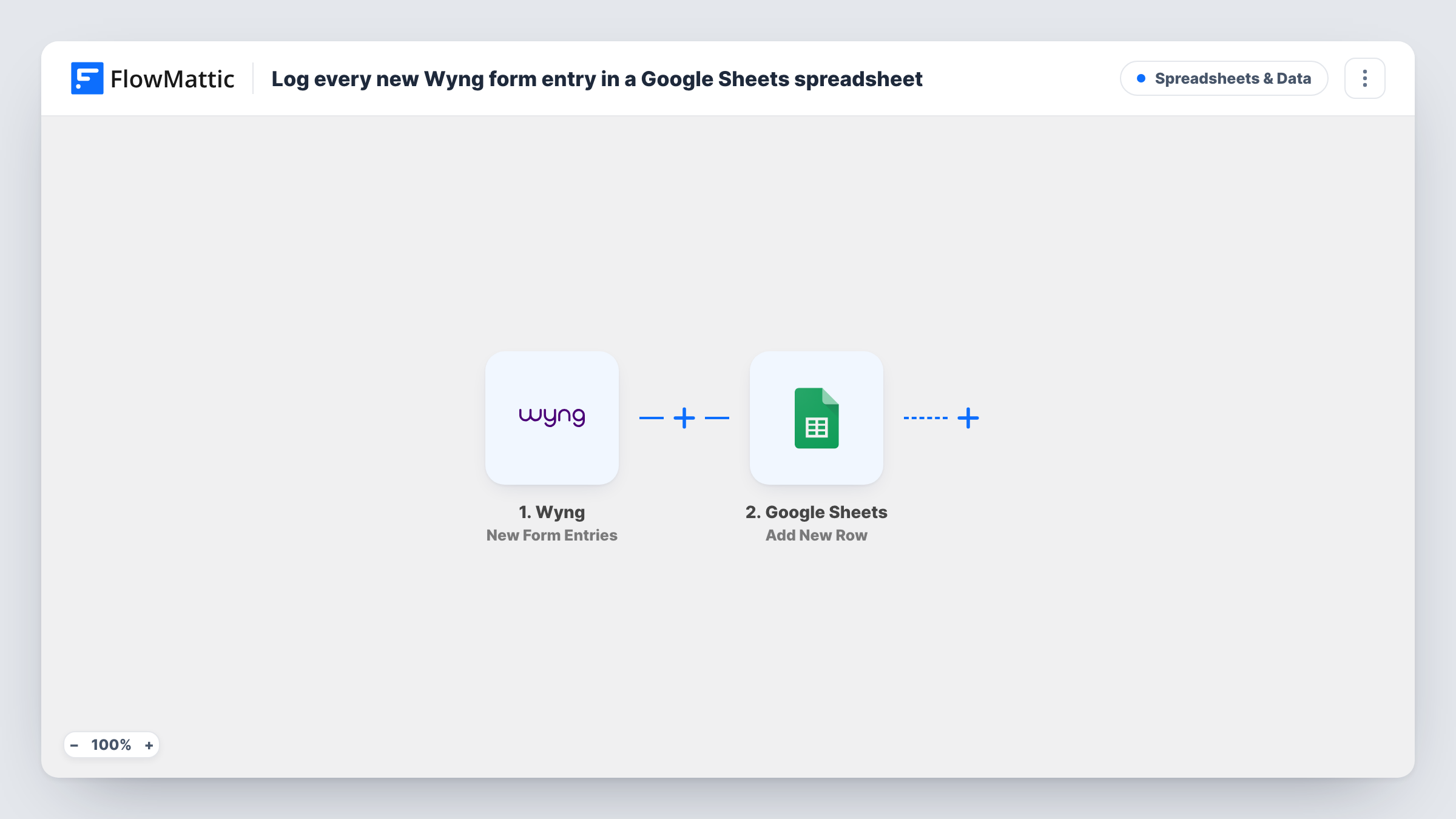
What this workflow does
Wyng forms collect entries for campaigns, contests and preference centres. Getting those responses into a spreadsheet usually means exports, and an export is out of date as soon as the next entry arrives. This workflow writes each entry to Google Sheets as it comes in.
The Wyng trigger fires for each new form entry. FlowMattic receives the entry's values and passes them to the Google Sheets Add New Row action. That step appends one row to the spreadsheet and worksheet you choose, with each column filled from the Wyng value you map to it.
The sheet becomes a running log: one row per entry, in the order they arrive. Nothing checks for repeats, so a person who submits twice appears twice. Task History records each run, so you can see the values Wyng sent and the reply from Google.
Contest entries for the judging team
Entrants submit a Wyng form. The judges work from a shared Google Sheet with one row per entry and add their scores in extra columns.
Campaign response reporting
A marketing manager builds charts on a Google Sheet that fills from the Wyng campaign form, without waiting for a weekly export.
Sharing entries with an agency
Your agency partner has access to the spreadsheet but not to your Wyng account, and still sees every new entry.
How this workflow runs
What happens at each step once the workflow is on, and what you need before you import it.
 Wyng New Form Entries
Fires for each new entry on your Wyng form. The answers in the entry become values you can map to sheet columns. Submit a test entry to capture them.
- Google Sheets Add New Row
Appends a row to the Google Sheets spreadsheet and worksheet you pick. Set up a header row first, then map each Wyng value to the matching column.
What you need
- FlowMatticCore
- Wyng AccountAccount
- Google Sheets AccountAccount
After importing, map your own data. To keep the template universal, not every step is pre-filled. Open each step in the builder and connect your accounts and fields (channels, lists, sheets, recipients) before you switch the workflow on.
Make it yours
Changes worth making after you import it.
- Submit a test Wyng entry after import and check the new row, so you can confirm each answer landed in the column you meant.
- Put a Filter between the two steps if you only want certain entries in the sheet, for example ones where a consent answer is yes.
- Use a Router with one Add New Row step per route to send entries from different campaigns to separate worksheets, based on a value Wyng sends.
Questions about this workflow
Does every Wyng entry get its own row?
Yes. Each new entry starts one run and adds one row. Duplicate submissions from the same person are not merged.
Will past Wyng entries be added to the sheet?
No. Only entries made after the workflow is on reach Google Sheets. Export earlier entries from Wyng if you need them.
Do my Google Sheets columns need to exist first?
Yes. Create a header row with the column names you want, then map the Wyng answers to those columns in the Add New Row step.
Can I send Wyng entries to more than one spreadsheet?
Yes. Add another Google Sheets Add New Row step after the first one and point it at the second spreadsheet.
More Spreadsheets & Data workflows
Other ready-to-import templates from the same category.



Import this workflow into your WordPress site
Download the JSON, import it from the Workflows screen and connect your accounts. Every run stays on your server, with no per-task fees.
30-day money-back guarantee Unlimited workflows and runs Self-hosted