

Send a Slack alert for Userpilot NPS activity
Whenever a Userpilot NPS survey is scored, dismissed or gets written feedback, FlowMattic posts a message to the Slack channel you choose, so your product team sees each response as it comes in.
 Userpilot
 Slack
2 steps Setup ~5 min Used on 922 sites Free to import
What this workflow does
Net Promoter Score answers are most useful when someone reads them while the context is fresh. This workflow puts every Userpilot NPS event in a Slack channel, so product managers, customer success and support can see scores and comments without opening Userpilot.
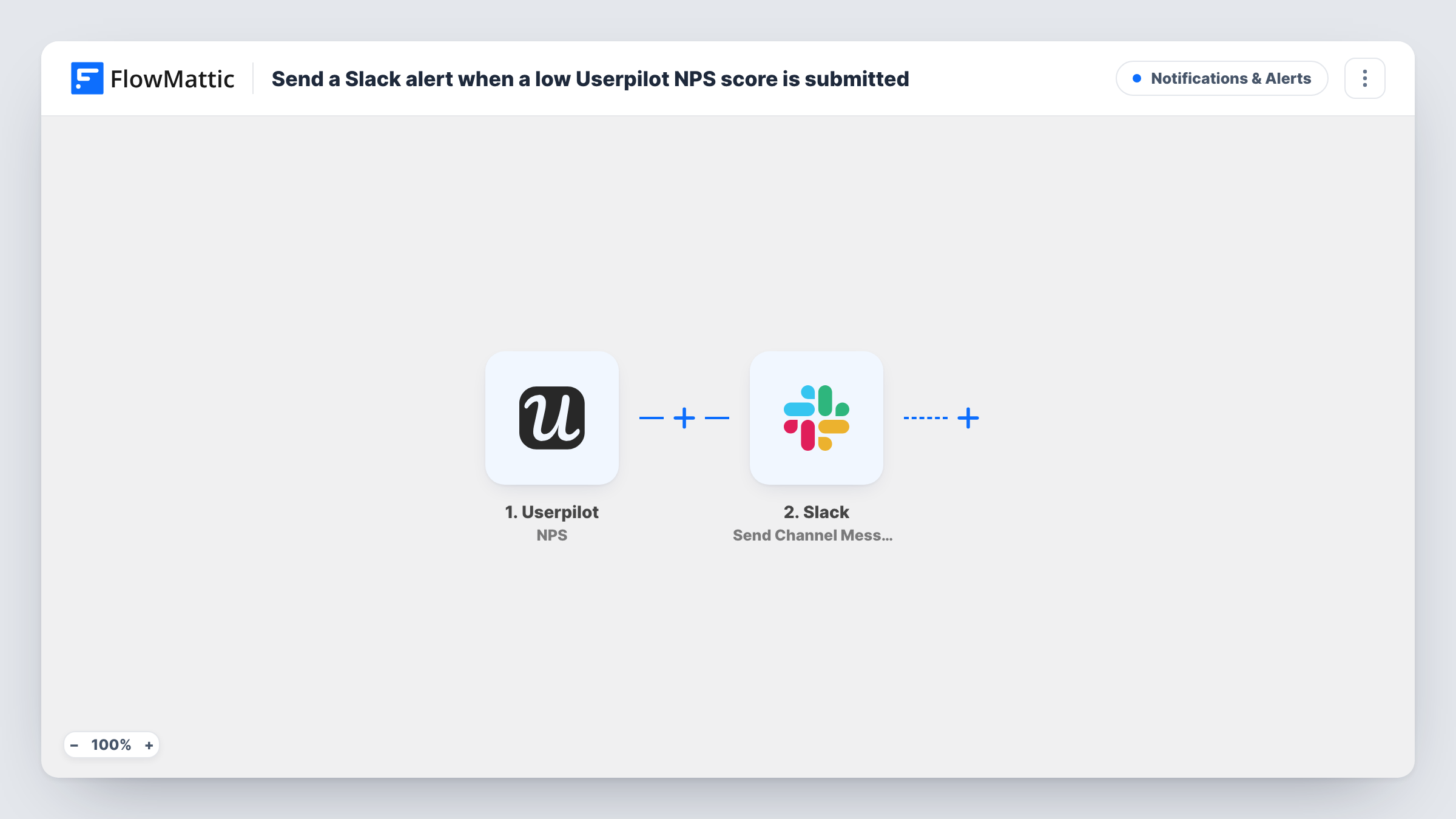
The Userpilot trigger, NPS, fires on three kinds of activity: a user gives a score, a user dismisses the survey, or a user leaves feedback. All three start a run, so the channel shows dismissals as well as answers. The event's data, such as the score and comment where present, is passed on.
Next, Send Channel Message in Slack shares the event with your team. It ships unmapped: after import you connect your workspace, pick the channel and write the message, mapping in the details you want, such as the score, the feedback text and the user it came from.
Because dismissals come through too, plan your message for events with no score. Submit a test score and dismiss a test survey, then open Task History to see what Userpilot sent for each and what Slack returned.
A live NPS channel for the product team
A SaaS team keeps a #nps-feedback channel where every Userpilot score and comment appears, so designers read real user feedback during the week.
Customer success follow-up on detractors
A customer success manager scans the Slack posts for low scores each day and reaches out to those accounts while the feedback is recent.
Tracking survey fatigue
A growth team watches how often users dismiss the NPS survey in Slack to decide whether to show it less often.
How this workflow runs
What happens at each step once the workflow is on, and what you need before you import it.
 Userpilot NPS
Fires when an NPS survey in Userpilot is scored, dismissed or receives feedback. The event's details, such as the score, any comment and the user, pass to the Slack step.
- Slack Send Channel Message
Shares each NPS event as a post in one Slack channel. Connect Slack after import, choose the channel and write the text, mapping in the NPS score, feedback and user details from Userpilot.
What you need
- FlowMatticCore
- Userpilot AccountAccount
- Slack AccountAccount
After importing, map your own data. To keep the template universal, not every step is pre-filled. Open each step in the builder and connect your accounts and fields (channels, lists, sheets, recipients) before you switch the workflow on.
Make it yours
Changes worth making after you import it.
- To post only real answers, put a Filter between the Userpilot trigger and the Slack step that checks the score field is not empty. If a test dismissal arrives without a score, dismissals then stop at that Filter.
- For alerts on low scores only, use a Filter between the trigger and Slack that continues when the score is less than 7. A blank score counts as 0 and would pass, so pair it with a not-empty check.
- Use Slack's Send Private Channel Message action instead if the NPS feedback should go to a private channel for a smaller team.
Questions about this workflow
Which Userpilot NPS events reach Slack?
All three the trigger covers: a score, a dismissal and feedback. Add a Filter between the trigger and the Slack step if you want only some of them posted.
Can the Slack post show who gave the NPS score?
If Userpilot includes the user's details in the event, you can map them into the message. Run a test to see which identifiers arrive, such as a user ID or email.
How do I alert only on low Userpilot NPS scores?
Add a Filter between the trigger and the Slack step with two conditions in the same group, so both must hold: the score is not empty, and the score is less than 7. Only detractor scores then reach the channel.
More Notifications & Alerts workflows
Other ready-to-import templates from the same category.




Import this workflow into your WordPress site
Download the JSON, import it from the Workflows screen and connect your accounts. Every run stays on your server, with no per-task fees.
30-day money-back guarantee Unlimited workflows and runs Self-hosted