

Log every new Waitwhile visit in a Google Sheets spreadsheet
Every new Waitwhile visit, whether a walk-in joining the waitlist or a booking, is added as a row in a Google Sheets spreadsheet, building a running log you can sort, chart and share.
 Waitwhile
 Google Sheets
2 steps Setup ~5 min Used on 3.1k sites Free to import
What this workflow does
Waitwhile handles your queue and bookings, but a spreadsheet is often where you want to count visits by day, compare locations or hand numbers to someone without a Waitwhile login. Copying that data across by hand is slow and easy to forget. This workflow writes each visit to a sheet as it is created.
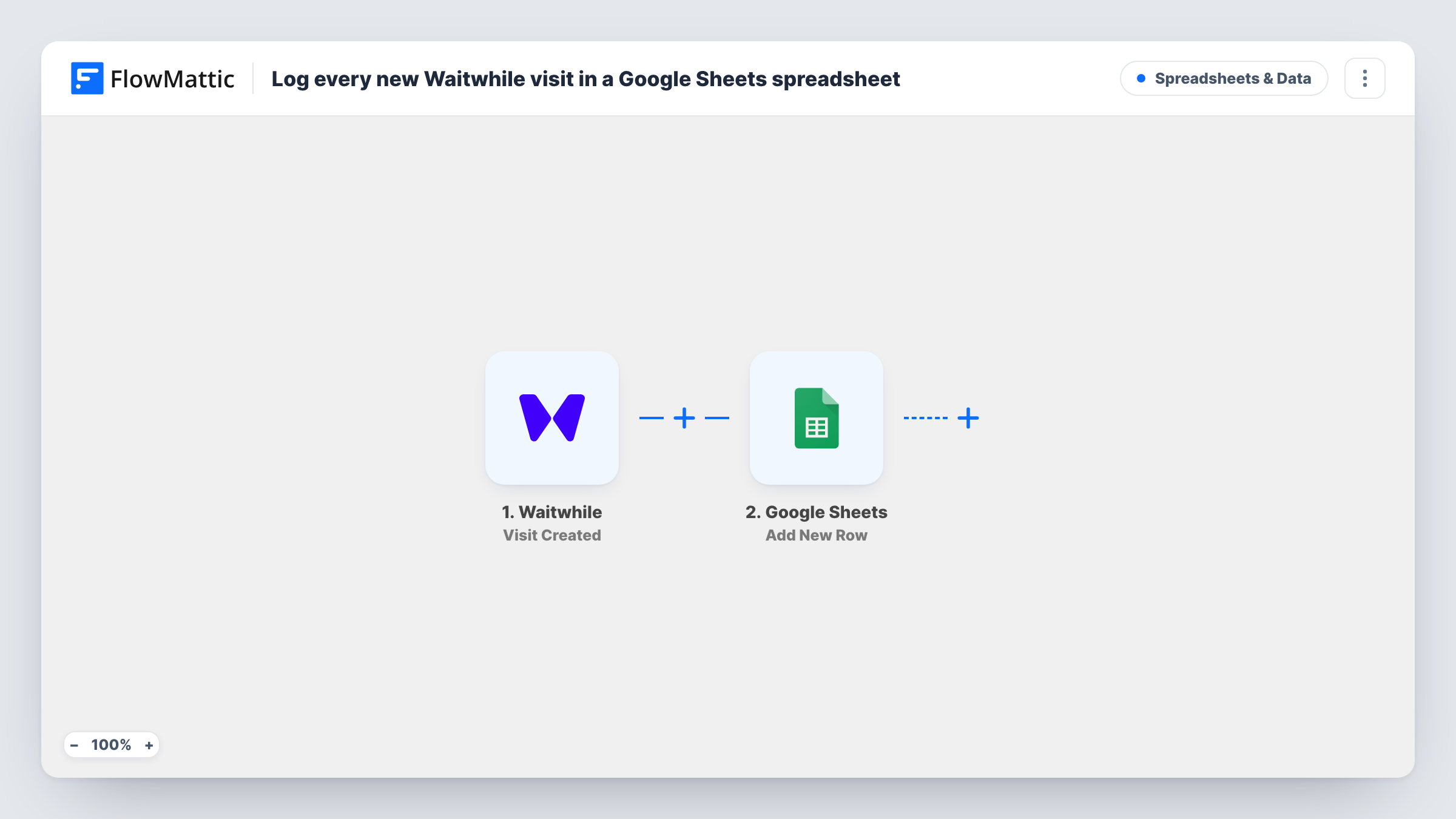
The Waitwhile trigger fires when a new waitlist visit or booking is created. FlowMattic takes the visit data Waitwhile sends and passes it to Google Sheets, which adds one new row in the spreadsheet and worksheet you choose. You decide which visit details go into which columns.
The row reflects the visit at the moment it was created. Later changes in Waitwhile, such as a visit being served or cancelled, do not edit that row. If you need those changes, see the tips on the Visit Updated trigger. Task History keeps a line for every visit the workflow logs.
Daily footfall for a walk-in clinic
Front-desk staff add patients to the Waitwhile waitlist. The sheet fills with one row per visit, and a pivot table shows how busy each hour of the day was.
Staffing plans for a busy store
A store manager looks at a few weeks of visit rows to see which days draw the longest queues before writing next month's rota.
Sharing booking numbers with head office
A franchise location shares its Google Sheet with head office, so they see every Waitwhile booking without an account on the location's Waitwhile.
How this workflow runs
What happens at each step once the workflow is on, and what you need before you import it.
 Waitwhile Visit Created
Fires when a new waitlist visit or booking is created in Waitwhile. The visit data Waitwhile sends is passed on for the Google Sheets step to use.
- Google Sheets Add New Row
Adds one row to the spreadsheet and worksheet you select, with visit details mapped to its columns. Put headers in the first row so the columns are easy to map, then connect your Google account.
What you need
- FlowMatticCore
- Waitwhile AccountAccount
- Google Sheets AccountAccount
After importing, map your own data. To keep the template universal, not every step is pre-filled. Open each step in the builder and connect your accounts and fields (channels, lists, sheets, recipients) before you switch the workflow on.
Make it yours
Changes worth making after you import it.
- Run a test by adding a visit in Waitwhile after import, so FlowMattic captures real visit data. Then map the fields you want, such as name, time and location, to the sheet's columns.
- To also track what happens to each visit, build a second workflow on Waitwhile's Visit Updated trigger that writes to a different worksheet, so you keep an extra row for every change.
- If you run several locations and want one sheet each, add a Router after the trigger with a route per location value. Move the existing Google Sheets step into the first route and give every other route its own copy pointing at its sheet.
Questions about this workflow
Does this log walk-ins and bookings alike?
Yes. FlowMattic describes the Waitwhile trigger as firing when a new waitlist visit or booking is created, so both kinds of visit add a row.
Will the Google Sheets row change when a Waitwhile visit is served or cancelled?
No. Each row is written once, when the visit is created. Later changes in Waitwhile do not reach the sheet unless you add a workflow on the Visit Updated trigger.
Are visits from before I turn it on added to the sheet?
No. Only visits created after the workflow is active start a run, so older Waitwhile visits stay out of the sheet unless you export and paste them yourself.
More Spreadsheets & Data workflows
Other ready-to-import templates from the same category.





Import this workflow into your WordPress site
Download the JSON, import it from the Workflows screen and connect your accounts. Every run stays on your server, with no per-task fees.
30-day money-back guarantee Unlimited workflows and runs Self-hosted