

Turn form submissions into Grist records with a confirmation email
Each Contact Form 7 submission is saved as a new record in a Grist table with the visitor’s name, email and message, and the visitor then receives a confirmation email from your site.
 Contact Form 7
 Grist
Grist
 Email
Email3 steps Setup ~5 min Used on 2.6k sites Databases & Sync Free to import
What this workflow does
Contact Form 7 delivers submissions by email, which is hard to search, sort or share. Grist gives you a proper table for them. This workflow stores each submission in Grist and lets the visitor know their message arrived.
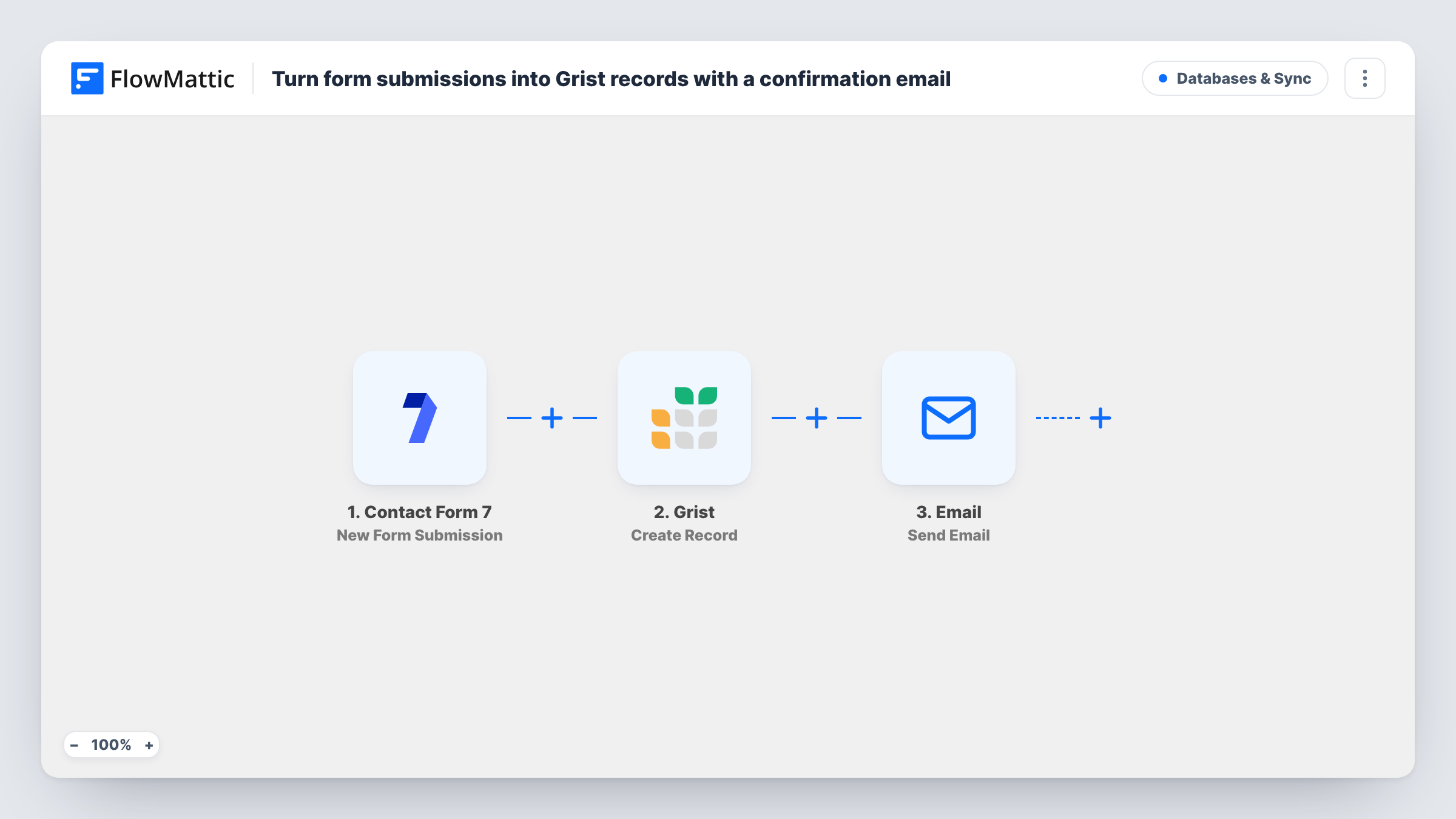
The Contact Form 7 trigger starts a run when someone submits your form. The Grist Create Record step then writes a row with three columns, Name, Email and Message, filled from the form fields called name, email and message. Last, FlowMattic's Email step sends the submitted address a message with their name in the subject, saying their details are logged and you will reply shortly.
Check the field names before you go live. Contact Form 7's default form calls its fields your-name, your-email and your-message, so with that form the mapping comes through empty until you remap it. Your Grist table also needs columns named Name, Email and Message.
Small business contact page
Enquiries collect in a Grist table you can sort by date or tag by status, and every sender gets a reply saying their message arrived.
Volunteer or member sign-ups
A club uses a Contact Form 7 form to gather interest. The Grist table becomes the shared list, and each person receives a confirmation.
Feedback form for a product
Users send feedback through the site. The team reviews it in Grist with extra columns for priority, while users know it was received.
How this workflow runs
What happens at each step once the workflow is on, and what you need before you import it.
 Contact Form 7 New Form Submission
Starts a run each time your Contact Form 7 form is sent by a visitor. The submitted fields are passed on by their field names, so a test submission shows exactly what you can map.
- Grist Create Record
Creates a record in your Grist table with Name, Email and Message taken from the form fields name, email and message. Rename those to match your form's fields if they differ.
 Email Send Email
Sends the visitor a confirmation at the email they entered, with their name in the subject and a short thank-you body. It uses WordPress mail or your configured SMTP account, and you can rewrite the text.
What you need
- FlowMatticCore
- Contact Form 7 PluginPlugin
- Grist AccountAccount
After importing, map your own data. To keep the template universal, not every step is pre-filled. Open each step in the builder and connect your accounts and fields (channels, lists, sheets, recipients) before you switch the workflow on.
Make it yours
Changes worth making after you import it.
- If you use Contact Form 7's default form, change the mappings to your-name, your-email and your-message, or rename your form tags to name, email and message.
- Make the email field required with email* in the form tag, so every record has an address and the confirmation always has somewhere to go.
- Add more columns to the Grist record, such as a phone number or the page the form sits on, by adding those fields to the record mapping.
Questions about this workflow
Which Grist columns does the workflow fill?
Name, Email and Message. Create columns with those names in your Grist table, or change the record mapping to match the column names you already use.
Why are the Grist records empty after a test submission?
The template maps the form fields name, email and message. If your form uses other names, such as Contact Form 7's default your-name, update the mapping in the Grist and Email steps.
Who sends the Contact Form 7 confirmation email?
FlowMattic's Email step, through your WordPress mail setup or an SMTP account you configure. Contact Form 7's own mail settings keep working alongside it.
Does the visitor still get the confirmation if Grist rejects the record?
Yes. The confirmation step still runs after a Grist error, because one failed step never halts the later ones. Task History shows the Grist error so you can fix the mapping.
More Databases & Sync workflows
Other ready-to-import templates from the same category.





Import this workflow into your WordPress site
Download the JSON, import it from the Workflows screen and connect your accounts. Every run stays on your server, with no per-task fees.
30-day money-back guarantee Unlimited workflows and runs Self-hosted