

Let an AI agent categorize new Supabase rows and write the result back
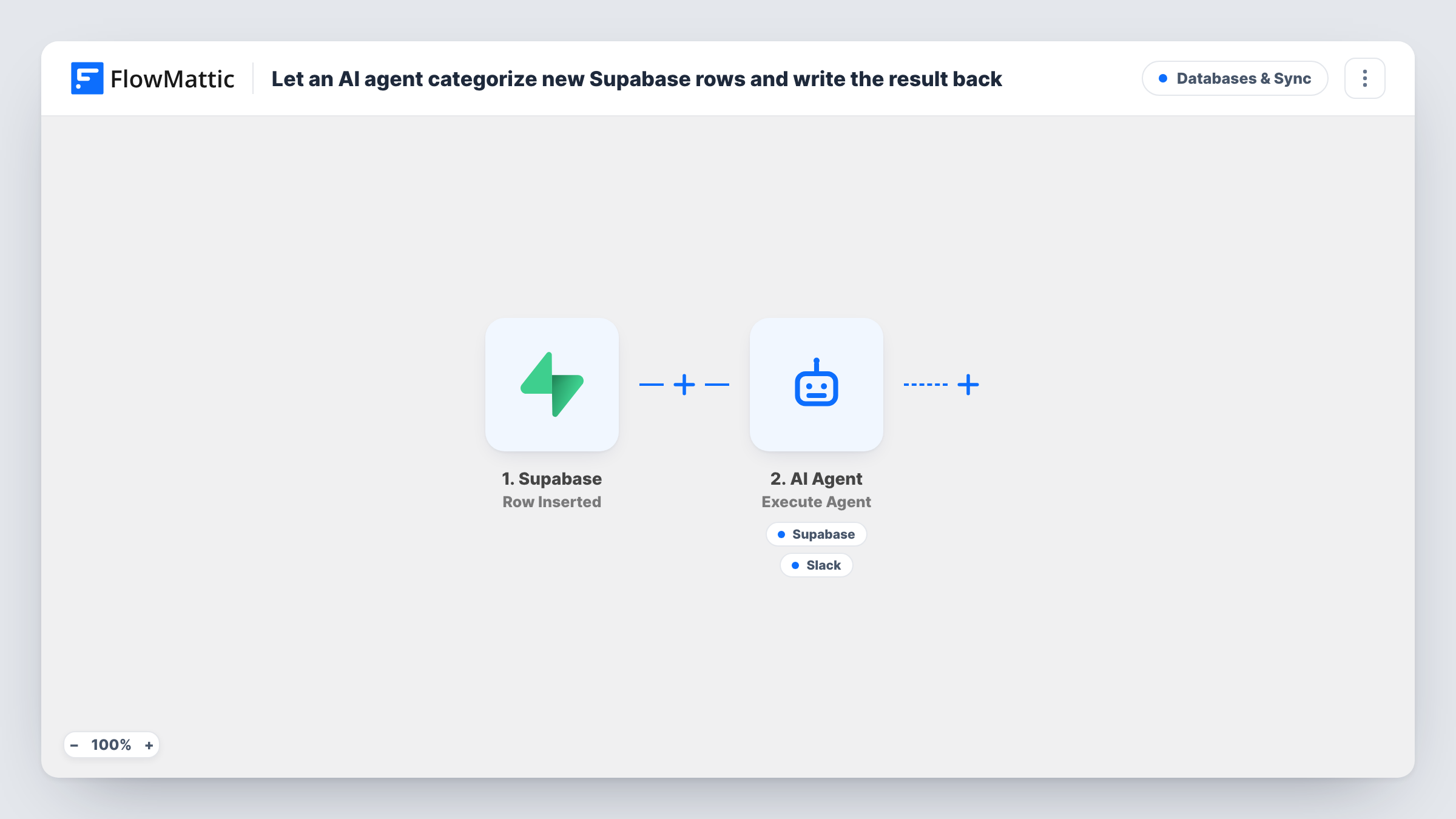
For each new row in a Supabase table, an AI agent picks a category and writes a one-line summary, then can save both back to that row and post a note to Slack, using the two tools it is given.
 Supabase
 AI Agent
 Slack
Slack4 steps Setup ~8 min Used on 673 sites Databases & Sync Free to import
What this workflow does
Raw rows are hard to scan. A table of sign-ups or requests is more useful once each entry has a category and a short summary, but adding them by hand doesn't scale. This workflow hands each new row to an AI agent that does that labelling.
The Supabase trigger fires when a new row is inserted into the table you select. The agent step then receives a short line built from that row: the table name and the record's name, plan and amount columns. Its instructions tell it to choose a sensible category, write a one-line summary, update the row and notify the team. As imported, the agent runs on GPT-4o from OpenAI.
The AI Agent has two tools. Supabase Update Row writes to the same table, matching the id column to the new record's ID, with the agent filling the values. Slack Send Channel Message posts a note to the data channel with text the agent writes. The agent decides when to call each tool, so check Task History to confirm it used both. Your table needs columns for the category and summary.
Tagging new customer sign-ups by plan
A SaaS team stores sign-ups in Supabase with name, plan and amount. The agent labels each one, such as a trial or a high-value account, and notes it in Slack.
Sorting incoming requests in an internal tool
An internal app writes requests to a Supabase table. The agent gives each a category and summary, so the team can filter the table without reading every entry.
Summaries for a sales channel
Sales staff follow the Slack data channel and read the agent's one-line take on each new row instead of opening the database.
How this workflow runs
What happens at each step once the workflow is on, and what you need before you import it.
 Supabase Row Inserted
Fires when a new row is inserted into the Supabase table you choose. The table name and the new record's columns, such as its id, are handed to the agent and its tools.
- AI Agent Execute Agent
Hands the new row to a GPT-4o agent from OpenAI. It reads a line with the table name, name, plan and amount, and is told to pick a category, write a one-line summary, update the row and notify the team.
- Supabase Update Row
Agent tool that updates the new row in the same Supabase table, matched on the id column. The agent supplies the category and summary values, so the table needs columns to hold them.
- Slack Send Channel Message
Agent tool that posts a note to your Slack data channel, with text the agent writes. Pick the channel and connect Slack. The agent decides whether to use it on each run.
What you need
- FlowMatticCore
- Supabase AccountAccount
- AI ProviderAccount
- Slack AccountAccount
After importing, map your own data. To keep the template universal, not every step is pre-filled. Open each step in the builder and connect your accounts and fields (channels, lists, sheets, recipients) before you switch the workflow on.
Make it yours
Changes worth making after you import it.
- Add category and summary columns to the Supabase table before you turn this on, and name them in the agent's instructions so it writes to the right ones.
- List the categories you want in the system prompt, such as trial, paid or enterprise, so the agent picks from a fixed set instead of inventing labels.
- If your table has no plan or amount column, edit the agent's user input to pass the columns your rows do have, or the agent will see blanks.
Questions about this workflow
Will updating the Supabase row start the workflow again?
No. The trigger is Row Inserted, which only fires for new rows. The agent's update changes an existing row, so it doesn't start another run.
Does the AI agent always update the row and post to Slack?
Its instructions ask it to do both, but the agent chooses when to call its tools. Check Task History after a few test inserts to see which tools it called on each run.
Which columns does the Supabase Update Row tool change?
The ones the agent fills in. The tool matches the row by id and leaves the values to the agent, which is why your table needs category and summary columns and the prompt should name them.
Can I use a different AI model for this Supabase agent?
The template ships set to OpenAI's GPT-4o. Open the agent step after import to choose another provider or model you have connected in FlowMattic.
More Databases & Sync workflows
Other ready-to-import templates from the same category.





Import this workflow into your WordPress site
Download the JSON, import it from the Workflows screen and connect your accounts. Every run stays on your server, with no per-task fees.
30-day money-back guarantee Unlimited workflows and runs Self-hosted