

Open a GitHub follow-up for high-value Grist records
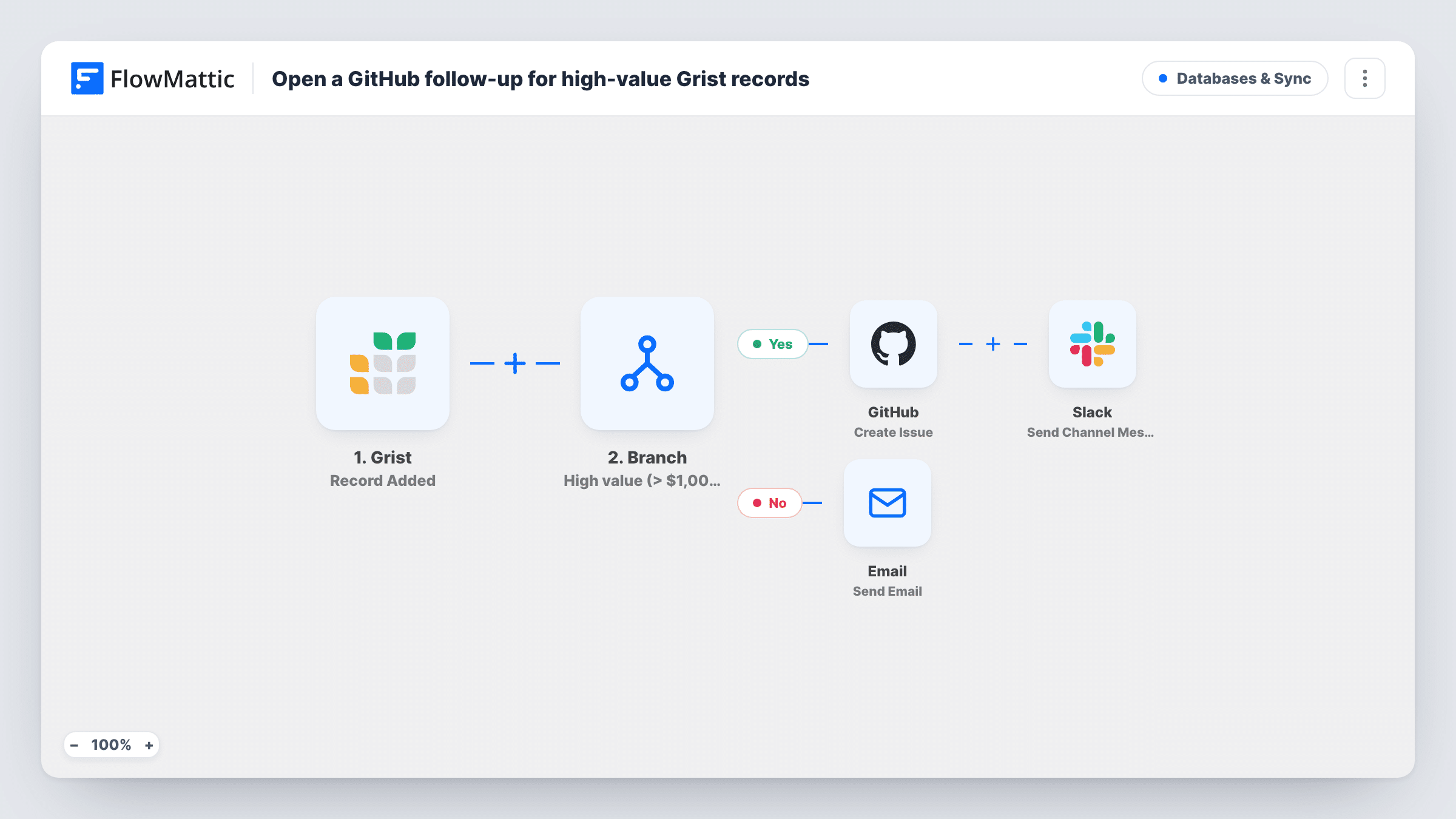
Each new Grist record is checked for an Amount over 1000. High-value records open a GitHub issue and post to Slack; the rest get an acknowledgement email sent to the record’s own Email address.
 Grist
Grist
 Branch
 GitHub
 Slack
Slack
 Email
Email5 steps Setup ~8 min Used on 719 sites Databases & Sync Free to import
What this workflow does
When deals, orders or pledges land in a Grist table, the big ones deserve a person's attention and the small ones just need a polite reply. This workflow splits new records on their Amount and treats each side differently, so your account team sees the large ones without combing through the table.
The Grist Record Added trigger starts a run for each new row. A Branch step asks whether the Amount column is greater than 1000. On the Yes path, the GitHub Create Issue action opens an issue titled with the record's Name and Amount, with a body asking someone to reach out to the record's Email, and a Slack channel message announces the high-value record. On the No path, FlowMattic's Email step sends the address in the record's Email column a short note saying their details were recorded.
The comparison uses whole numbers. A blank Amount counts as 0 and decimals are cut off, so 1000.75 is treated as 1000 and takes the No path. Records on the Yes path get no email.
Agency intake tracked in Grist
Project enquiries go into a Grist table with an estimated budget. Anything above 1000 becomes a GitHub issue on the accounts board, and smaller enquiries get a polite acknowledgement.
Donation or pledge tracking
A nonprofit logs pledges in Grist. Large pledges open an issue for the development lead to call the donor, while small ones get a thank-you email.
Developer-run sales pipeline
A small software team already lives in GitHub. High-value leads appear as issues they can assign and close, next to their product work.
How this workflow runs
What happens at each step once the workflow is on, and what you need before you import it.
 Grist Record Added
Fires when a record is added to the Grist table you connect. The record's columns, including Name, Email and Amount, are used by the later steps, so your table needs columns with those names.
- Branch Branch
Checks whether the record's Amount is greater than 1000. Yes runs the GitHub and Slack steps. No runs the email step. Blank amounts count as 0 and go to No.
- GitHub Create Issue
On the Yes path, opens a GitHub issue titled "Follow up" with the record's Name and Amount, and a body naming the Email to contact. The template points at acme/accounts, so set your own repository.
- Slack Send Channel Message
On the Yes path, posts a message to a Slack channel with the record's Name and Amount. Pick the channel when you connect Slack, and edit the message text if you want more columns in it.
 Email Send Email
On the No path, sends an email to the address in the record's Email column, thanking them and saying their details were recorded. It goes through WordPress mail or the SMTP account you set up.
What you need
- FlowMatticCore
- Grist AccountAccount
- GitHub AccountAccount
- Slack AccountAccount
After importing, map your own data. To keep the template universal, not every step is pre-filled. Open each step in the builder and connect your accounts and fields (channels, lists, sheets, recipients) before you switch the workflow on.
Make it yours
Changes worth making after you import it.
- Keep Amount as a plain number in Grist, without currency symbols or thousands separators, and test one record above 1000 to confirm it takes the Yes path.
- Change 1000 in the Branch condition to your own threshold, such as 5000, if your typical records are larger.
- Add the acknowledgement email to the Yes path as well if high-value contacts should also hear back, since as imported they get no email.
Questions about this workflow
Which GitHub repository do the Grist issues go to?
The template is set to acme/accounts, which is a placeholder. Change it to your own repository in the Create Issue step before you turn the workflow on.
What happens to a Grist record with no Amount?
A blank Amount counts as 0, so the record fails the greater-than-1000 check and takes the No path. The person in its Email column receives the acknowledgement email.
Does a record of exactly 1000 open a GitHub issue?
No. The condition is greater than 1000, so 1000 itself, and decimals such as 1000.50 that compare as 1000, take the No path.
Do edits to existing Grist records start the workflow?
The trigger is Record Added. FlowMattic's Grist integration has a separate Record Updated trigger for changes to existing rows.
Which email service sends the acknowledgement for smaller Grist records?
FlowMattic's Email step, which uses your WordPress mail setup or an SMTP account you add. Set the sender details there.
More Databases & Sync workflows
Other ready-to-import templates from the same category.



Import this workflow into your WordPress site
Download the JSON, import it from the Workflows screen and connect your accounts. Every run stays on your server, with no per-task fees.
30-day money-back guarantee Unlimited workflows and runs Self-hosted