

Store submissions in FlowMattic Tables and confirm by email
Each submission to your FlowMattic form is saved as a record in FlowMattic Tables with the person’s name and email, and they get an email confirming you have received their message.
 Form Builder
 Tables by FlowMattic
 Email
Email3 steps Setup ~5 min Used on 346 sites Databases & Sync Free to import
What this workflow does
Two jobs follow almost every contact form: keep a record of who wrote, and let them know the message arrived. This workflow does both without leaving your WordPress site, using FlowMattic's own form builder, its built-in database and its Email module.
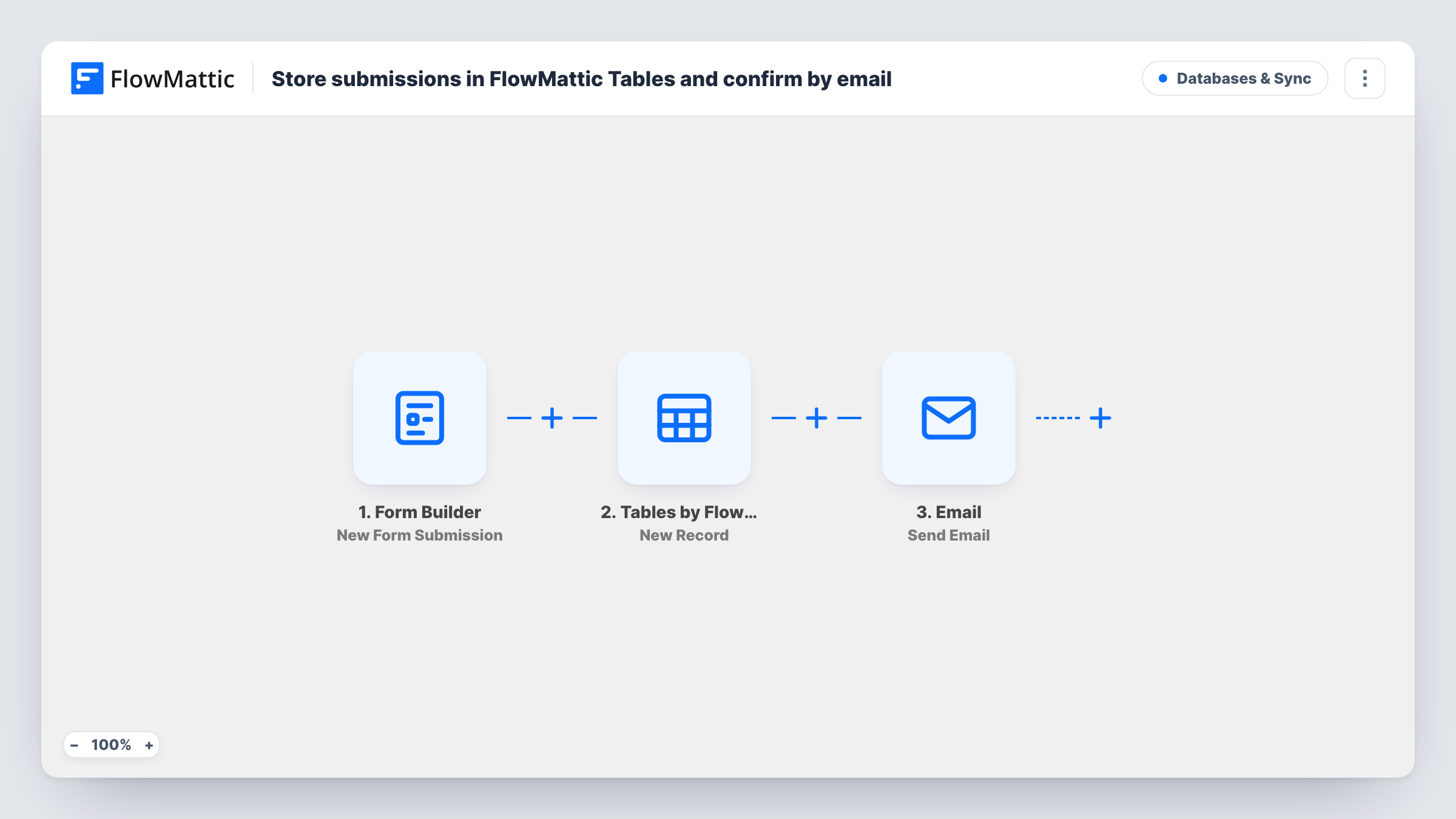
The Form Builder trigger fires whenever the selected FlowMattic form receives a submission, with every field available as a variable. The Tables by FlowMattic step then adds a new record. Its data is already mapped as JSON: the form's name goes to a Name column and email to an Email column, so your table needs both.
Finally, the Email step writes to the address the person entered. The subject says you've received their message and includes their name. The body thanks them for reaching out and says you'll reply shortly. It is sent with WordPress mail or the SMTP account you configure in FlowMattic.
Contact form with a record you control
A small business keeps every enquiry in a FlowMattic Table on its own site, while each sender gets a quick note that the message arrived.
Callback requests
A tradesperson's callback form stores names and emails in FlowMattic Tables for the day's call list and reassures each person by email.
Club or society membership enquiries
Enquiries from a club's FlowMattic form are kept in a table for the secretary, and each person is told their message was received.
How this workflow runs
What happens at each step once the workflow is on, and what you need before you import it.
 Form Builder New Form Submission
Picks up each new entry sent through the FlowMattic form you chose. The name, email and every other field are exposed as variables.
- Tables by FlowMattic New Record
Adds a record to your FlowMattic table with Name and Email columns filled from the form. Pick the table after import and add keys to the JSON for any extra fields you want stored.
 Email Send Email
Emails the person who submitted, using the address from the form. The subject names them and confirms receipt; the body thanks them and says you'll reply shortly.
What you need
- FlowMatticCore
After importing, map your own data. To keep the template universal, not every step is pre-filled. Open each step in the builder and connect your accounts and fields (channels, lists, sheets, recipients) before you switch the workflow on.
Make it yours
Changes worth making after you import it.
- Create a FlowMattic table with Name and Email columns before turning this on, and add columns such as Message if you want the full enquiry stored.
- Rewrite the email body to say when you usually reply, so the confirmation sets clear expectations for the sender.
- Add a Filter after the trigger that continues only when the email field is not empty, so the Email step always has an address.
Questions about this workflow
Do I need to set up a FlowMattic table first?
Yes. The New Record step sends Name and Email values, so the table you choose needs columns with those names. Extra columns can be filled by adding keys to the JSON.
Is the form message itself stored in FlowMattic Tables?
Not as imported. Only name and email are mapped. Add a Message column to your table and a matching key in the New Record step to keep it.
Which email account sends the confirmation?
FlowMattic's Email module sends it, either through WordPress mail or an SMTP account you set up in FlowMattic. Check the sender details there before you go live.
More Databases & Sync workflows
Other ready-to-import templates from the same category.





Import this workflow into your WordPress site
Download the JSON, import it from the Workflows screen and connect your accounts. Every run stays on your server, with no per-task fees.
30-day money-back guarantee Unlimited workflows and runs Self-hosted