

Turn Contact Form 7 submissions into Supabase records with a confirmation email
Every Contact Form 7 submission is saved as a row in a Supabase enquiries table, and the sender then gets a short confirmation email addressed to them by name.
 Contact Form 7
 Supabase
 Email
Email3 steps Setup ~5 min Used on 1.8k sites Databases & Sync Free to import
What this workflow does
Contact Form 7 emails you each message, but it keeps no searchable store of them. If your app or reporting already runs on Supabase, the natural place for enquiries is a Postgres table there. This workflow writes each submission to that table and lets the sender know it arrived.
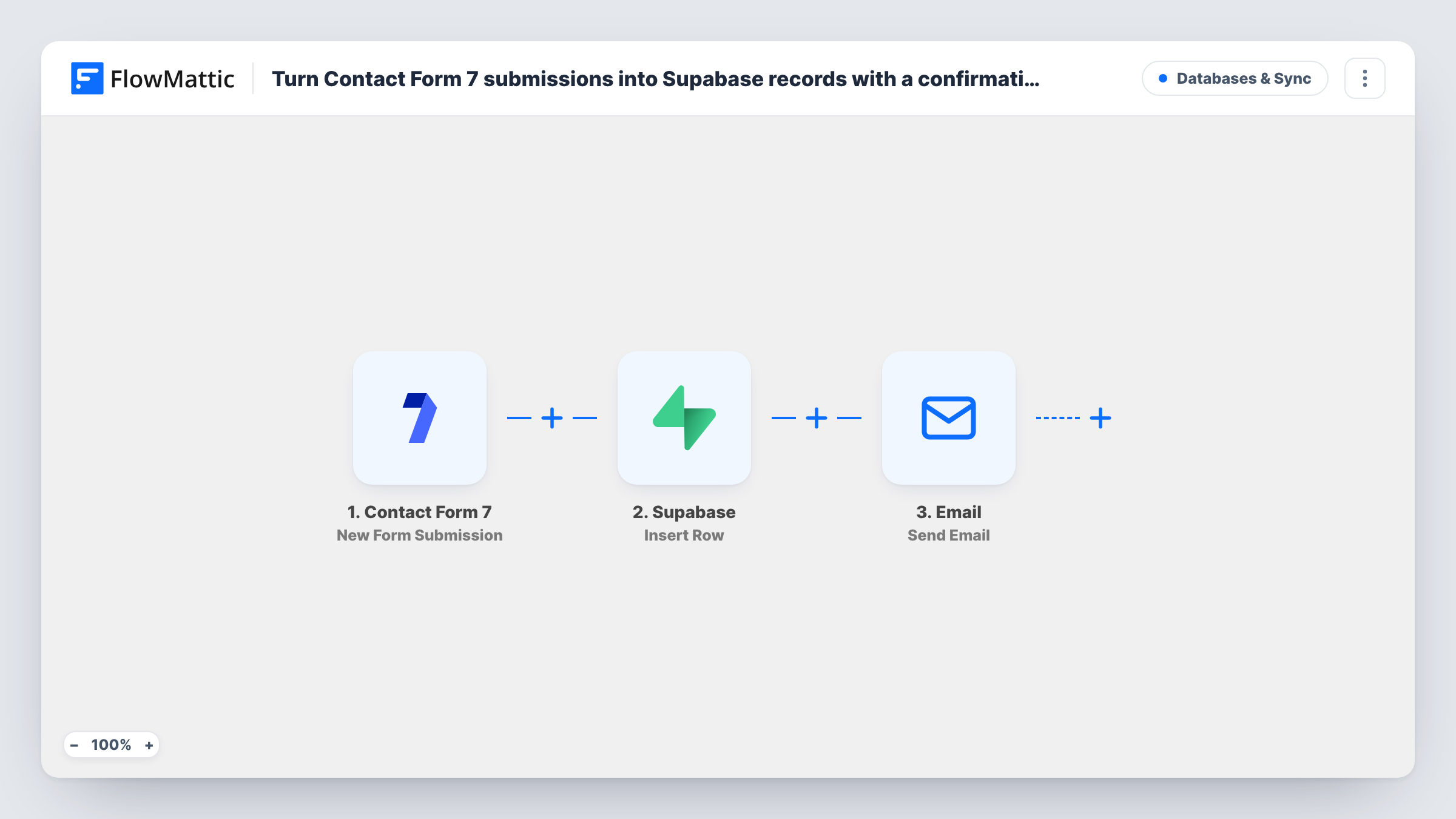
The Contact Form 7 trigger fires for each new submission. FlowMattic then runs Insert Row in Supabase on a table called enquiries, writing the form's name, email and message into columns of the same names. Finally, the Email step sends the person a message at the address they entered, with their name in the subject, saying the enquiry has been logged.
The template reads form fields called name, email and message. Contact Form 7's default form uses your-name, your-email and your-message instead, so either rename your form tags or remap the fields in both steps. Emails go out through WordPress mail or the SMTP account you set in the step.
Enquiries feeding an internal dashboard
A team builds a small dashboard on its Supabase database, and each website enquiry shows up there as a row the moment the form is sent.
A support form for a SaaS product
Customers write in through Contact Form 7 on the marketing site. Their messages land in the same Supabase project the product uses, and each sender gets an acknowledgement.
Keeping enquiries after email is deleted
A consultant clears their inbox often. The Supabase table keeps every enquiry with name, email and message for later reference.
How this workflow runs
What happens at each step once the workflow is on, and what you need before you import it.
 Contact Form 7 New Form Submission
Starts each time someone sends one of your Contact Form 7 forms. The template expects fields named name, email and message.
- Supabase Insert Row
Inserts a row into the Supabase table enquiries, with name, email and message columns filled from the form. Create that table first, or change the table name and mapping to fit yours.
 Email Send Email
Emails the sender at the address they gave, with their name in the subject line and a short note that the enquiry is logged. Edit the wording, and set WordPress mail or your SMTP details.
What you need
- FlowMatticCore
- Contact Form 7 PluginPlugin
- Supabase AccountAccount
After importing, map your own data. To keep the template universal, not every step is pre-filled. Open each step in the builder and connect your accounts and fields (channels, lists, sheets, recipients) before you switch the workflow on.
Make it yours
Changes worth making after you import it.
- Make the email field required in your form (an email* tag), so every submission has an address for both the Supabase row and the confirmation email.
- Add a created_at column with a default of now() in your Supabase table, so each enquiry carries its submission time without any extra mapping.
- Send yourself a copy as well by adding a second Email step addressed to your team, with the message text mapped into the body.
Questions about this workflow
What does my Supabase table need for the Contact Form 7 data?
A table named enquiries with name, email and message columns, all accepting text. If your table has another name or other columns, change the Insert Row step to match.
Why are the name and email empty after a test submission?
The template maps form fields named name, email and message. If your Contact Form 7 form uses the default your-name style tags, remap those fields in the Supabase and Email steps.
Does the confirmation go through Gmail or my own mail server?
It uses FlowMattic's Email module, which sends through WordPress mail or the SMTP account you enter in the step. Use your provider's SMTP details for better delivery.
Is the confirmation still sent if the Supabase insert fails?
Yes. FlowMattic carries on to the Email step even when the Supabase step returns an error, so the sender is still thanked. Task History shows the Supabase error for that submission.
More Databases & Sync workflows
Other ready-to-import templates from the same category.




Import this workflow into your WordPress site
Download the JSON, import it from the Workflows screen and connect your accounts. Every run stays on your server, with no per-task fees.
30-day money-back guarantee Unlimited workflows and runs Self-hosted