

Send a PDF summary when a booking is completed
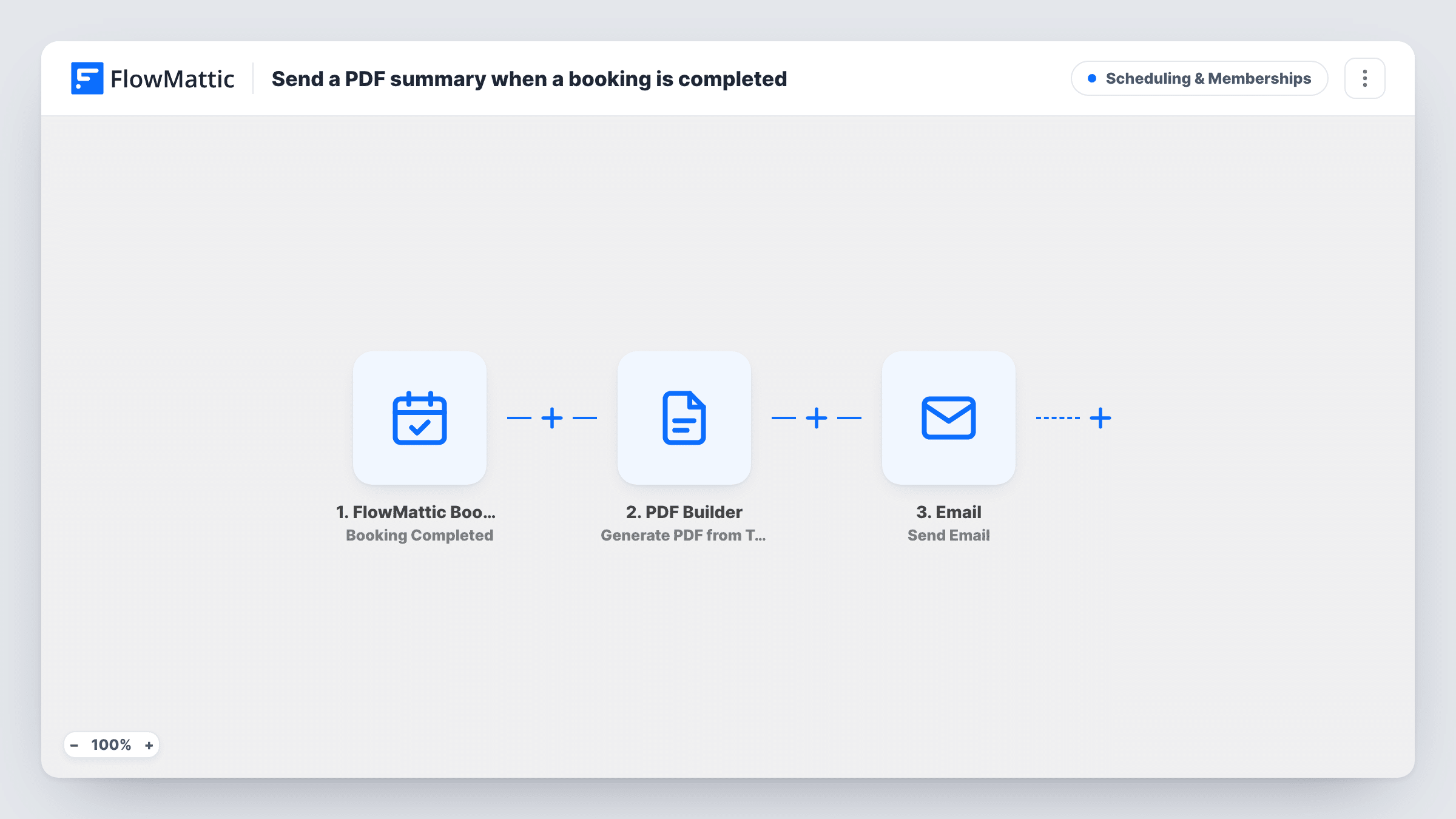
When you mark a FlowMattic Bookings appointment as completed, PDF Builder renders a session summary from your saved template and the customer is emailed a thank-you with a link to the PDF.
 FlowMattic Bookings
 PDF Builder
 Email
Email3 steps Setup ~5 min Used on 2.8k sites Community Free to import
What this workflow does
After a consultation, lesson or service visit, customers appreciate something to keep: what was covered, next steps, or simply a record that the session took place. This workflow sends that wrap-up once you mark the booking completed, using a PDF design you create once.
The FlowMattic Bookings Booking Completed trigger fires when a booking is marked completed. It carries the booking ID, calendar name, date, time, duration, any notes and the customer's name and email. The booking has to be marked completed, by your team or by a workflow that updates its status, so nothing is sent for sessions left open, no-shows or cancellations.
PDF Builder then renders a PDF from a saved template and stores it in the Media Library as session- followed by the booking ID. The template ID in the step, 12, is a placeholder, so choose your own summary template after import. No booking fields are mapped into it yet, so until you map the date, calendar name, customer name and notes into its parameters, the PDF shows the template's saved sample data.
Last, FlowMattic's Email step thanks the customer by name in the subject and links to the summary PDF in the body. The file is linked, not attached. Mark a test booking completed and read the email and Task History before you rely on it.
Coaching session recap
A business coach marks each call completed and the client receives a PDF with the date, session type and the notes saved on the booking.
Proof of attendance for training
A safety trainer completes each booked course session, and attendees get a PDF they can file with their employer as a record.
Service visit report
A home inspection company marks visits complete in FlowMattic Bookings, sending the homeowner a branded PDF summary of the appointment.
How this workflow runs
What happens at each step once the workflow is on, and what you need before you import it.
 FlowMattic Bookings Booking Completed
Fires when a FlowMattic Bookings appointment is marked completed. The booking ID, calendar name, date, time, duration, notes and the customer's name and email are passed on.
- PDF Builder Generate PDF from Template
Renders a summary PDF from a saved PDF Builder template and saves it as session- plus the booking ID. Select your template and map booking fields into it, or it shows sample data.
 Email Send Email
Emails the customer a thank-you that names them in the subject and links to the session summary PDF. Edit the body to add next steps or a link to book again.
What you need
- FlowMatticCore
After importing, map your own data. To keep the template universal, not every step is pre-filled. Open each step in the builder and connect your accounts and fields (channels, lists, sheets, recipients) before you switch the workflow on.
Make it yours
Changes worth making after you import it.
- Write session notes on the booking before you mark it completed and map the notes field into the PDF template, so each summary carries what was actually discussed.
- Attach the summary rather than linking to it: FlowMattic's Email step can attach files stored on your site, which suits customers who keep paperwork in their inbox.
- Put a Filter between the Booking Completed trigger and the PDF Builder step if only some calendars, such as paid consultations, should send a summary.
Questions about this workflow
When does the customer receive the session summary?
When the booking's status is set to completed in FlowMattic Bookings, by your team or by another workflow. The workflow doesn't run at the end of the booked time by itself, so a session that is never marked completed sends nothing.
Do I need a PDF Builder template for the session summary?
Yes. Generate PDF from Template renders a saved template, and the template ID in the step is only a placeholder. Design your summary template, then choose it in the step and map the booking fields.
Do no-shows or cancelled bookings get a summary PDF?
No. Those statuses have their own triggers, Booking Marked No-Show and Booking Cancelled. This workflow only runs for bookings marked completed.
More Scheduling & Memberships workflows
Other ready-to-import templates from the same category.







Import this workflow into your WordPress site
Download the JSON, import it from the Workflows screen and connect your accounts. Every run stays on your server, with no per-task fees.
30-day money-back guarantee Unlimited workflows and runs Self-hosted