

Win back no-shows with an AI-written follow-up
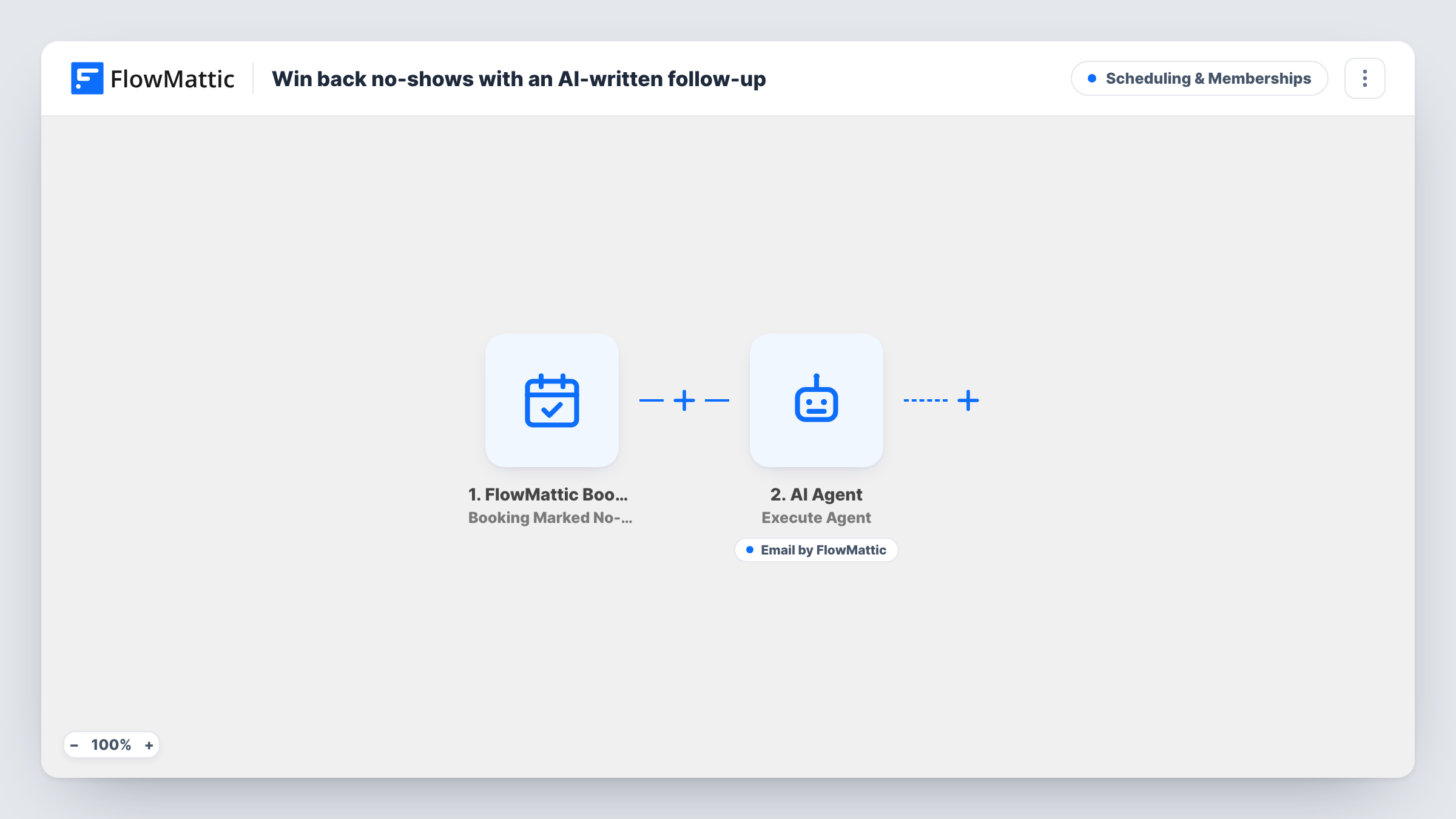
When a FlowMattic booking is marked as a no-show, an AI agent writes a short, friendly email inviting the customer to rebook and can send it with its Email tool.
 FlowMattic Bookings
 AI Agent
 Email
Email3 steps Setup ~5 min Used on 764 sites Community Free to import
What this workflow does
A missed appointment usually ends in silence: the slot is lost and nobody follows up. Writing a kind note to each no-show takes time, and a stock template can sound cold. This workflow hands the note to an AI agent that writes one for the specific appointment that was missed.
The FlowMattic Bookings Booking Marked No-Show trigger fires when a booking's status is set to no-show. It passes the customer's name and email, the calendar name, the booking date and time and the calendar's public booking page address.
The AI Agent step is set up with OpenAI's GPT-4o. Its instructions say to write short, warm re-engagement emails to people who missed an appointment, never to guilt-trip, and to invite them to rebook. Its input line names the customer, the calendar and the date and time they missed. It isn't given a link to your booking page, so add one to the input if the email should include it.
The agent has one tool, FlowMattic's Email action, already addressed to the customer's email from the booking. The subject and body are set to AI:, so the agent writes both. The agent chooses whether to call the tool, so look at a few runs in Task History before you count on every no-show getting an email.
Missed discovery calls
A marketing agency marks prospects who skip their call as no-shows, and each one gets a friendly note naming the call they missed and inviting them to pick another time.
Physiotherapy appointments
A clinic's front desk sets missed sessions to no-show, and patients receive a gentle message suggesting they book again rather than drop their treatment.
Tutoring sessions
A tutor flags students who didn't join, and parents receive a polite email noting the missed lesson date with an invitation to reschedule.
How this workflow runs
What happens at each step once the workflow is on, and what you need before you import it.
 FlowMattic Bookings Booking Marked No-Show
Fires when a FlowMattic Bookings appointment is marked no-show. The customer's name and email, calendar name, booking date and time and the public booking page address pass to the agent.
- AI Agent Execute Agent
Runs an AI agent on GPT-4o with instructions to write a short, warm email inviting the person to rebook, without guilt-tripping. It receives the customer's name, calendar name and missed date and time.
 Email Send Email
The agent's Email tool, addressed to the customer's booking email. The subject and body are left to the agent. Read a few test emails to make sure the tone and content suit your business.
What you need
- FlowMatticCore
- AI ProviderAccount
After importing, map your own data. To keep the template universal, not every step is pre-filled. Open each step in the builder and connect your accounts and fields (channels, lists, sheets, recipients) before you switch the workflow on.
Make it yours
Changes worth making after you import it.
- Map the trigger's booking page address into the agent's input and tell it in the instructions to include that link, so the customer can rebook straight from the email.
- Add your business name and how you'd like to sign off to the system prompt, so the agent doesn't sign as a generic sender.
- Put a Filter between the No-Show trigger and the AI Agent step if some calendars, such as internal meetings, shouldn't send a follow-up.
Questions about this workflow
Does every no-show booking get an email from the AI agent?
The instructions ask it to write one, and its Email tool is ready to send it, but the agent decides when to use a tool. Look at Task History for a few no-shows to confirm the email went out.
Will the AI follow-up include a link to rebook?
Not as imported. The agent is told to invite a rebooking but isn't given a link. Map the booking page address from the trigger into its input and ask for the link in the instructions.
Can I check the no-show emails before they are sent?
Not in this template; the agent sends through its Email tool. To review first, remove the agent's tool, add a Human in the Loop step after the AI Agent step, then an Email step that sends the agent's text. Set the Human in the Loop timeout action to End Workflow so nothing goes out unapproved.
Which AI model writes the no-show follow-ups?
GPT-4o from OpenAI, so connect an OpenAI account in the AI Agent step. You can switch to a different provider or model there.
More Scheduling & Memberships workflows
Other ready-to-import templates from the same category.






Import this workflow into your WordPress site
Download the JSON, import it from the Workflows screen and connect your accounts. Every run stays on your server, with no per-task fees.
30-day money-back guarantee Unlimited workflows and runs Self-hosted