

Add every new booking to Google Calendar
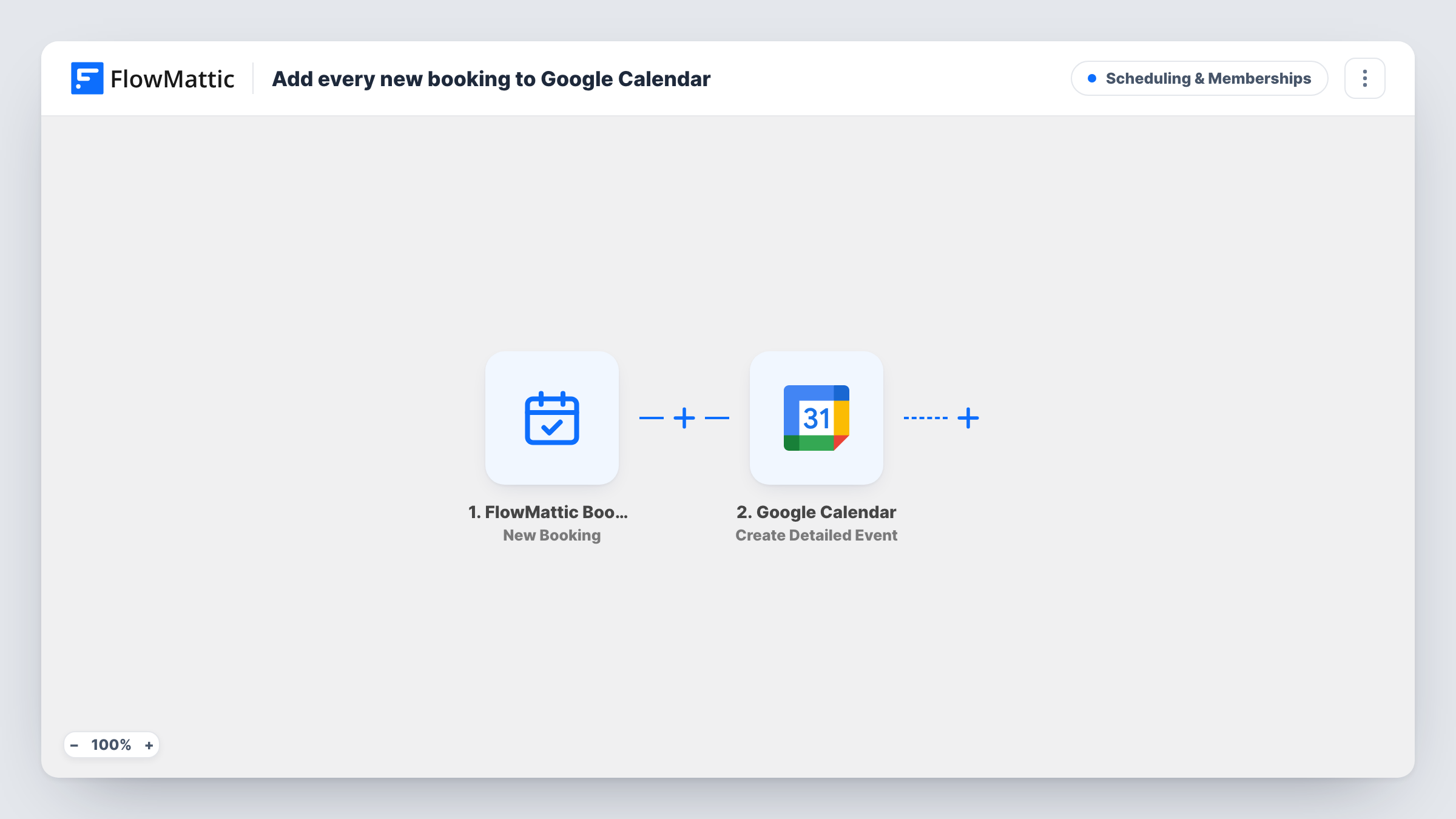
Each new FlowMattic Bookings appointment becomes a Google Calendar event titled with the calendar name and the customer’s name, running from the booked start time to its end time.
 FlowMattic Bookings
 Google Calendar
2 steps Setup ~5 min Used on 1.4k sites Community Free to import
What this workflow does
If your day is planned in Google Calendar, bookings that only live in WordPress are easy to miss or double-book around. This workflow copies each new booking into Google Calendar as it is made, so the slot shows up on your phone and next to your other meetings.
The FlowMattic Bookings New Booking trigger fires when someone books on one of your calendars. It passes the calendar name, the booking date, the start time, an end time worked out from the slot's duration, the time zone and the customer's details.
The Google Calendar step, Create Detailed Event, adds an event named after the calendar, a dash and the customer's name, such as Strategy Call - Priya Shah. Its start is the booking date and start time, and its end is the same date with the end time. After import, connect your Google account and choose the calendar the events go into.
The booking's time zone isn't mapped into the event, so book a test slot and check that it lands at the right hour in Google Calendar. The customer isn't invited either: the event is a block on your own calendar. Only new bookings are copied. Reschedules and cancellations made later don't change the Google event.
Consultant who lives in Google Calendar
A freelance consultant sees every discovery call booked on their site appear in the same Google Calendar as their client meetings.
Shared team calendar
A clinic sends bookings from each practitioner's FlowMattic calendar into a shared Google Calendar the front desk keeps open all day.
Phone reminders without another app
A personal trainer relies on Google Calendar's own notifications on their phone for sessions clients book through the website.
How this workflow runs
What happens at each step once the workflow is on, and what you need before you import it.
 FlowMattic Bookings New Booking
Fires for each new booking on a FlowMattic Bookings calendar. It sends the calendar name, customer name and email, booking date, start and end times and time zone to the Google Calendar step.
- Google Calendar Create Detailed Event
Creates a Google Calendar event titled with the calendar name and customer name, from the booking's start time to its end time on the booking date. Pick the target calendar after import and check the time zone in a test.
What you need
- FlowMatticCore
- Google Calendar AccountAccount
After importing, map your own data. To keep the template universal, not every step is pre-filled. Open each step in the builder and connect your accounts and fields (channels, lists, sheets, recipients) before you switch the workflow on.
Make it yours
Changes worth making after you import it.
- Add Google Calendar's Add Attendee to Event action after Create Detailed Event, mapping the customer's email, if the person who booked should appear on the event too.
- Add the customer's email, phone and notes to the event while you configure Create Detailed Event, so the details are one tap away. Run a test booking to see where they show.
- If several FlowMattic calendars feed this workflow, put a Filter between the New Booking trigger and the Google Calendar step that continues only for the calendar name you want in Google.
Questions about this workflow
Does the customer get a Google Calendar invitation for the booking?
Not as imported. The event is created on your calendar without attendees. Add the Add Attendee to Event action after it with the customer's email if you want them on the event.
What happens in Google Calendar when a booking is rescheduled or cancelled?
Nothing. This workflow only runs on New Booking and creates an event. A rescheduled or cancelled booking leaves the original Google event in place, so update or remove it yourself.
Will the Google Calendar event show the booking in the right time zone?
The template maps the booking date and times but not the booking's time zone. Make a test booking and compare the event time with the booked slot. If they differ, adjust the Create Detailed Event step and test again.
Are bookings made before I import the workflow copied to Google Calendar?
No. Only bookings made while the workflow is on start a run. Add earlier bookings to Google Calendar by hand.
More Scheduling & Memberships workflows
Other ready-to-import templates from the same category.




Import this workflow into your WordPress site
Download the JSON, import it from the Workflows screen and connect your accounts. Every run stays on your server, with no per-task fees.
30-day money-back guarantee Unlimited workflows and runs Self-hosted