

Store scheduled page screenshots in Supabase Storage
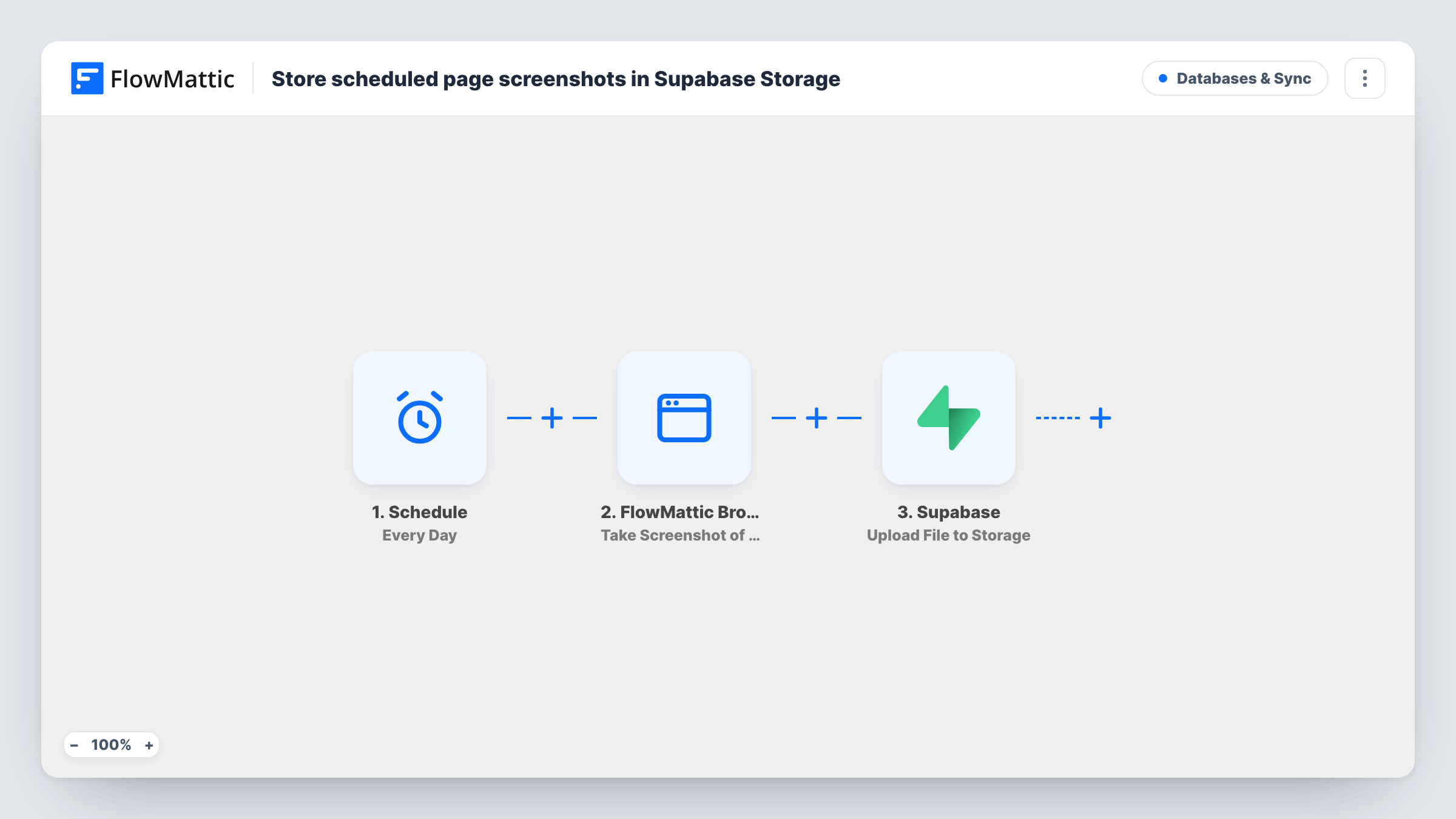
Each day FlowMattic Browser takes a full-page PNG screenshot of a page you choose, and Supabase uploads it to your screenshots bucket, replacing the previous day’s file at the same path.
 Schedule
 FlowMattic Browser
 Supabase
3 steps Setup ~5 min Used on 448 sites Databases & Sync Free to import
What this workflow does
If your apps already read files from Supabase Storage, a fresh picture of your homepage or a landing page is handy to have there: for a status dashboard, an internal tool or a preview card. Taking that screenshot by hand every day is the kind of job that gets dropped. This workflow does it on a schedule.
The Schedule trigger starts a run once a day. FlowMattic Browser opens the page in a headless browser and captures the full page as a PNG. The image is saved to your WordPress Media Library and the step returns its public URL. The template's URL is a placeholder for your company site, so enter the page you want.
Supabase then uploads the image from that URL to the screenshots bucket at daily/homepage.png, as image/png, with upsert on. Because the path is fixed and upsert is on, each day's upload replaces the last one, so the bucket always holds the latest screenshot rather than a history. Before the first run, add your Cloudflare Browser Rendering details in FlowMattic Settings, since the screenshot step depends on them.
A live preview in an internal dashboard
Your Supabase-backed admin app shows a thumbnail of the public homepage, read from the same storage path that this workflow refreshes each day.
Client site snapshots for an agency portal
An agency portal built on Supabase shows each client the current look of their site, updated daily without anyone taking screenshots.
Sharing the current landing page with a remote team
Designers and marketers check one fixed file in your Supabase bucket to see how the landing page looked at the last run.
How this workflow runs
What happens at each step once the workflow is on, and what you need before you import it.
 Schedule Every Day
Kicks off the workflow once a day without any event on your site. Each run takes one new screenshot.
- FlowMattic Browser Take Screenshot of URL
Captures a full-page PNG of the URL in a headless browser, saves it to your Media Library and returns a public URL. Swap the placeholder company address for your own page.
- Supabase Upload File to Storage
Uploads the screenshot from that URL to the Supabase bucket named screenshots at daily/homepage.png, as image/png. Upsert is on, so it overwrites the file already at that path.
What you need
- FlowMatticCore
- Supabase AccountAccount
After importing, map your own data. To keep the template universal, not every step is pre-filled. Open each step in the builder and connect your accounts and fields (channels, lists, sheets, recipients) before you switch the workflow on.
Make it yours
Changes worth making after you import it.
- Want a history instead of one current image? Add a Date/Time Formatter step before Supabase and put today's date in the file path, so each day is stored as its own file.
- Create the screenshots bucket in Supabase before the first run, or change the bucket name in the step to one you already have.
- Each run also adds an image to your WordPress Media Library. Remove old screenshots there from time to time if you only need the Supabase copy.
Questions about this workflow
Does Supabase keep every daily screenshot?
Not as imported. The file path is fixed and upsert is on, so each upload replaces the previous file. Put a date in the path if you want one file per day.
Why is the screenshot in my Media Library as well as Supabase?
FlowMattic Browser saves each screenshot to the Media Library and returns its URL. The Supabase step uploads the image from that URL into your bucket.
Do I need a Cloudflare account for the Supabase screenshot workflow?
Yes, for the screenshot. FlowMattic Browser works through Cloudflare Browser Rendering, so add your Cloudflare Account ID and API Token in FlowMattic Settings.
Can I capture a different page or more than one?
Yes. Change the URL in the Browser step, or add another Browser and Supabase pair with its own file path for each extra page.
More Databases & Sync workflows
Other ready-to-import templates from the same category.






Import this workflow into your WordPress site
Download the JSON, import it from the Workflows screen and connect your accounts. Every run stays on your server, with no per-task fees.
30-day money-back guarantee Unlimited workflows and runs Self-hosted