

Email automation for WordPress, sent from your workflows
FlowMattic sends designed emails from any step of a workflow, turns incoming mail into a trigger, waits for a reply or an approval, and keeps your mailing lists in step with what happens on the site. Email automation runs on your own server, through your own mail setup, with no per-send fee.
Send through WordPress mail or your own SMTPIMAP trigger starts a workflow from incoming mailApprovals by email or Slack909+ integrations, Gmail to FluentCRM

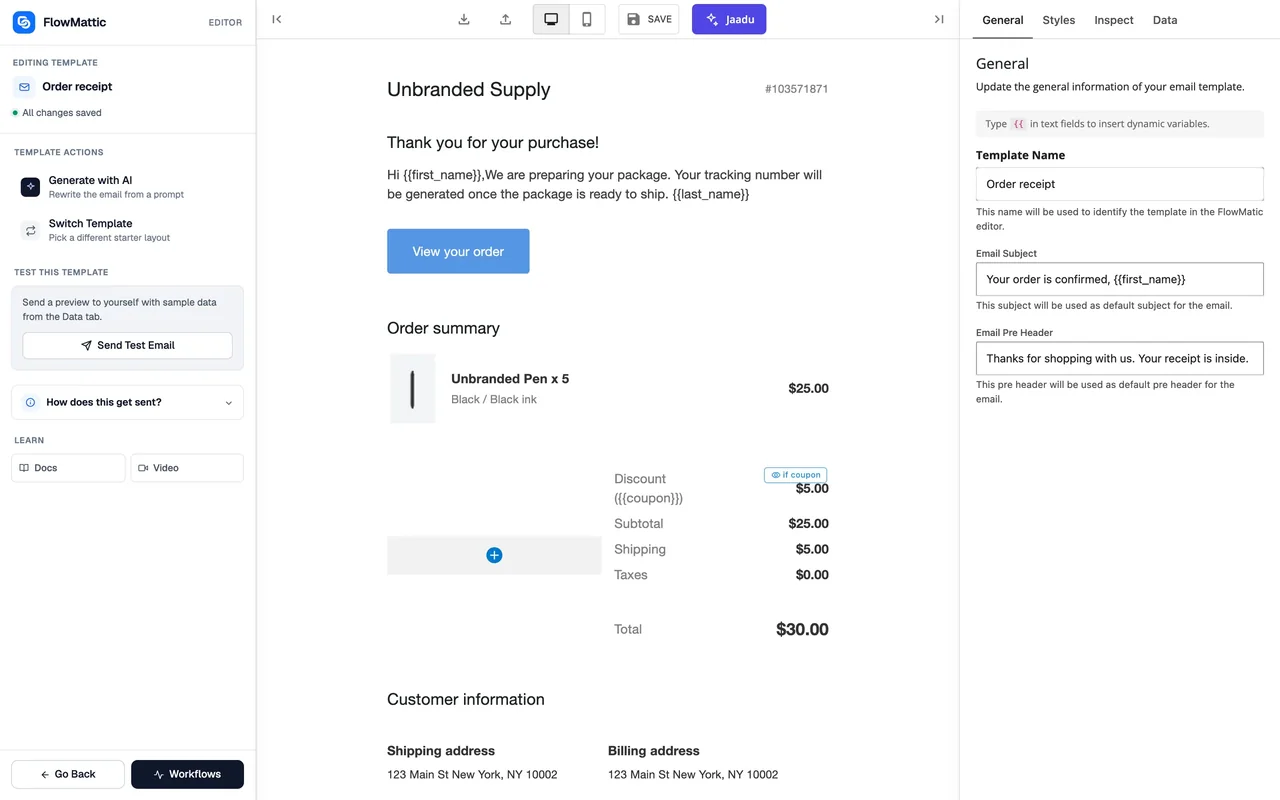
Design, wire, send
The template is built once; the workflow decides when it goes and what fills it.
-
Design
Build the template
Drag blocks into a responsive layout, type two braces to insert a dynamic field, add a Loop block for line items, and show or hide a block on a condition. Generate with AI drafts the whole email from a prompt.
-
Wire
Pick the trigger and map the fields
A form submission, a WooCommerce order, a new user, a schedule, a row in a table or an email that just arrived. Each template field is filled from the trigger or an earlier step, picked from a list.
-
Send
Send, wait, follow up
Send Template Email goes out through WordPress mail or your SMTP, with attachments from earlier steps. A Delay step waits a day, a Human in the Loop step waits for a reply, and Task History records the send.
One send step, your own mail setup
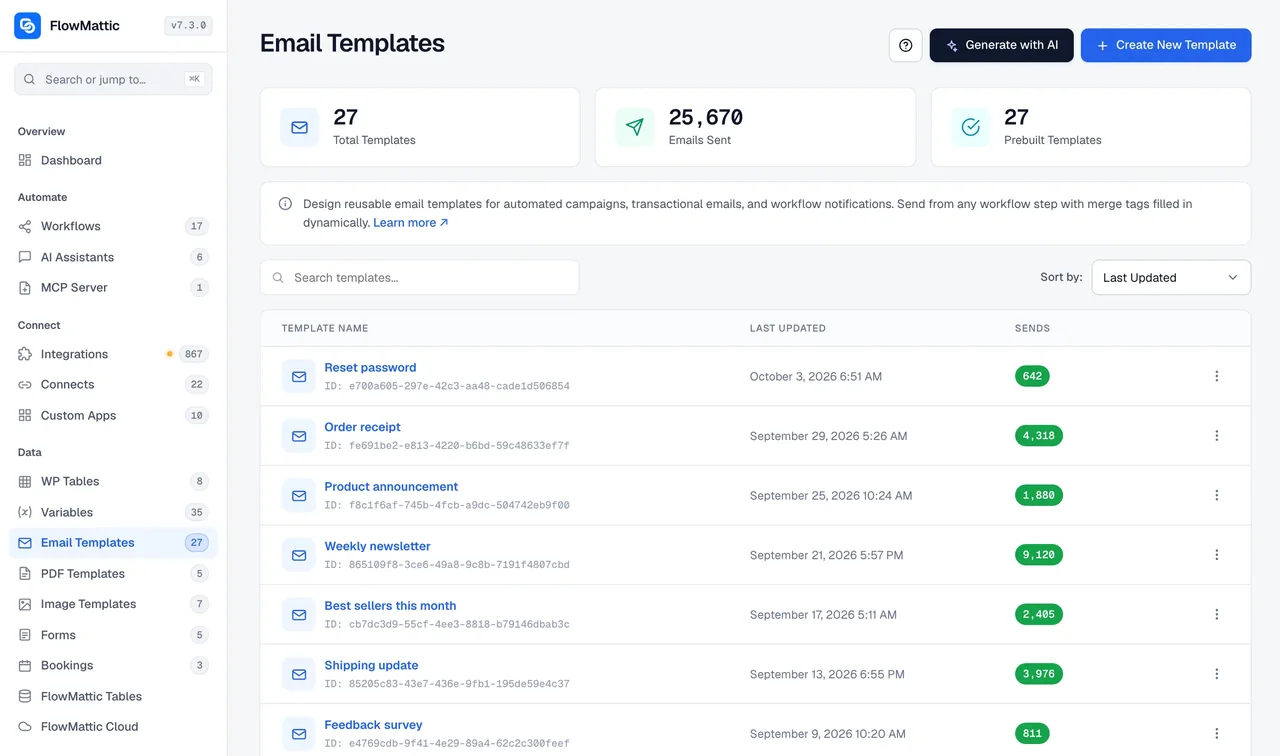
Email by FlowMattic has two actions. Send Email takes a subject, body, from name, reply-to and attachments typed or mapped in the step. Send Template Email picks a design from the Email Template Builder and fills its fields from the run. Both go out through the WordPress mail function or a custom SMTP connection, so your existing deliverability setup stays in charge, and each template keeps a count of how often it was sent.
- Attach a PDF rendered earlier in the run, an uploaded file or a media library item
- Pre-header, subject and every block accept dynamic data
- Send a test with your own sample data before the workflow goes live
- Prefer a provider? Gmail, Zoho Mail and Postmark have their own send actions
Incoming mail starts a workflow
Connect a mailbox under Settings and the IMAP Email Parser polls it for you. Email Received, Email with Subject Contains, Email from Specific Sender and Email with Attachment each start a workflow with the sender, subject, body and attachment list as fields. Six actions manage the inbox from the same run: Import Email Attachments to Media Library, Mark Email as Read or Unread, Move Email to Folder, Flag and Unflag. No mailbox to connect? Email Parser by FlowMattic gives you an address to forward to.
- Hand the body to an AI Agent to classify, extract or draft a reply
- Forwarded mail keeps its original headers for mapping
- PDF Parser reads an attached invoice into fields in the next step
Sequences on a delay, and emails that wait for an answer
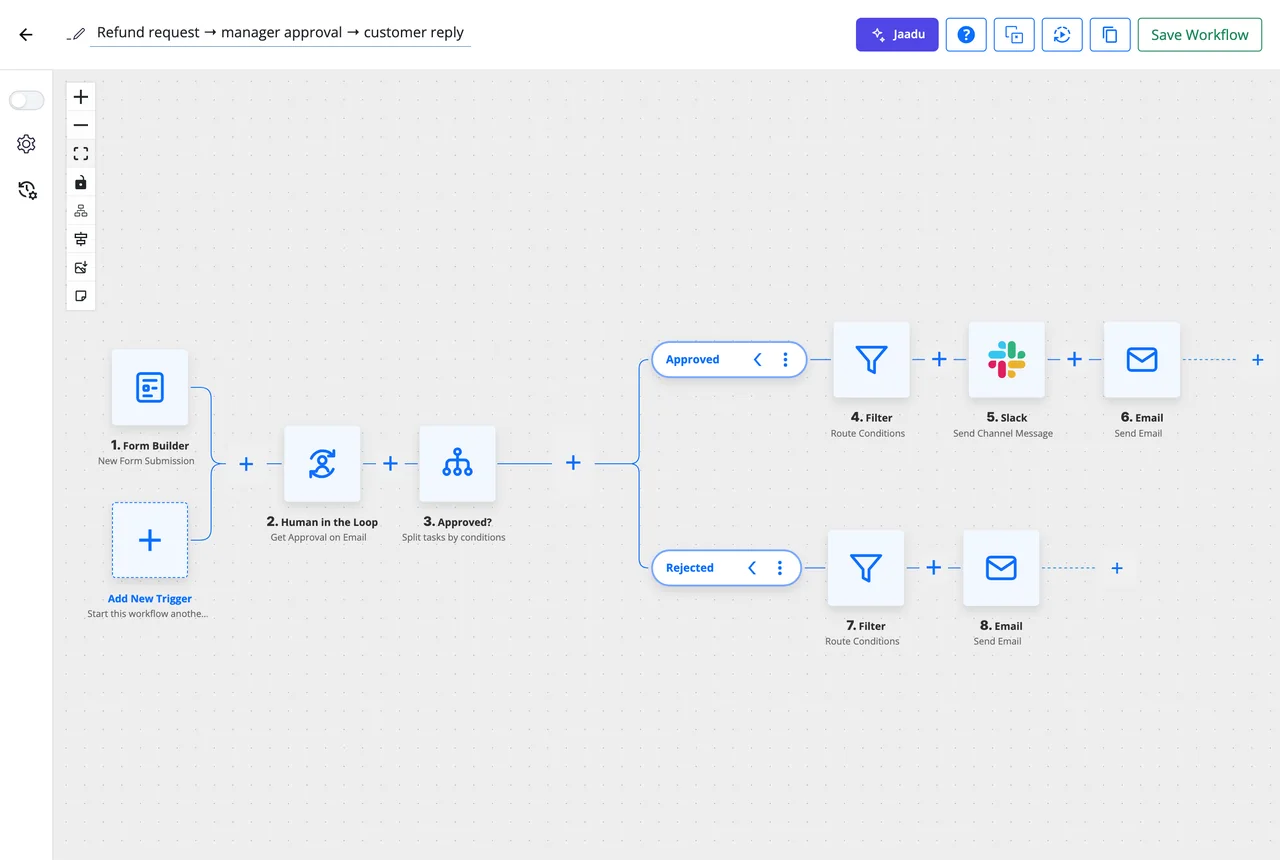
A Delay For step holds the run for minutes, hours or days; Delay Until waits for a date in any time zone. Chain three sends with two delays and you have an onboarding sequence that runs on your server. When a person has to decide, Get Approval on Email sends a message with approve and reject links and pauses the workflow until one is clicked, then a Router continues on the answer, with an Action on Reject setting for the other path. Get Approval on Slack does the same with buttons.
- A waiting run shows as Waiting in Task History and can be cancelled
- Approval links carry the request details, so the approver sees what they are deciding
- Cloud fires scheduled sends at the exact time, even on a quiet site
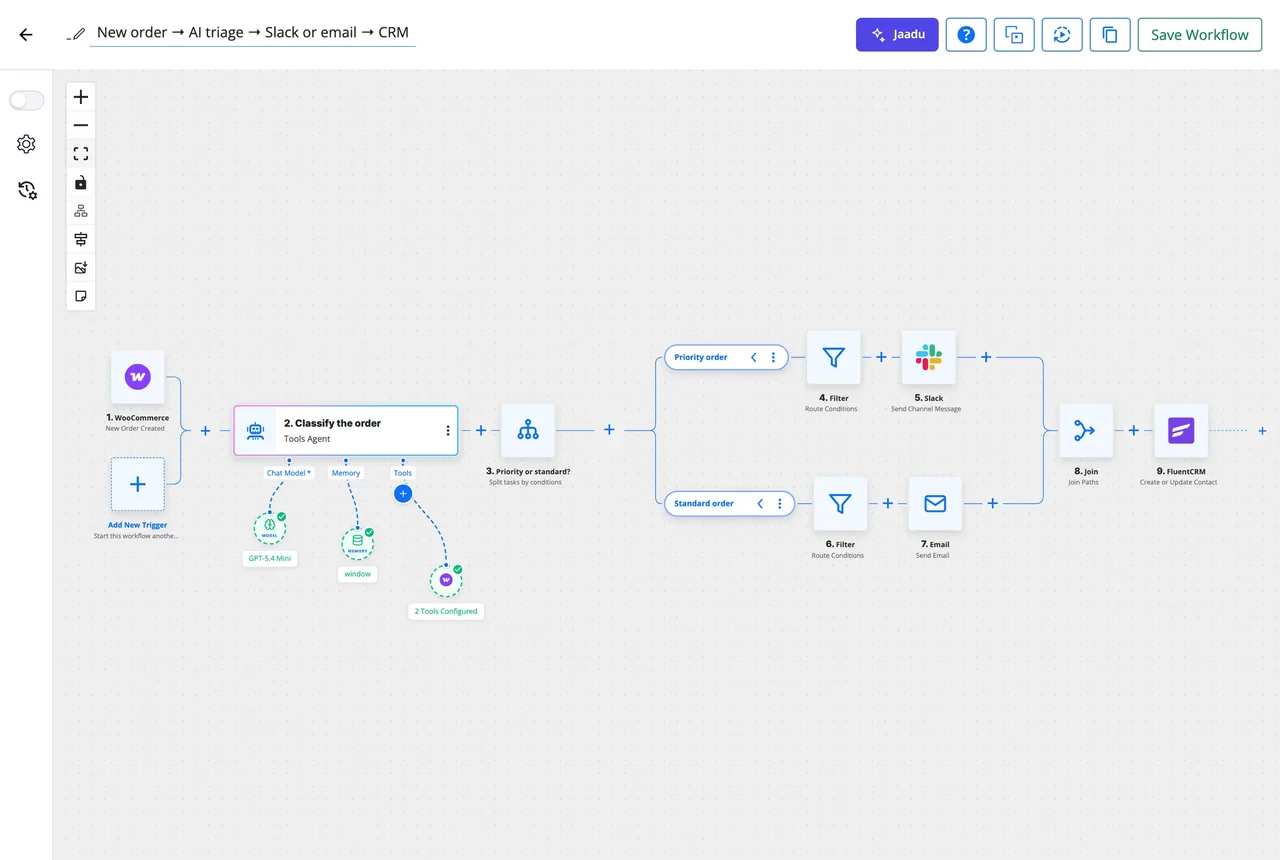
Route by rules, and keep the lists in step
A Router sends each run down the branch that fits: a new customer to the welcome series, a repeat buyer to the loyalty note, a failed payment to the account team. The same workflow adds or updates the contact in FluentCRM, Mailchimp, MailerLite or Brevo with tags from the event, and a ZeroBounce or Emailable step verifies an address before it joins a list.
- Filter on any field, with AND and OR groups
- Join brings the branches back together for the shared steps
- Skip Duplicate Events stops a resent form from emailing twice
Email apps in the integrations library
Each app brings its own actions: send, add a subscriber, tag a contact, verify an address. Anything missing can be reached with a Custom App.
 Gmail
Gmail Zoho Mail
 Postmark
 Brevo ( Sendinblue )
 Mailchimp
 MailerLite
 FluentCRM
 MailPoet
 ZeroBounce
 Emailable
 Mailparser
The pieces an email workflow is made of
Email Template Builder
Block-based responsive designs with dynamic fields, Loop blocks, conditional blocks and AI drafting.
Human in the Loop
Approve or reject from the inbox or Slack; the workflow continues on the answer.
Delay
Wait a duration or until a date, in the time zone you choose, between the sends of a sequence.
PDF attachments
Invoices, certificates and reports rendered in the run and attached to the send.
AI Agents
Classify incoming mail, extract the fields that matter, or draft the reply for a person to approve.
Form Builder
Every submission is a trigger, so a contact form can start the sequence without a connector.
Four email workflows, step by step
Each chain uses only modules and apps named on this page. The library has 4,686 importable workflows for more.
Verified signup, then a welcome series
Form Builder submission, then ZeroBounce verifies the address, a Filter stops on an invalid result, FluentCRM creates the contact with a tag, Send Template Email delivers the welcome, Delay For 2 days, and a second template follows.
Support inbox sorted by AI
IMAP Email Received, then an AI Agent classifies the email as support, invoice or newsletter, a Router posts support requests to Slack with the summary, imports invoice attachments to the media library, and moves newsletters to a folder.
Refund request with an approval email
Form Builder submission, then Get Approval on Email asks the manager, a Router sends approved requests to Slack for finance and a confirmation email to the customer, and rejected ones a template with the manager's note.
Weekly invoices from a table
A Monday schedule, then WP Tables Get Rows reads unpaid rows, an Iterator loops through them, Generate PDF from Template renders each invoice, Send Template Email delivers it, and Google Sheets logs the send.
Questions about email automation
How are the emails actually delivered?
Email by FlowMattic sends through the WordPress mail function or a custom SMTP connection you configure, so your existing SMTP plugin or mail service keeps handling delivery. If you would rather send through a provider, Gmail, Zoho Mail and Postmark each have their own send action in the integrations library.
Can an incoming email start a workflow?
Yes. Connect a mailbox under Settings and the IMAP Email Parser polls it, with triggers for any new email, a subject containing text, a specific sender or an email with attachments. Without a mailbox connection, Email Parser by FlowMattic gives you an address to forward mail to.
Can I build a drip sequence with delays between emails?
Yes. Put a Delay For step between Send Template Email steps, with minutes, hours or days, or Delay Until a date in a chosen time zone. A waiting run shows as Waiting in Task History and can be cancelled before the next send.
How does approval by email work?
The Human in the Loop step sends an email with approve and reject links and pauses the workflow. When a link is clicked, the run continues and a Router can take the Approved or Rejected branch; an Action on Reject setting decides what happens on a rejection. The same step can ask in Slack with buttons instead.
Which email marketing and CRM tools are integrated?
FluentCRM, Mailchimp, MailerLite, Brevo and MailPoet are in the integrations library with their own contact, list and tag actions, and ZeroBounce and Emailable can verify an address before it is added. The library has hundreds more apps, and a Custom App covers any REST API that is not there yet.
Is there a limit on how many emails a workflow can send?
FlowMattic itself sets none: every plan includes unlimited workflows and runs. Your mail provider or SMTP service applies its own sending limits, which is why an Iterator can add a wait between items when a run sends in bulk.
Did not find your answer? You can browse the help center or ask us directly.
Send the next email from a workflow
Design it once, let the site decide when it goes, and keep every send on your own server. Running on 12,859+ sites.
30-day money-back guarantee Unlimited workflows and runs Self-hosted