Custom Webhook Response: Send Your Own Status, Headers and Data
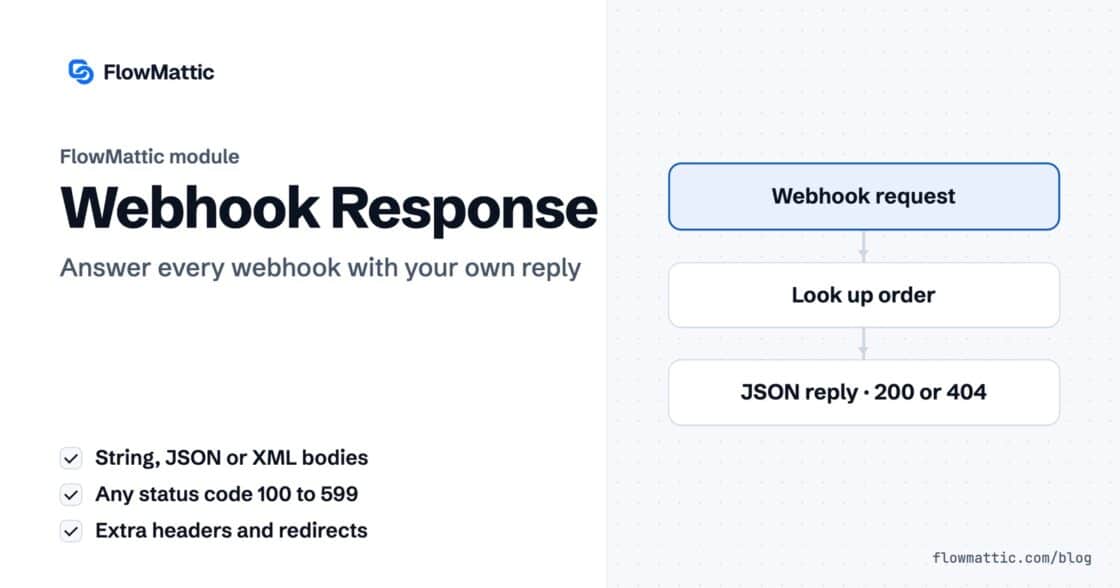
Reply to a webhook with data from the run: String, JSON or XML bodies, any HTTP status from 200 to 599, extra…


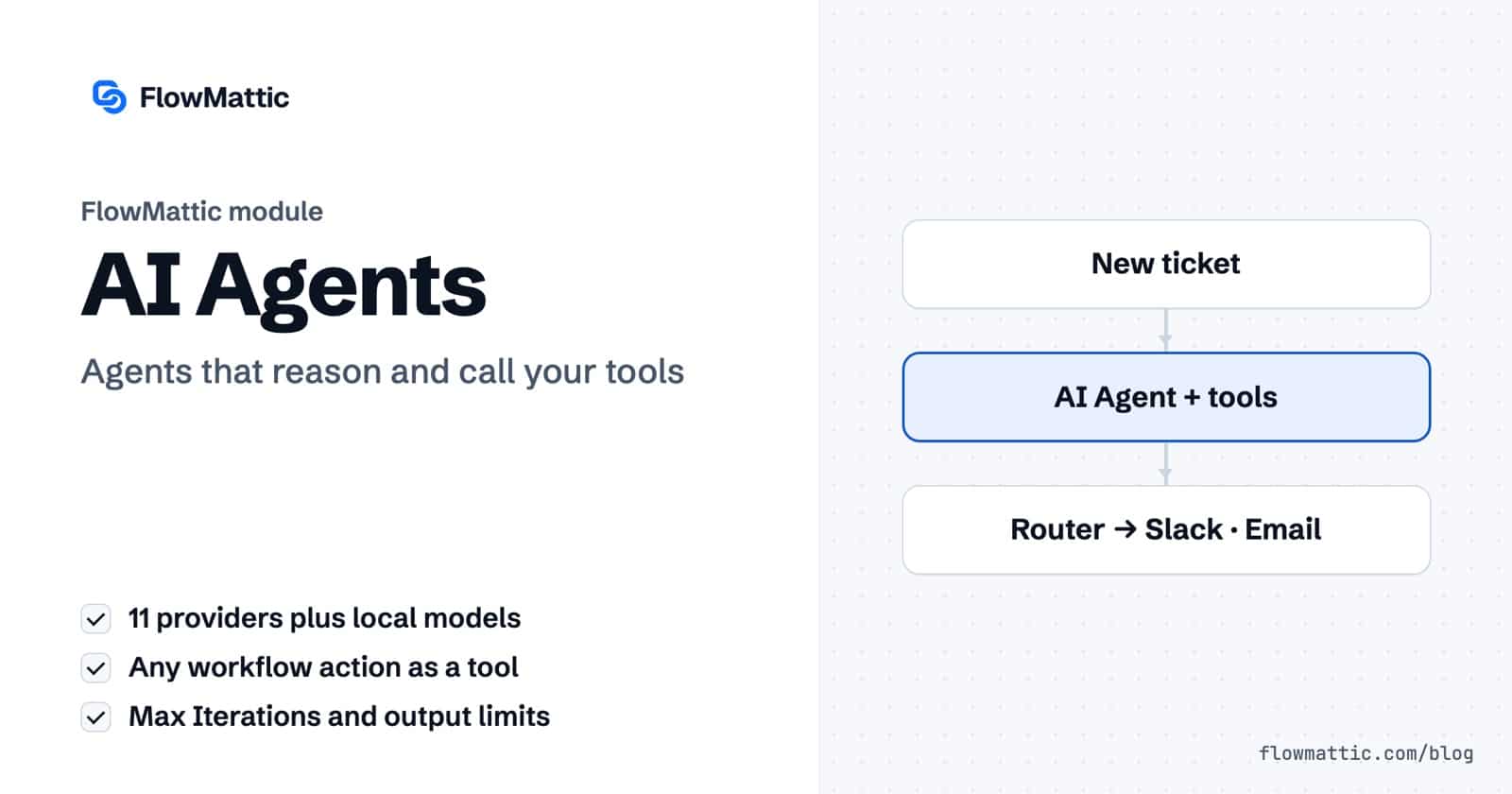
A WordPress AI agent in FlowMattic is a workflow step with instructions, a chat model and a toolbelt. Instead of following one fixed path, it reads the input, decides which tool to call, looks at the result and keeps going until it can answer. Everything runs inside the WordPress site you already have, on your own AI provider key.
Use an agent when the next step depends on reading something rather than on a fixed rule: a support message to classify, an order to judge, a lead to research. This guide walks through every setting on the AI Agent step, how the agent loop works, and seven workflows where an agent earns its place.
The AI Agent is a built-in app called AI Agent by FlowMattic with one action, Execute Agent. You add it from the AI category of the app picker in the visual workflow builder. On the canvas it appears as a “Tools Agent” card with three connectors underneath: Chat Model (required), Memory and Tools. Each connector holds a small round node you click to configure.
An agent is different from a single AI completion. A completion answers once. An agent can call your workflow’s own actions as tools, many times in one run, and use what each call returns to decide its next move.
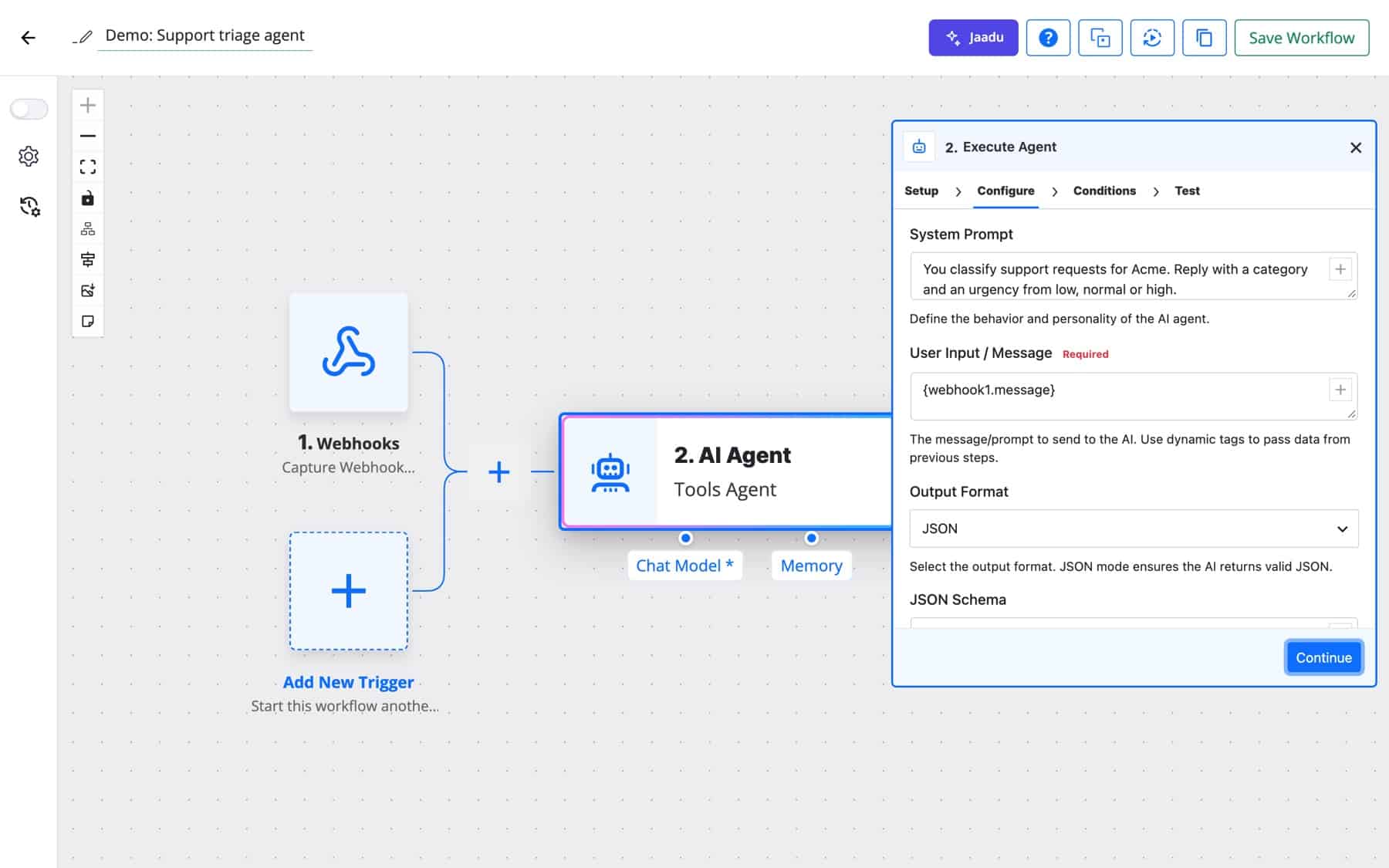
Click the agent card to open its panel. System Prompt defines the agent’s role and rules, for example “You classify support requests for Acme and tag them.” User Input / Message is required and is usually a dynamic tag from the trigger, such as {webhook1.message}. Typing @ in a field opens the dynamic tag picker.
Click Choose AI Model under the Chat Model connector. Pick a provider under Choose AI Provider, select the AI Connection that holds your key, then the AI Model. For most providers the model list is loaded live from the provider. Keys come from Connects, so you save one once and reuse it on every agent.
Click the + beside the Tools connector to add a tool node. Each tool is an app action: pick the app and its Action Event, then give it a Tool Name and a Tool Description so the model knows when to use it. On the Configure tab you fill the action’s fields the same way as a normal step, and Test Tool lets you check it before saving.
When the workflow runs, the agent sends the prompt and the tool list to the model. If the model asks for a tool, FlowMattic runs that action on your site and sends the result back. This repeats until the model answers without calling a tool, or until Max Iterations is reached. The final answer becomes the step’s output for the next step to use.
The provider picker offers OpenAI, Anthropic, Gemini, Groq, Straico, OpenRouter, Perplexity, DeepSeek, Mistral AI, xAI (Grok) and AWS Bedrock, plus OpenAI-Compatible (custom URL). The last one takes a Base URL such as http://localhost:11434/v1 for Ollama or http://localhost:1234/v1 for LM Studio, an optional key connection, and a Model ID you can type or load from the server.
Requests go from your server straight to the provider with your key. FlowMattic adds no markup on tokens and there is no separate AI fee; you pay your provider at its own rates, or nothing with a local model. AWS Bedrock uses its own connection with a Bedrock API key or IAM access keys and a region.
| Setting | Where | What it does |
|---|---|---|
| System Prompt | Agent panel | The agent’s role, rules and tone. |
| User Input / Message | Agent panel | Required. The message the agent works on, usually a dynamic tag. |
| Output Format | Agent panel | Plain Text or JSON. With JSON, a JSON Schema box sets the exact keys to return. |
| Max Tokens | Chat Model | Longest reply per call. Default 4096. |
| Temperature, Top P, Top K | Chat Model | Sampling controls. Defaults 0.7, 1 and 0. Values you change reach the providers that accept them; Top K goes to Claude and Gemini. |
| Frequency and Presence Penalty | Chat Model | Discourage repetition or new topics. Default 0. |
| Additional Parameters | Chat Model | JSON merged into the provider request for anything the form does not cover, such as reasoning or stop. null removes a parameter. |
| Max Iterations | Chat Model, Agent Limits | How many model turns the agent may take, 1 to 100. Default 10. |
| Tool Output Limit | Chat Model, Agent Limits | Cuts each tool result to this many characters before the model sees it. Empty means no limit. |
| Memory Type | Memory | No Memory (Stateless), Window Buffer Memory, WP Tables or WordPress Options. |
| Session Identifier | Memory | Groups memory by conversation. Leave empty for a new ID each run. |
| Include Execution Log / Request Body | Agent panel, Debug Options | Store tool calls, iterations and the raw request in Task History. Off by default. |
Window Buffer Memory keeps the most recent messages (Window Size, default 10) for a day. WP Tables stores history in a table with session_id, role, content and timestamp columns. WordPress Options stores it under an option name that starts with fm_agent_memory_. To continue a conversation across runs, pass the same Session Identifier, for example a chat ID from the trigger. Memory keeps the user input and the final answer, not every tool call.
A tool field you fill, with a value or a dynamic tag, is fixed and the model cannot change it. A field you leave blank is described to the model, which fills it, so required fields are complete on the first call. If you want the model to fill only certain fields, start their values with AI: and an example, such as AI: [email protected].
Any app action can be a tool, from WordPress and WP Tables to the API module and any of nearly 900 integrations. Flow-control and trigger modules are left out (Router, Branch, Filter, Iterator, Delay, Human in the Loop, Schedule, Webhook, Sub-workflow and the agent itself). Two tools deserve a mention: the MCP Client, which adds an external MCP server’s tools, and FlowMattic Browser’s Browse URL action, which lets the agent read live web pages.
A new ticket goes to an agent with tools to look up the customer in your CRM and search a WP Tables FAQ. It returns JSON with a category and urgency, and a Router sends urgent ones to Slack.
Help desk new ticket → AI Agent (CRM lookup, WP Tables) → Router → Slack · Email
The agent reads the items, the total and the customer’s order history, then returns a priority the Router branches on. High-value or unusual orders reach the team; the rest get the standard confirmation.
WooCommerce new order → AI Agent (Output Format: JSON) → Router
A sign-up arrives with only a name and an email. The agent calls the lookup tools you attached, fills company and role fields in a table and leaves a note on the contact for Amelia Okafor’s team.
Webhook (new sign-up) → AI Agent (API lookup, WP Tables update) → CRM add note
Every Monday, an agent opens each client’s competitor pages with the Browse URL tool, notes what changed and writes one summary per client.
Schedule (weekly) → AI Agent (Browse URL) → Send email
Incoming messages from a chat channel arrive by webhook with a chat ID. The agent uses WP Tables memory keyed by that ID as the Session Identifier, so it remembers earlier turns, and the answer goes back to the channel.
Webhook (message) → AI Agent (WP Tables memory) → Telegram send message
When a post is published, an agent writes social copy in your brand voice from the title and excerpt, then posts it to the team chat for review.
WordPress new post → AI Agent → Slack message
For internal records that should not leave your network, point the OpenAI-Compatible provider at an Ollama server and let the agent summarise rows from a table into a weekly report.
Schedule → AI Agent (OpenAI-Compatible, WP Tables get rows) → Send email
http_request_host_is_external and http_allowed_safe_ports filters. The error names both.No. The AI Agent runs on your own key, saved in Connects, and requests go from your server straight to the provider. You pay the provider at its own rates, or nothing with a local model.
Yes. Choose OpenAI-Compatible (custom URL), enter the Base URL of Ollama, LM Studio, vLLM or Azure OpenAI, and load or type the model ID. The key connection is optional, so a local server that needs no key works as is.
Max Iterations on the Chat Model caps the model turns at 1 to 100, with 10 as the default. Tool Output Limit trims long tool results, which keeps each turn’s cost predictable.
An AI Agent is a step that runs each time its workflow runs. Jaadu is the copilot that builds workflows with you in the builder. AI Assistants are chat widgets visitors use on your site.
Yes. Choose Window Buffer Memory, WP Tables or WordPress Options and pass the same Session Identifier on each run. Without memory, every run starts fresh.
Ready to give a workflow step a goal and a toolbelt? See FlowMattic plans and run AI agents on your own WordPress server with your own key.
Reply to a webhook with data from the run: String, JSON or XML bodies, any HTTP status from 200 to 599, extra…
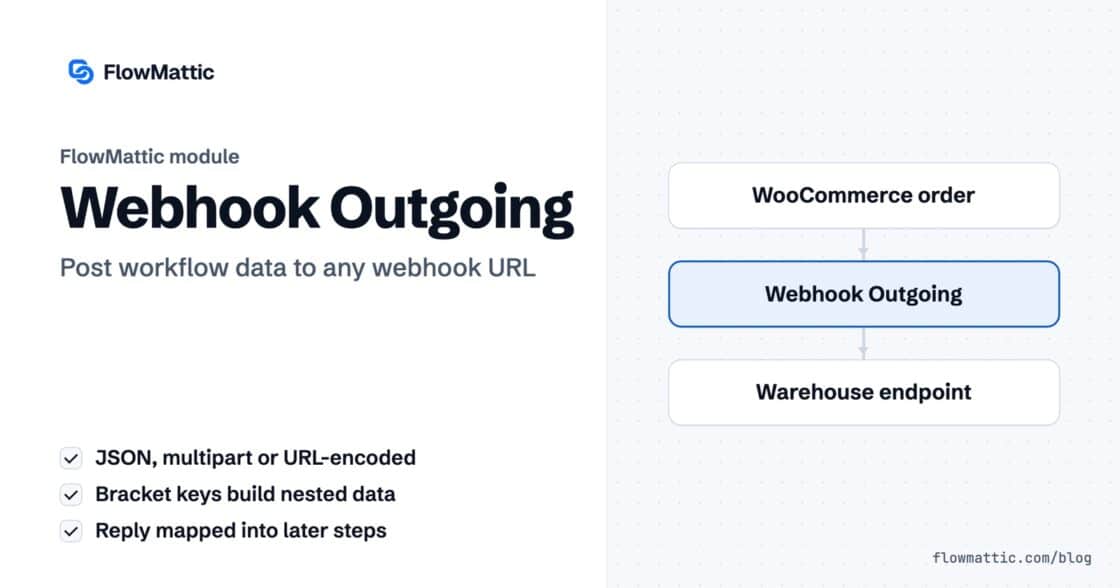
Post workflow data to any webhook URL as JSON, multipart form data or URL-encoded fields, with nested bracket keys and the receiver's…
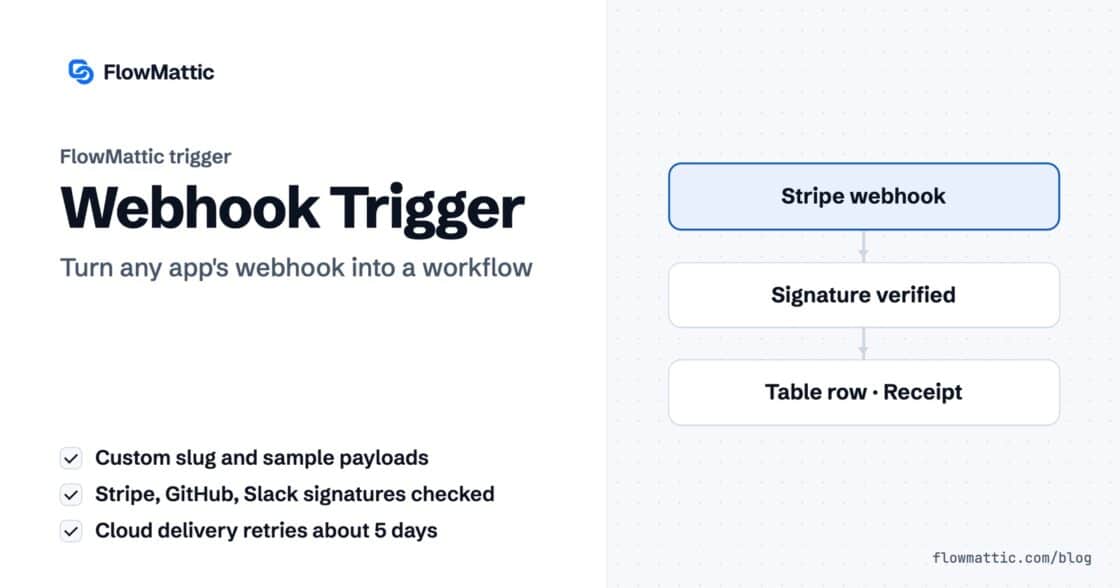
Give any app a URL on your WordPress site and turn each request into a workflow run, with signature checks, sample payloads…