
FTP automation in WordPress: upload, download and watch folders
The FTP app uploads, downloads, moves and deletes files on FTP, FTPS and SFTP servers from any workflow, and starts workflows when…


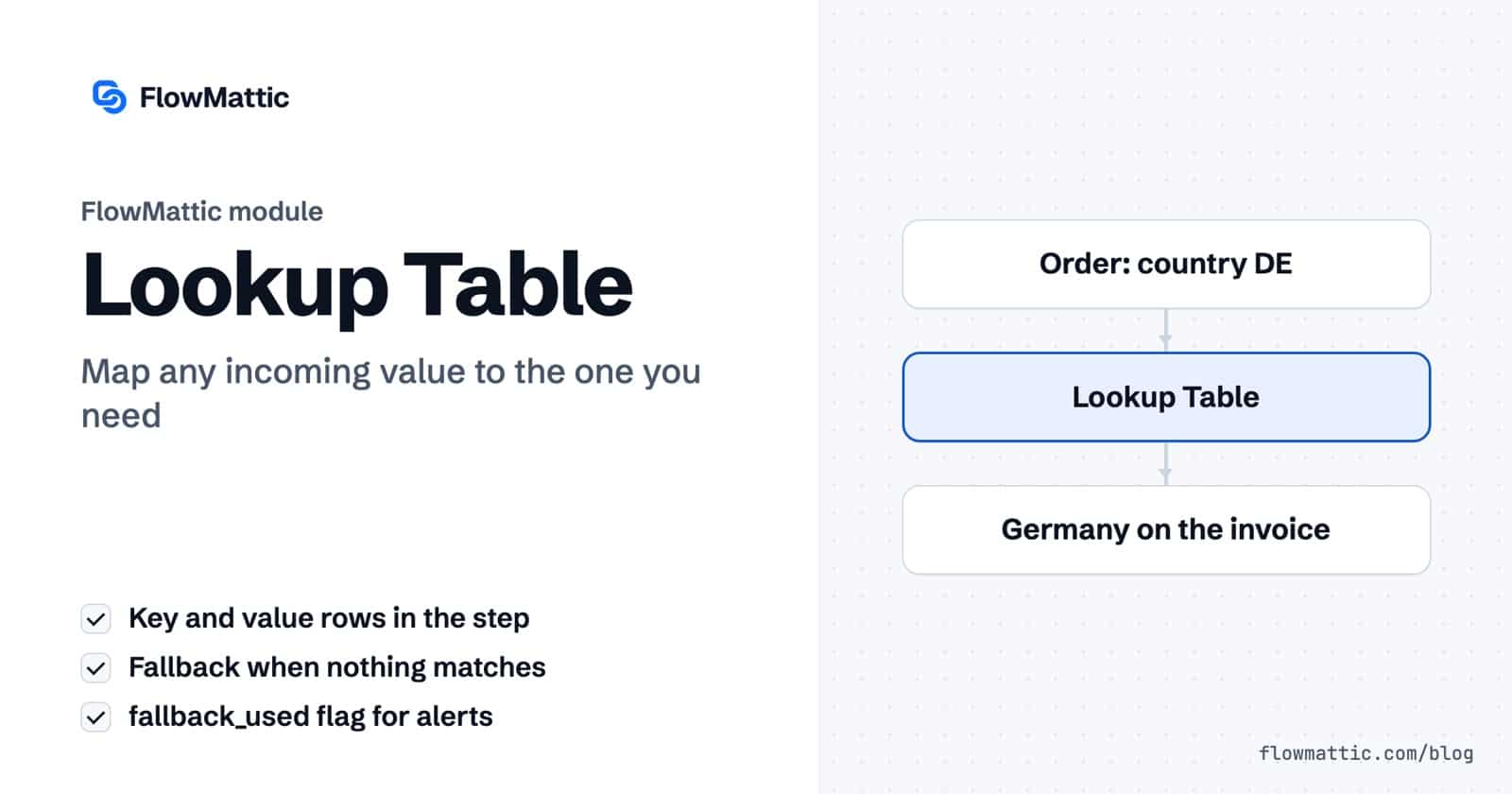
Lookup table automation solves a small problem that shows up in almost every workflow: the trigger sends one value, and the next app needs another. A country code has to become a country name, a plan ID has to become a plan name, a form’s department choice has to become a Slack channel. FlowMattic’s Lookup Table module maps one to the other inside a single step.
You type the pairs once, in the step itself. Every run looks up the incoming value, returns the match, and falls back to a default when there is none. No spreadsheet, no database query, no chain of conditions.
Lookup Table is a built-in action app in the FlowMattic workflow builder with one action, also called Lookup Table: “Lookup a value in a custom data table and return the corresponding value.” In the app picker it sits with the utilities, described as “Match a value against a table of pairs.” The site groups it with Counter and Variables as values you reuse.
Other.lookup_value into the steps that follow.
The value side of each row accepts dynamic tags, so a match can return data from an earlier step, not only fixed text.
| Field | What it does |
|---|---|
| Lookup Key | The value to look up. Required; an empty key stops the step with “Lookup key is required.” |
| Fallback Value | Returned when the key is not in the table. |
| Lookup Table | Key and value rows. An empty table stops the step with “Lookup table is empty.” |
The step returns four fields:
status: success when the lookup ran.lookup_key: the key that was looked up.lookup_value: the matched value, or the fallback.fallback_used: true when no row matched, false when one did.WooCommerce stores billing countries as two-letter codes. Map DE to Germany and FR to France so the packing slip and the welcome email read naturally.
WooCommerce: new order → Lookup Table → PDF Template → Email
A SaaS checkout sends a price ID. Two Lookup Table steps turn it into a readable plan name for the CRM and the WordPress role the customer should get.
Webhook (payment) → Lookup Table (plan name) → Lookup Table (role) → WordPress: update user
A contact form asks for a department. Look up the team inbox for Sales, Billing or Support and send the message there, with a general inbox as the fallback.
Form submission → Lookup Table → Send email to lookup_value
Map product category slugs to the warehouse that ships them, then send the order to that warehouse’s webhook. A new category falls back to the main warehouse until you add a row.
WooCommerce: order paid → Lookup Table → Webhook Outgoing
UTM values such as fb, li and nl become Facebook, LinkedIn and Newsletter before the lead lands in the CRM, so reports group cleanly.
Form submission → Lookup Table → CRM: create contact
An AI agent classifies each support email as billing, bug or question. A lookup turns that label into a priority and an assignee for the helpdesk.
Email trigger → AI Agent: classify → Lookup Table → Helpdesk: create ticket
Pair the Lookup Table with the Counter. The counter cycles through 1, 2 and 3; the lookup maps each number to a sales rep such as Priya Sharma, Yuki Tanaka or Amelia Okafor.
Form submission → Counter → Lookup Table → CRM: assign owner
US, us and US with a trailing space are three different keys. Clean the incoming value first with the Text Formatter (trim, change case) if the source is inconsistent.fallback_used. A Filter or Router on this field lets you alert someone when a value has no row yet, instead of quietly sending the fallback.lookup_value.It is a list of key and value pairs that a workflow uses to translate one value into another. In FlowMattic, the Lookup Table step holds the pairs and returns the value that matches the incoming key.
Yes. The key must match a row exactly, including case and spaces. Normalise the value with the Text Formatter before the lookup if it can arrive in different forms.
The step still succeeds. It returns your Fallback Value as lookup_value and sets fallback_used to true, so later steps can react to the miss.
Yes. The value side of each row accepts dynamic tags, so a match can return data mapped from the trigger or an earlier step.
Lookup table automation is one of many small steps that keep FlowMattic workflows tidy. See the plans and map your first values today.
The FTP app uploads, downloads, moves and deletes files on FTP, FTPS and SFTP servers from any workflow, and starts workflows when…
Share Secrets turns a password or API key into a link that expires after a set time, a set number of views,…
Generate Magic Login Link creates single-use sign-in links from any workflow, valid from 1 minute to 30 days, with a confirmation page…

