

Add new Airtable records to your Mailchimp audience
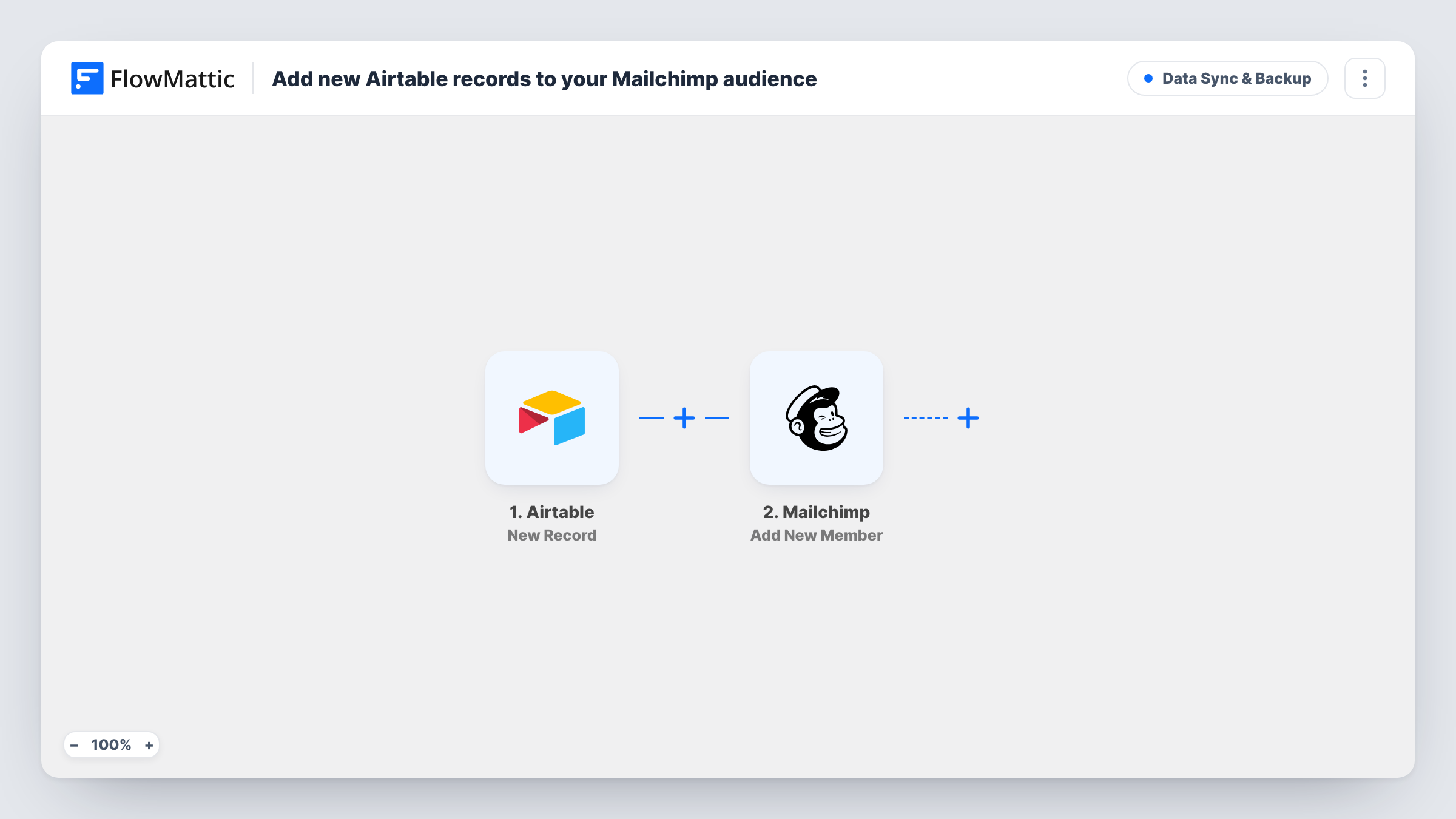
When a new record appears in Airtable, this workflow adds its email, first name and last name to your Mailchimp audience as a subscribed member.
 Airtable
 Mailchimp
2 steps Setup ~5 min Used on 1.4k sites Data Ops Free to import
What this workflow does
If you collect people in Airtable, from event sign-ups, a partner list or a sales tracker, getting them into Mailchimp usually means exporting a CSV and importing it again. This workflow skips that by adding each new Airtable record to Mailchimp as it appears.
The Airtable trigger watches for new records. For each one, FlowMattic sends the record's email, first_name and last_name fields to Mailchimp with the Add New Member action, and sets the member's status to subscribed.
Subscribed means Mailchimp treats the person as having agreed to receive your campaigns. Only use this flow for records where you have that consent. If some of your Airtable rows are people who haven't opted in, add a Filter on a consent field before the Mailchimp step.
The workflow doesn't look at records that already existed when you turned it on. Each new record runs once, and the result of every run shows in Task History.
Event check-in in Airtable
Staff add attendees to an Airtable base at the door, with a newsletter opt-in. Each new row joins your Mailchimp audience for the post-event email.
Partner referral lists
Partners add opted-in contacts to a shared Airtable base. New entries reach Mailchimp without anyone exporting a file.
Airtable as your lightweight CRM
You log customers in Airtable and email them from Mailchimp. Every new customer record becomes an audience member, ready for your next campaign.
How this workflow runs
What happens at each step once the workflow is on, and what you need before you import it.
 Airtable New Record
Fires when a new record is created in the Airtable table you connect. The record's fields, including email, first_name and last_name, are passed on.
- Mailchimp Add New Member
Adds the record to Mailchimp as a new member with status subscribed, using the email, first name and last name fields. Map your own field names if they differ.
What you need
- FlowMatticCore
- Airtable AccountAccount
- Mailchimp AccountAccount
After importing, map your own data. To keep the template universal, not every step is pre-filled. Open each step in the builder and connect your accounts and fields (channels, lists, sheets, recipients) before you switch the workflow on.
Make it yours
Changes worth making after you import it.
- Add a Filter between the two steps that continues only when an opt-in field in Airtable is checked, so people without consent are never subscribed.
- Map more Airtable fields into the Mailchimp step after import if your audience uses extra fields, then run a test to confirm they arrive.
- Create a test record in Airtable with your own email first, and confirm the member shows up in Mailchimp before adding real records.
Questions about this workflow
What happens if the Airtable email is already in my Mailchimp audience?
Add New Member updates that member instead of creating a duplicate. The first name, last name and subscribed status from the Airtable record replace what Mailchimp had stored.
Will existing Airtable records be added to Mailchimp?
No. Only records created after you turn the workflow on are sent to Mailchimp.
Can new Airtable members be added as pending instead of subscribed?
The template sets the status to subscribed. Open the Mailchimp step after import and change the status value if you want a different one.
Do my Airtable columns need specific names?
The template reads fields called email, first_name and last_name. If your table uses other names, remap them in the Mailchimp step.
More Data Sync & Backup workflows
Other ready-to-import templates from the same category.





Import this workflow into your WordPress site
Download the JSON, import it from the Workflows screen and connect your accounts. Every run stays on your server, with no per-task fees.
30-day money-back guarantee Unlimited workflows and runs Self-hosted