

Moderate comments with AI and act on the verdict
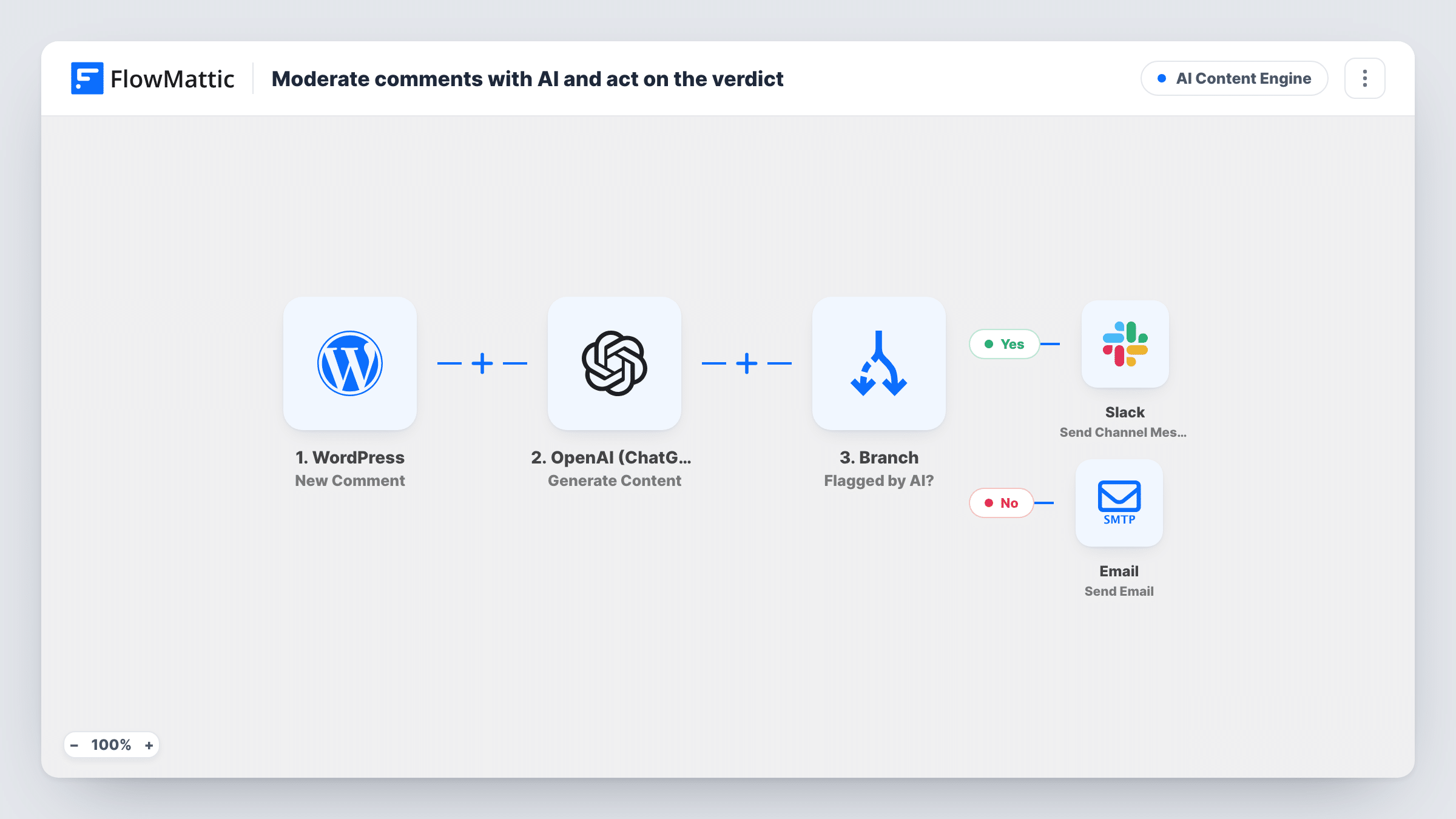
Each new WordPress comment is checked by OpenAI. Comments it flags as spam or toxic are marked as spam and posted to Slack for moderators; every other comment is approved.
 WordPress
 OpenAI (ChatGPT)
 Branch
 Slack
Slack6 steps Setup ~12 min Used on 2.6k sites Content Ops Free to import
What this workflow does
Comment queues fill up with link spam and the occasional abusive message, and clearing them by hand takes time you'd rather spend replying to real readers. This workflow asks OpenAI for a quick verdict on each new comment and then acts on it in WordPress, so the queue mostly moderates itself.
Each comment posted on your WordPress site starts a run through the New Comment trigger. The OpenAI (ChatGPT) step sends the comment text to gpt-4o with a prompt asking it to reply FLAG for spam or toxic content, or OK otherwise. The reply is capped at a few tokens, so it is a single word.
A Branch then checks whether the reply contains FLAG. On the yes path, an Update Comment step sets the comment's status to spam, and a Slack message shows moderators the comment text. On the no path, Update Comment approves the comment, so it appears on your site.
That no path approves everything the AI calls OK, including comments WordPress or an anti-spam plugin had held back. If you want a person to keep the final say, change the no path's status or remove that step. The Slack text also quotes a post title, which the New Comment trigger doesn't send, so that part stays empty. Check Task History on a few test comments before you rely on it.
Busy blogs with a spam problem
A travel blog that gets dozens of link-spam comments a day has them moved to spam automatically, while genuine questions from readers appear without waiting for approval.
Keeping abuse off a community site
A local news site has toxic comments marked as spam the moment they are posted, and the moderator sees each one in Slack in case one needs a closer look.
Moderation while you're away
A solo author on holiday lets the workflow approve normal comments, so discussions on new posts keep going instead of sitting in the queue for a week.
How this workflow runs
What happens at each step once the workflow is on, and what you need before you import it.
 WordPress New Comment
Fires when a new comment is added on your site, whatever status WordPress gives it. The comment ID and text are passed on to OpenAI and the update steps.
- OpenAI (ChatGPT) Generate Content
Asks gpt-4o to answer FLAG if the comment is spam or toxic and OK if not. The answer is limited to a few tokens. Connect your OpenAI account after import.
- Branch Branch
Checks whether OpenAI's reply contains FLAG. A match takes the yes path to spam and Slack; any other reply takes the no path to approval.
- WordPress Update Comment
On the yes path, sets the comment's status to spam in WordPress, using the comment ID from the trigger, so it leaves the queue and your site.
- Slack Send Channel Message
On the yes path, posts the comment text to a Slack channel so moderators can review what was flagged. Replace the empty post-title part or remove it.
- WordPress Update Comment
On the no path, sets the comment's status to approved, so it shows on the post right away. Change this status if comments should wait for you instead.
What you need
- FlowMatticCore
- OpenAI (ChatGPT) AccountAccount
- Slack AccountAccount
After importing, map your own data. To keep the template universal, not every step is pre-filled. Open each step in the builder and connect your accounts and fields (channels, lists, sheets, recipients) before you switch the workflow on.
Make it yours
Changes worth making after you import it.
- Put a Filter between the New Comment trigger and the OpenAI step that continues only when the comment isn't already marked spam, so the AI can't approve something your anti-spam plugin caught. All later steps sit behind it.
- Replace the post-title placeholder in the Slack text with the comment's post ID, or add WordPress Get Post by ID between the trigger and the OpenAI step and map its title.
- Add your own rules to the prompt, such as treating comments with more than two links as FLAG, so the verdict matches your moderation policy.
- Map the comment author's name and email into the Slack message, so moderators can spot repeat offenders.
Questions about this workflow
Will the AI approve comments that WordPress held for moderation?
Yes. The trigger fires for every new comment, and any comment OpenAI calls OK is set to approved, even if WordPress or a plugin held it. Change the no path's status, or put a Filter on the comment status between the New Comment trigger and the OpenAI step, if held comments should wait for you.
What if OpenAI flags a genuine comment as spam?
It moves to spam and appears in Slack. Open the Spam list in WordPress Comments and mark it as not spam to restore it, then adjust the prompt if it keeps happening.
Does this moderate comments that were posted before I imported it?
No. Only comments added after the workflow is turned on start a run. Older comments in the queue stay as they are.
Which OpenAI model checks the WordPress comments?
The step is set to gpt-4o with a very short answer limit. Connect your OpenAI API account, then run a few test comments and check Task History for the verdicts.
More AI Content Engine workflows
Other ready-to-import templates from the same category.




Import this workflow into your WordPress site
Download the JSON, import it from the Workflows screen and connect your accounts. Every run stays on your server, with no per-task fees.
30-day money-back guarantee Unlimited workflows and runs Self-hosted