

Send enrollment welcomes tailored to the course track
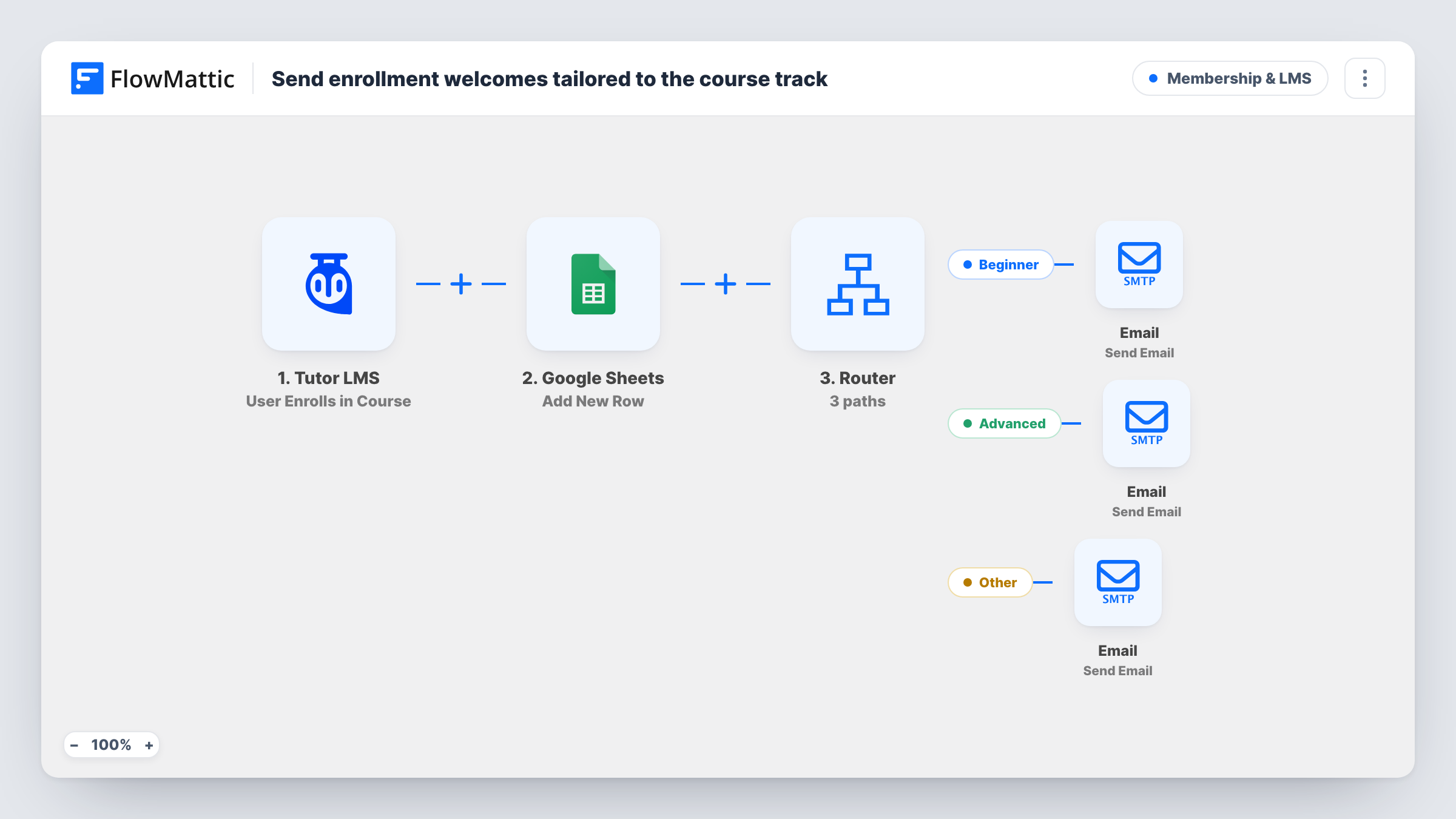
Each Tutor LMS enrollment is logged to Google Sheets, then a Router reads a track value and sends Beginner, Advanced or Bundle students their own welcome email.
 Tutor LMS
 Google Sheets
 Router
 Email
Email6 steps Setup ~12 min Used on 1.1k sites Community Free to import
What this workflow does
A student starting with the basics and one jumping into an advanced course need different first messages. Sending both the same generic welcome wastes the moment when they are most likely to read it. This workflow keeps a log of every enrollment and then sends a welcome that matches the student's track.
The Tutor LMS trigger runs when a user enrolls in a course. First, a Google Sheets step adds a row for the enrollment. It ships unmapped, so after import you pick the sheet and map details such as the student's name, email and course title. This step comes before the Router, so every enrollment is logged.
A Router then reads a value named track on three routes. If it contains beginner, the student gets a basics roadmap email. If it contains advanced, they get a welcome to the advanced track. If it contains bundle, the email names the course and says their bundle is ready. Matching ignores case.
Whether your enrollments carry a track value depends on your setup, so check a test enrollment in Task History to see whether a track value arrives. If it doesn't, point the three conditions at the course title instead, for example titles that contain Beginner, Advanced or Bundle. An enrollment that matches no route is still logged but gets no email.
Coding school with skill levels
A programming academy sends beginners a roadmap of first lessons and advanced students a note about the harder projects, while the sheet tracks enrollments per course.
Course bundles sold as packages
A photography site that sells bundles of courses greets bundle buyers with the course name and a line that their bundle is ready.
Enrollment log for reporting
An instructor reviews the Google Sheet monthly to count enrollments by course, alongside the tailored welcomes the Router sends.
How this workflow runs
What happens at each step once the workflow is on, and what you need before you import it.
 Tutor LMS User Enrolls in Course
Runs when a user enrolls in a Tutor LMS course. The student's email, display name and course details are passed to the log and the Router.
- Google Sheets Add New Row
Adds a row to your enrollment log for every student, before any routing. The step ships unmapped: connect Google, pick the sheet and map the student and course fields.
- Router 3 paths
Reads the enrollment's track value on three routes, Beginner, Advanced and Bundle, matching when it contains that word in any case. Check that your enrollments supply a track value.
 Email Send Email
On the Beginner route, emails the student with the subject Welcome, let's start with the basics, greeting them by display name and pointing to their beginner roadmap.
- Email Send Email
On the Advanced route, emails the student with the subject Welcome to the advanced track, telling them by name that they're ready for the deep end.
- Email Send Email
On the Bundle route, emails the student a welcome that names the course in the subject and says their course bundle is ready to start.
What you need
- FlowMatticCore
- Tutor LMS PluginPlugin
- Google Sheets AccountAccount
After importing, map your own data. To keep the template universal, not every step is pre-filled. Open each step in the builder and connect your accounts and fields (channels, lists, sheets, recipients) before you switch the workflow on.
Make it yours
Changes worth making after you import it.
- Run one test enrollment per track and open Task History to confirm which route fired before you enroll real students.
- If no track value arrives from Tutor LMS, edit the three Router conditions to check the course title for Beginner, Advanced or Bundle instead.
- Add the actual roadmap or first lesson link to the Beginner email, since the imported body only mentions it.
- Map the course title and the student's email into separate columns of the log, so you can sort enrollments by course later.
Questions about this workflow
Where does the track value for the Tutor LMS Router come from?
The conditions read a field named track from the enrollment data. Your Tutor LMS setup may not send one, so test an enrollment first; if the field is missing, switch the conditions to the course title.
Is every Tutor LMS enrollment written to the Google Sheet?
Yes. The Add New Row step sits between the Tutor LMS trigger and the Router, so it runs for every enrollment, including ones that match no route.
Can a student get two welcome emails from one enrollment?
Only if the track value contains two of the words, such as beginner and advanced together. Keep one track word per course to avoid that.
Does this enroll students or change their access?
No. It reacts to enrollments Tutor LMS already made. The workflow only logs the enrollment and sends an email.
More Membership & LMS workflows
Other ready-to-import templates from the same category.




Import this workflow into your WordPress site
Download the JSON, import it from the Workflows screen and connect your accounts. Every run stays on your server, with no per-task fees.
30-day money-back guarantee Unlimited workflows and runs Self-hosted