

Run a daily nurture over every unworked lead
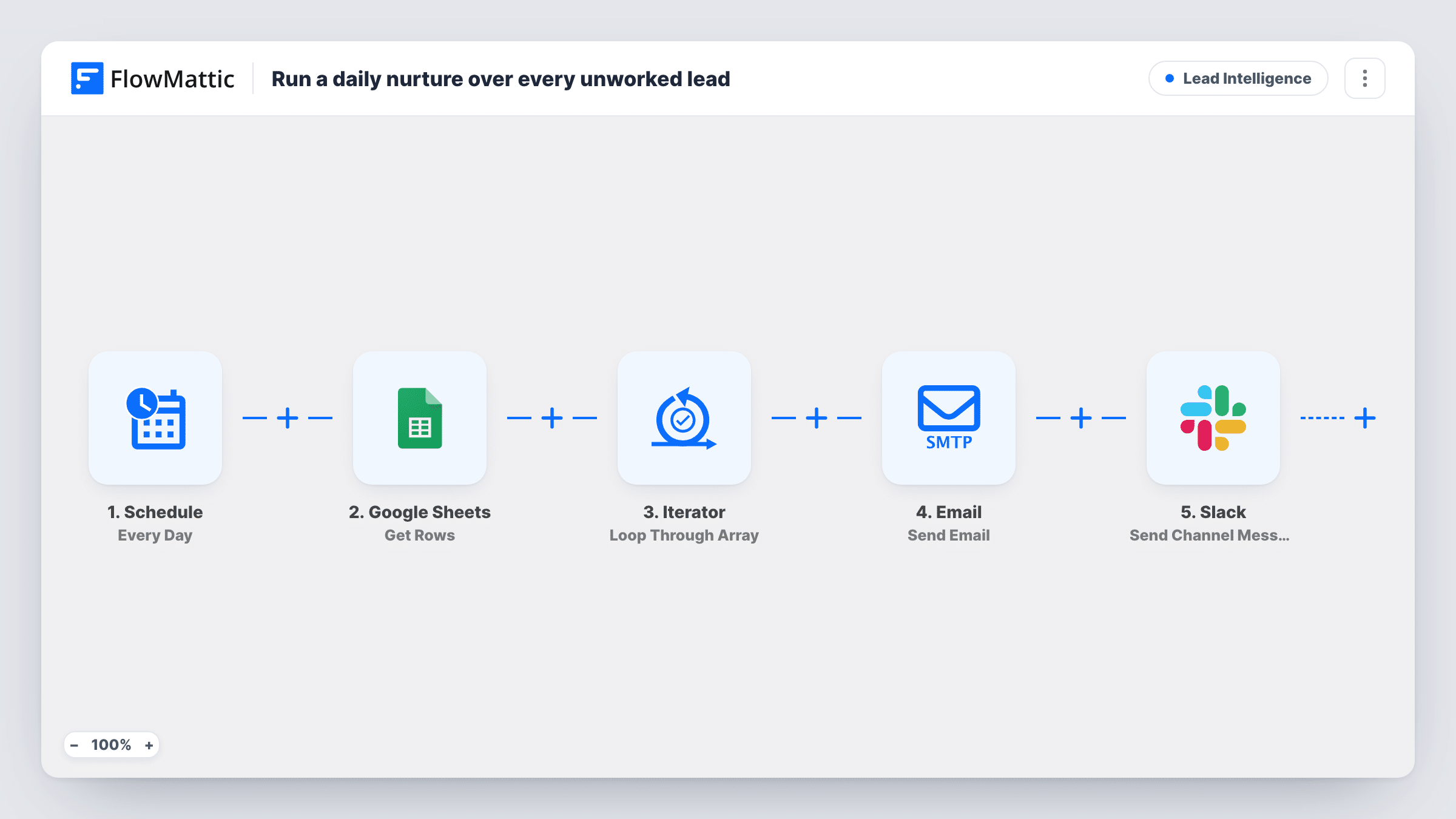
Every day FlowMattic reads your leads sheet, emails each lead whose status is new, finds and updates that lead’s row in Google Sheets, and posts a note to Slack for every email sent.
 Schedule
 Google Sheets
 Iterator
 Filter
 Email
Email
 Slack
Slack8 steps Setup ~12 min Used on 1.5k sites Growth Free to import
What this workflow does
A leads spreadsheet fills up faster than anyone works through it, and rows marked new can sit for weeks. This workflow makes a daily pass over the sheet: every lead still marked new gets a short email, their row is updated, and the team sees each send in Slack.
The Schedule trigger runs once a day. The Google Sheets Get Rows step reads your leads sheet, and an Iterator goes through the rows one at a time. For each row, a Filter continues only when the status column is exactly new. Rows with any other status are skipped, and the loop moves to the next lead.
For a new lead, an email goes to their address with a subject naming their company and a one-line greeting. Then a Lookup Row Data step finds the lead's row and an Update Row step changes it, and a Slack message confirms the email was sent.
The Get Rows, Lookup and Update steps ship unmapped. After import, pick the sheet in Get Rows, look up the row by the lead's email, and set Update Row to change the status column to something other than new, such as contacted. Until you do, the status stays new and the same leads are emailed again on every run. Test with one row before turning the schedule on.
Clearing a backlog from an events list
After a trade show, a sales team pastes badge scans into a sheet with status new. Each morning those leads get a first email and their status changes, so nobody is missed.
Daily touch for website sign-ups kept in Sheets
A small business logs enquiries into a Google Sheet. The daily run emails each fresh one and tells the team in Slack who was contacted.
A visible log of first contact
A founder watches the Slack channel to see which new leads were emailed each day, and opens the sheet only to follow up on replies.
How this workflow runs
What happens at each step once the workflow is on, and what you need before you import it.
 Schedule Every Day
Runs once a day at the time you choose when you set up the trigger, so the pass over your leads sheet happens on a fixed schedule.
- Google Sheets Get Rows
Reads the rows of your leads sheet as a list for the Iterator. The step ships unmapped, so select the spreadsheet and sheet after import.
- Iterator Loop Through Array
Goes through the rows one by one and runs the Filter, email, lookup, update and Slack steps for each row.
- Filter Continue If Condition Meet
Continues only when the row's status column is exactly new. Inside the Iterator, a row that fails stops only its own remaining steps; the loop moves on to the next row.
 Email Send Email
Emails the lead's address with the subject A quick idea for plus their company, and a short greeting by first name. The body is a placeholder, so write your real nurture message.
- Google Sheets Lookup Row Data
Searches the spreadsheet for the lead's row. It ships unmapped: choose the sheet and search by a column that is unique per lead, such as email, then check a test run for the row it returns.
- Google Sheets Update Row
Updates the row found by the lookup. Map the row from the previous step and set the status column to a value other than new, so tomorrow's Filter skips this lead.
- Slack Send Channel Message
Posts a message to Slack saying a nurture email was sent, with the lead's email. Pick the channel where the team tracks outreach.
What you need
- FlowMatticCore
- Google Sheets AccountAccount
- Slack AccountAccount
After importing, map your own data. To keep the template universal, not every step is pre-filled. Open each step in the builder and connect your accounts and fields (channels, lists, sheets, recipients) before you switch the workflow on.
Make it yours
Changes worth making after you import it.
- Add a column for the date contacted and set it in the Update Row step next to the status, so you can see when each lead got their first email.
- If your sheet is large, keep worked leads on a separate tab, so Get Rows reads fewer rows each day.
- Make the email worth opening: map the first name and company into a longer body and add one link, such as a booking page or a case study, so each lead has a clear next step.
Questions about this workflow
Will leads be emailed again every day?
Not once the Update Row step changes their status away from new. As imported, that step has no mapping, so set it up first, or each daily run will email every new row again.
What does the Google Sheets status column need to say?
The word new and nothing else, for a lead to be emailed. The Filter ignores capitals, so New and NEW pass too, but a value like new lead is skipped because the whole cell must match. Edit the Filter value if your sheet uses another word.
Why is there a lookup before the update?
Update Row changes a specific row, so it needs to know which one. The Lookup Row Data step searches for the lead, such as by email, and you map its result into the update.
Does each email get its own Slack message?
Yes. The Slack step is inside the Iterator after the Filter, so it posts once for every lead that was emailed and nothing for rows the Filter skipped.
More Lead Intelligence workflows
Other ready-to-import templates from the same category.








Import this workflow into your WordPress site
Download the JSON, import it from the Workflows screen and connect your accounts. Every run stays on your server, with no per-task fees.
30-day money-back guarantee Unlimited workflows and runs Self-hosted