

Fast-track leads with an urgent buying timeline
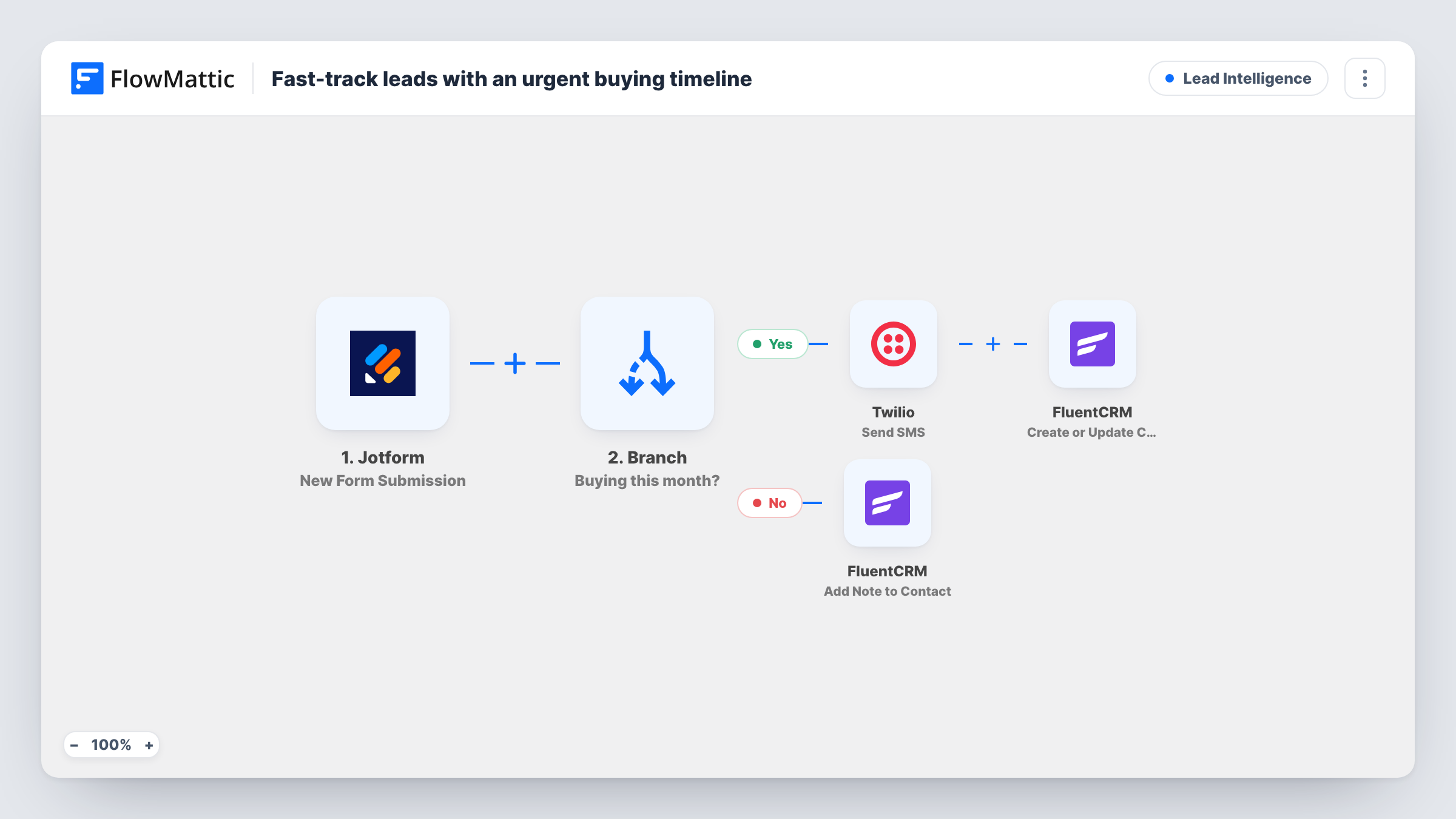
When a Jotform lead says they plan to buy this month, sales gets a text through Twilio and the lead is added to FluentCRM. Other leads get a nurture note on their FluentCRM record.
 Jotform
 Branch
 Twilio
 FluentCRM
5 steps Setup ~8 min Used on 2.8k sites Growth Free to import
What this workflow does
A lead who wants to buy this month is worth a call today. A lead planning for next year can wait for your newsletter. When both arrive through the same form, the urgent ones are easy to miss. This workflow reads the buying timeline on each Jotform submission and texts your sales team about the ones in a hurry.
The Jotform trigger passes the lead's name, email and a timeline answer. A Branch checks whether that answer contains the word month. On the Yes path, Twilio sends an SMS reading Urgent lead with the name and timeline, and then FluentCRM creates or updates the contact from the email and name. On the No path, FluentCRM adds a note titled Standard nurture to the contact with that email.
Two things to check. A contains check on month also matches answers like in six months, so use a dropdown with fixed options, or change the value. And the No path does not create a contact before adding the note, so run a test with a new email to see how it behaves on your site.
Demo request form for a software product
A required When are you looking to buy question sorts the hot leads. Sales get a text for this-month buyers and can call while interest is high.
Quote form for a home services company
Customers who need the job done this month reach the estimator by SMS, while others are noted in FluentCRM for a later follow-up email.
Wholesale enquiry form
Buyers ready to place an order this month are passed to the account manager straight away, and the rest stay in FluentCRM for a slower nurture.
How this workflow runs
What happens at each step once the workflow is on, and what you need before you import it.
 Jotform New Form Submission
Runs when someone submits your Jotform form. The sample includes name, email, phone and a timeline answer, which the Branch reads.
- Branch Buying this month?
Checks whether the timeline answer contains month. If it does, the run takes the Yes path to the SMS and FluentCRM. If not, it takes the No path to the note.
- Twilio Send SMS
On the Yes path, texts Urgent lead with the lead's name and timeline. The number is set to +15550000000, a placeholder, so put in your sales phone before going live.
- FluentCRM Create or Update Contact
On the Yes path, after the SMS, creates a FluentCRM contact from the lead's email with the name in the first name field. An existing contact with that email is updated instead.
- FluentCRM Add Note to Contact
On the No path, adds a note titled Standard nurture, reading No urgent timeline - nurture, to the FluentCRM contact matching the lead's email.
What you need
- FlowMatticCore
- Jotform AccountAccount
- Twilio AccountAccount
- FluentCRM PluginPlugin
After importing, map your own data. To keep the template universal, not every step is pre-filled. Open each step in the builder and connect your accounts and fields (channels, lists, sheets, recipients) before you switch the workflow on.
Make it yours
Changes worth making after you import it.
- Make the timeline question a dropdown with options such as This month, This quarter and Later. The Branch then matches only the option you mean.
- Add a Create or Update Contact step before the note on the No path, so non-urgent leads also exist in FluentCRM and the note has a contact to sit on.
- Map the lead's phone into the SMS text as well, so the salesperson can call back straight from the message.
Questions about this workflow
Who receives the SMS?
The number in the Twilio step, which is a placeholder as imported. Replace it with the phone of the person or team who should act on urgent leads.
Are non-urgent leads added to FluentCRM?
Not as imported. The No path only adds a note to the contact with that email. Add a Create or Update Contact step first if every lead should become a contact.
Will an answer like within 3 months count as urgent?
Yes. The Branch looks for the word month anywhere in the answer, so it matches that too. Use fixed options or a stricter value to avoid it.
Which apps does the urgent-lead flow rely on?
A Jotform account for the trigger, a Twilio account for the text message, and FluentCRM on the same WordPress site as FlowMattic.
More Lead Intelligence workflows
Other ready-to-import templates from the same category.







Import this workflow into your WordPress site
Download the JSON, import it from the Workflows screen and connect your accounts. Every run stays on your server, with no per-task fees.
30-day money-back guarantee Unlimited workflows and runs Self-hosted