

Turn every high-priority tagged lead into a ClickUp task
Every day, FlowMattic finds FluentCRM contacts with your high-priority tag, creates a ClickUp task to contact each one, then removes the tag so the same lead doesn’t get a second task.
 Schedule
 FluentCRM
 Iterator
 ClickUp
5 steps Setup ~8 min Used on 1.5k sites Growth Free to import
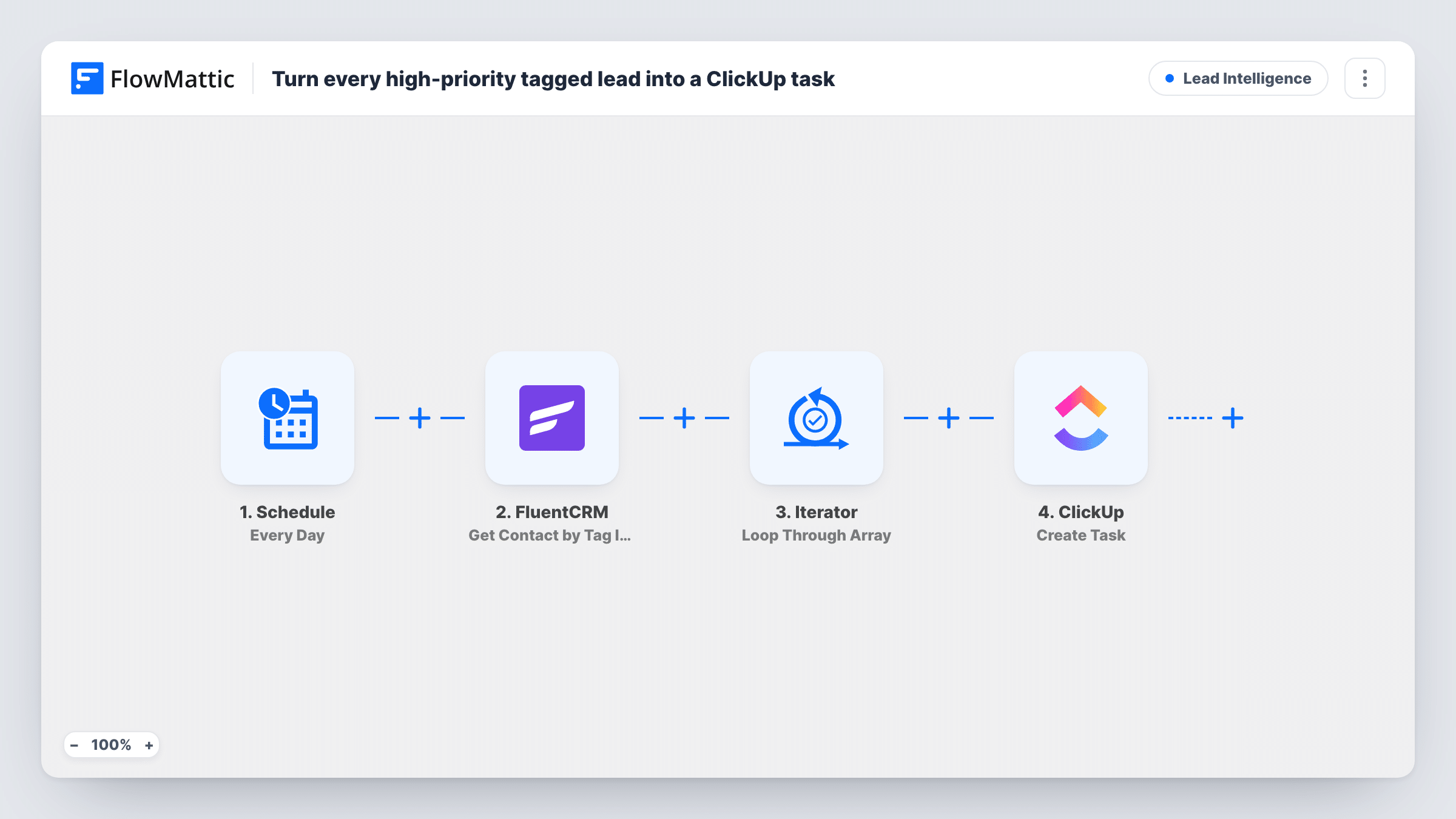
What this workflow does
Tagging a contact as high priority in FluentCRM is quick, but the tag alone doesn't put the lead on anyone's to-do list. This workflow turns that tag into work in ClickUp once a day, so your team sees a task for each priority lead in the tool where they plan their day.
Each day, the Schedule trigger kicks off the workflow. The FluentCRM Get Contact by Tag IDs step fetches the contacts carrying tag ID 5. That ID is a placeholder: change it to the ID of your own high-priority tag before you turn the workflow on. An Iterator then handles those contacts one by one.
For each contact, ClickUp creates a task named "Work priority lead" with the contact's first and last name, and a description asking to reach out to their email today. Finish the ClickUp step's setup after import and run a test to confirm where the task appears.
The last step removes the same tag from that contact, using their email. Because of that, the next daily run doesn't find them again, and each tagging produces one task. If you tag the contact again later, they get a new task on the following run.
Sales follow-ups from marketing signals
A marketer tags contacts who booked a demo or replied to a campaign, and the next morning each one is a ClickUp task for the sales rep.
Hand-picked leads for an agency team
An agency owner tags promising contacts in FluentCRM during the day, and the account team finds them as tasks in ClickUp the next day.
Automations that tag hot leads
A site whose FluentCRM automations already add a priority tag on high lead scores gets a task per lead without anyone copying names across.
How this workflow runs
What happens at each step once the workflow is on, and what you need before you import it.
 Schedule Every Day
Runs the workflow once a day. The tag check, task creation and tag removal all happen on that daily run, not at the moment you tag a contact.
- FluentCRM Get Contact by Tag IDs
Fetches the FluentCRM contacts that have tag ID 5. Replace 5 with your own high-priority tag's ID; the template also uses it in the last step.
- Iterator Loop Through Array
Goes through the contacts that FluentCRM returned and runs the ClickUp and tag-removal steps once for each contact.
- ClickUp Create Task
Creates a ClickUp task titled "Work priority lead" plus the contact's name, with a description to reach out to their email today. Complete the step's setup and confirm with a test run.
- FluentCRM Remove Tags From Contact
Removes the same tag from the contact by email, so the next daily run won't create a duplicate task for them. Set it to the same tag ID you used in step 2.
What you need
- FlowMatticCore
- FluentCRM PluginPlugin
- ClickUp AccountAccount
After importing, map your own data. To keep the template universal, not every step is pre-filled. Open each step in the builder and connect your accounts and fields (channels, lists, sheets, recipients) before you switch the workflow on.
Make it yours
Changes worth making after you import it.
- Find your priority tag's ID in FluentCRM and put it in both the Get Contact by Tag IDs step and the Remove Tags From Contact step, so the fetch and the removal use the same tag.
- Add the contact's phone number or company to the ClickUp task description, so the person working the task has everything in one place.
- If you'd rather keep a record of who was handled, add FluentCRM's Add Tags to Contact action after the Remove Tags step, with a separate tag such as "task created", inside the loop.
- Switch the Schedule trigger to run more often, such as every hour, if tagged leads need a task sooner than the next morning.
Questions about this workflow
Will a FluentCRM contact get a new ClickUp task every day?
No. After the task is created, the workflow removes the tag, so that contact isn't fetched on the next run. They only get another task if someone tags them again.
Does the task appear the moment I tag a contact?
No. The workflow runs on a daily schedule, so a contact tagged today gets their task on the next daily run.
Which tag does the template look for?
Tag ID 5, as a placeholder. Change it in the fetch step and in the removal step to the ID of the tag you use for high-priority leads.
What if ClickUp doesn't create the task for a contact?
ClickUp may return an error, for example while the step's setup is incomplete. Task History shows what each step returned for every contact, so read it after the first few runs and fix the step before relying on it.
More Lead Intelligence workflows
Other ready-to-import templates from the same category.







Import this workflow into your WordPress site
Download the JSON, import it from the Workflows screen and connect your accounts. Every run stays on your server, with no per-task fees.
30-day money-back guarantee Unlimited workflows and runs Self-hosted