

AI agent that enriches each lead and recommends the right account owner
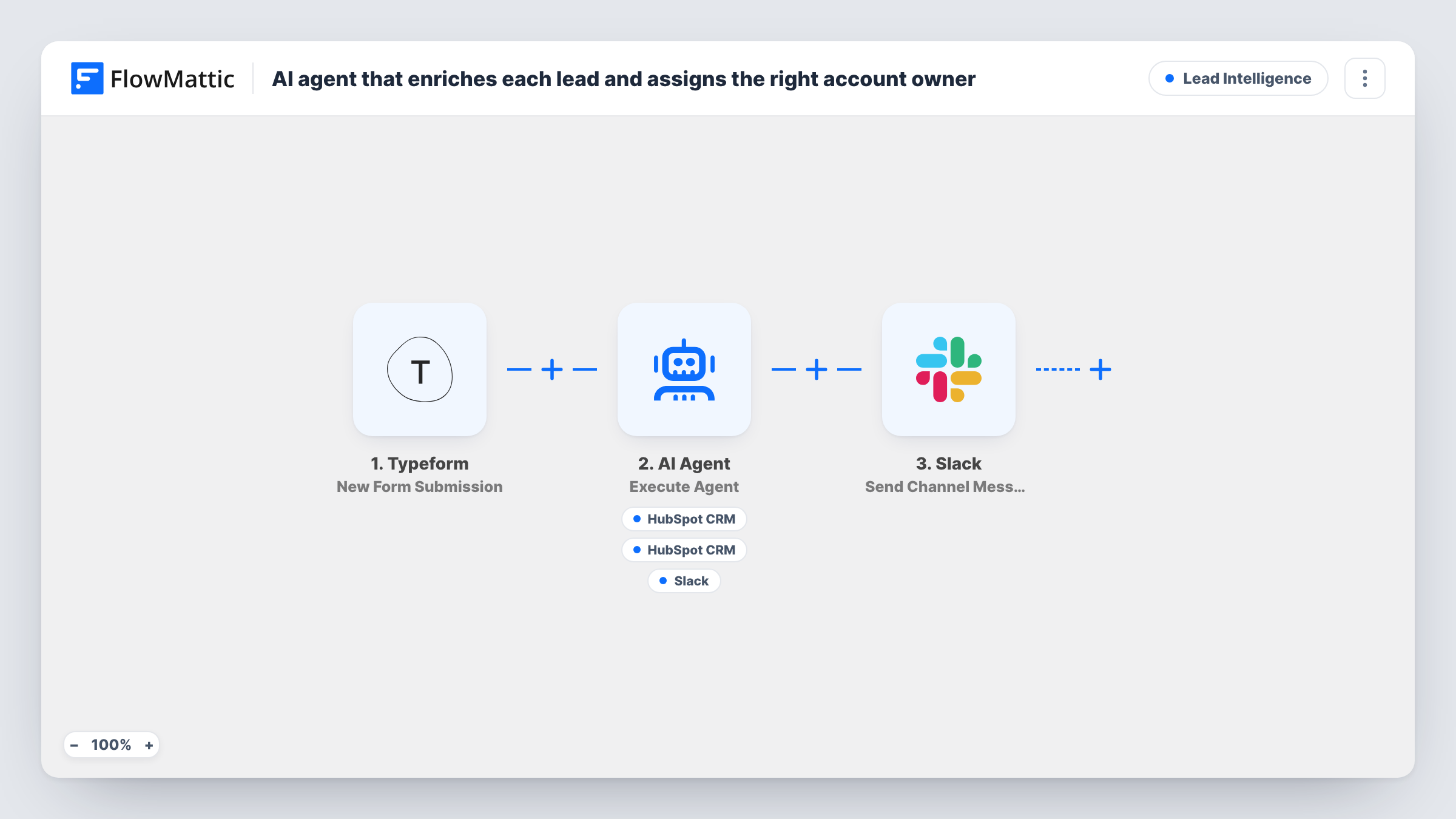
Each Typeform lead goes to an AI agent that infers company size and region from the answers, picks an account owner from your roster, can create the HubSpot contact and posts the recommendation to Slack.
 Typeform
 AI Agent
 HubSpot CRM
 Slack
Slack4 steps Setup ~8 min Used on 1.3k sites Growth Free to import
What this workflow does
Sales teams split by territory lose time on the first question for every new lead: whose is this? This workflow gives that call to an AI agent. It reads what the lead typed into your form, suggests the owner, creates the contact in HubSpot and tells the team in Slack, so the right person can follow up first.
The Typeform trigger starts a run for each new response. The AI Agent step, on OpenAI's GPT-4o, receives the lead's name, email, phone, a location answer and their message. Its instructions are to infer company size and region from those details, choose an owner from a roster in the prompt (EMEA, AMER and APAC, each with a sample name to replace with your team), create a HubSpot contact, then post a Slack message naming the owner and summarising the lead.
The agent's enrichment comes only from what the lead submitted, since it has no tool for opening web pages. The HubSpot tool always uses the email from the form, and the agent fills in the first and last name. The recommended owner goes into the Slack message, not into HubSpot. The agent chooses when to call its tools, so review a few runs in Task History.
After import, edit the roster in the system prompt, match the field names to your HubSpot CRM setup and your form, and pick the Slack channel.
Territory routing for inbound demo requests
A software company's demo form asks for country. The agent maps it to EMEA, AMER or APAC and names that territory's rep in the sales channel.
First-pass sizing for a small sales team
Leads that mention a team size or company type in their message get a size estimate in the Slack summary, so the founder can decide who calls back.
Lead capture into HubSpot with a heads-up
Every Typeform enquiry can become a HubSpot contact, and the team sees a short summary in Slack instead of opening the form results.
How this workflow runs
What happens at each step once the workflow is on, and what you need before you import it.
 Typeform New Form Submission
Starts a run for every new Typeform response. The template maps answers named name, email, phone, location and message; rename them to match the questions in your own form.
- AI Agent Execute Agent
Runs an AI agent on OpenAI GPT-4o that infers company size and region from the lead's answers, picks an owner from the roster in its prompt, and is told to create a HubSpot contact and post the recommendation to Slack.
- HubSpot CRM Create Contact
Agent tool that creates a contact in HubSpot. The email comes straight from the Typeform answer, and the agent writes the first and last name. HubSpot may refuse an email it already holds, and the run's Task History entry shows its answer.
- Slack Send Channel Message
Agent tool that posts a message to the Slack channel you choose, described to the agent as the place for the recommended owner and lead summary. Its wording is left to the agent.
What you need
- FlowMatticCore
- Typeform AccountAccount
- AI ProviderAccount
- HubSpot CRM AccountAccount
- Slack AccountAccount
After importing, map your own data. To keep the template universal, not every step is pre-filled. Open each step in the builder and connect your accounts and fields (channels, lists, sheets, recipients) before you switch the workflow on.
Make it yours
Changes worth making after you import it.
- Replace the sample roster in the system prompt with your real territories and names, and add any rule your team uses, such as a separate owner for large companies.
- Give the agent the FlowMattic Browser tool so it can open the lead's company website by URL, such as the domain in their email, and base its size estimate on that page as well as the form answers.
- If owners should be set in HubSpot too, add a line to the prompt and a HubSpot field for the owner to the agent's tool, then test with a lead you know.
Questions about this workflow
Does the AI agent look up the company on the web?
Not as imported. It has only the HubSpot and Slack tools, so it works from what the lead typed in Typeform. Add the FlowMattic Browser tool if you want it to open pages such as the lead's website.
Is the account owner assigned in HubSpot?
No. The recommended owner appears in the Slack message. The HubSpot tool sets the email, first name and last name only, so someone assigns the owner in HubSpot, or you extend the tool.
What if this Typeform lead already exists in HubSpot?
The tool is HubSpot's Create Contact, which makes new contacts, so HubSpot may refuse a duplicate email. The agent can still post to Slack. Check Task History for HubSpot's response.
Which Typeform questions does the agent need?
The template uses name, email, phone, location and message. A country or region question gives the agent the clearest hint, and the email is required for the HubSpot contact.
More Lead Intelligence workflows
Other ready-to-import templates from the same category.





Import this workflow into your WordPress site
Download the JSON, import it from the Workflows screen and connect your accounts. Every run stays on your server, with no per-task fees.
30-day money-back guarantee Unlimited workflows and runs Self-hosted