

Send subscribers down the right path based on their interest
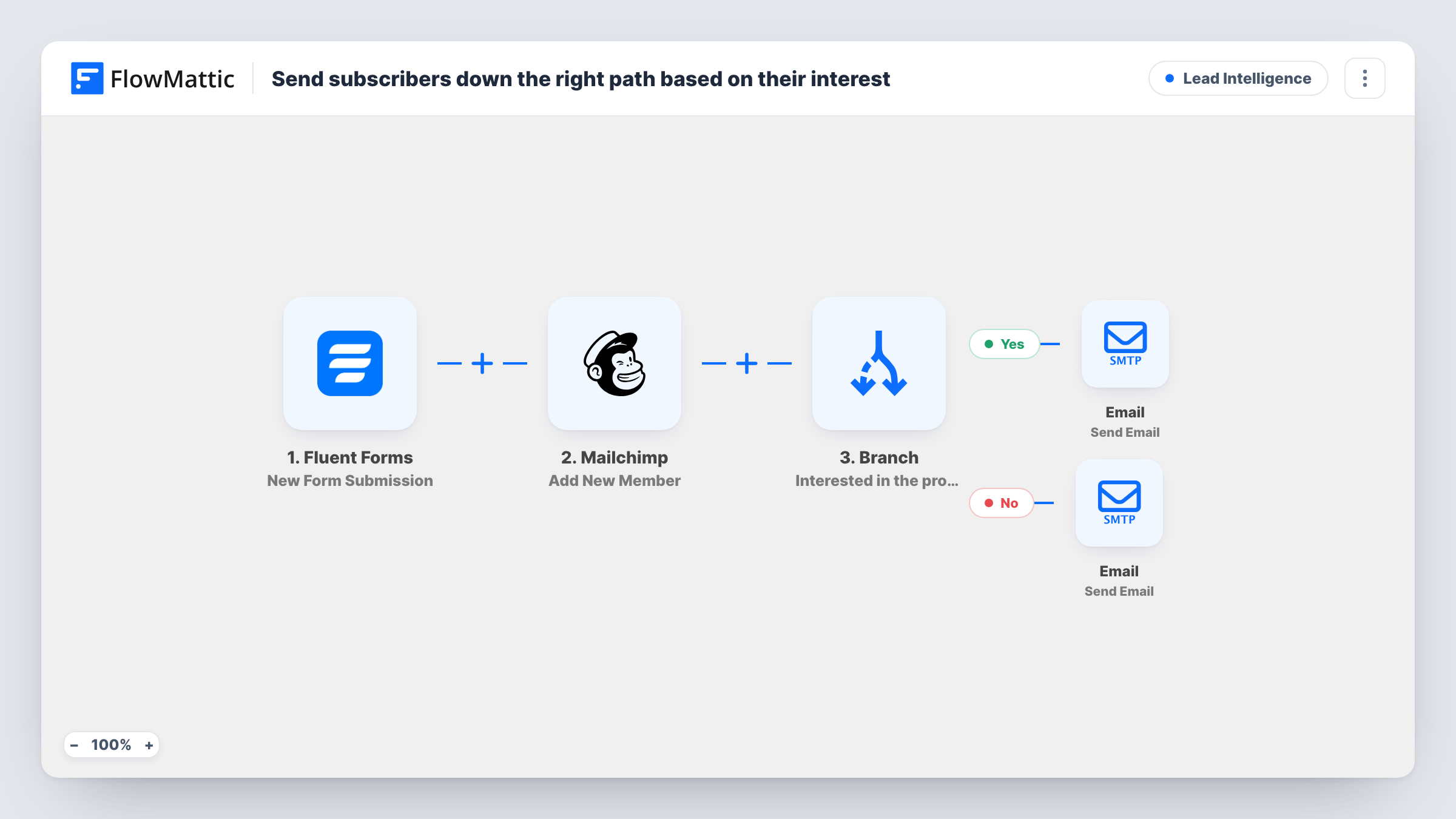
Every Fluent Forms sign-up is added to Mailchimp, then a Branch reads the interest answer. People interested in the product get a demo invitation by email, and everyone else gets a newsletter welcome.
 Fluent Forms
 Mailchimp
 Branch
 Email
Email5 steps Setup ~8 min Used on 795 sites Growth Free to import
What this workflow does
A newsletter sign-up form brings in two kinds of people: readers who want tips, and buyers who are close to trying your product. Sending both the same welcome wastes the moment when a buyer is paying attention. This workflow adds everyone to your list, then sends a first email that matches the interest they picked.
When someone submits your Fluent Forms sign-up form, FlowMattic adds them to Mailchimp with their email and name and a status of subscribed. A Branch then checks whether the interest field contains the word product. If it does, the subscriber gets an email asking whether they want to see it in action and inviting them to book a demo. If it doesn't, they get a welcome to the newsletter.
The Mailchimp step runs before the Branch, so both groups end up on your list. Only the first email differs. Both emails go out through your Email (SMTP) connection in FlowMattic, not through Mailchimp, so edit their text in the workflow.
Software blog with a product behind it
Your sign-up form asks whether readers want writing tips or a look at your tool. Those who pick the tool get a demo invite the moment they join.
Course creator growing a list
A dropdown asks whether people want free lessons or the paid product. Product picks get the demo email, and the rest get a plain newsletter welcome.
Trade show follow-up form
Visitors fill in a Fluent Forms form on a tablet at your stand. Anyone who chose product hears about a demo by email, and the others simply join the newsletter.
How this workflow runs
What happens at each step once the workflow is on, and what you need before you import it.
 Fluent Forms New Form Submission
Runs each time someone submits your Fluent Forms sign-up form. The email, name and interest answers are passed on to Mailchimp and the Branch.
- Mailchimp Add New Member
Adds the person to Mailchimp with the submitted email and name and a status of subscribed. Connect your Mailchimp account on import and run a test to confirm where they land.
- Branch Branch
Checks whether the interest field contains the text product. Yes sends the demo invitation. No sends the newsletter welcome. Each sign-up takes exactly one path.
 Email Send Email
On the Yes path, emails the subscriber with the subject Want to see it in action? and an invitation to book a demo. Add your booking link to the body before turning the workflow on.
- Email Send Email
On the No path, emails the subscriber a welcome to the newsletter with a thank-you for subscribing. Edit the subject and body to match your own voice.
What you need
- FlowMatticCore
- Fluent Forms PluginPlugin
- Mailchimp AccountAccount
After importing, map your own data. To keep the template universal, not every step is pre-filled. Open each step in the builder and connect your accounts and fields (channels, lists, sheets, recipients) before you switch the workflow on.
Make it yours
Changes worth making after you import it.
- Match the Branch value to the exact wording of your interest options. If the product choice is labelled differently, change the word product to that label and test both answers.
- If your form has a consent checkbox, add a Filter after the trigger that continues only when it is ticked, since the Mailchimp step sets every person to subscribed.
- Add a Delay before the demo email if you would rather the invitation arrive an hour or a day after sign-up instead of straight away.
Questions about this workflow
Do demo-interested and newsletter-only people both join Mailchimp?
Yes. The Mailchimp step runs before the Branch, so every sign-up is added. Only the follow-up email depends on the interest answer.
Does Mailchimp send the demo invite and the welcome email?
No. Both emails are sent by FlowMattic's Email step through your SMTP connection. Mailchimp only stores the subscriber.
What happens if the interest field on the sign-up form is left blank?
A blank field doesn't contain the word product, so the person takes the No path and receives the newsletter welcome.
Can I use a radio button or dropdown for the interest question?
Yes. The Branch only reads the submitted text, so any Fluent Forms field type works as long as the product option includes the word you check for.
More Lead Intelligence workflows
Other ready-to-import templates from the same category.






Import this workflow into your WordPress site
Download the JSON, import it from the Workflows screen and connect your accounts. Every run stays on your server, with no per-task fees.
30-day money-back guarantee Unlimited workflows and runs Self-hosted