

AI agent that replies to leads with the right next step
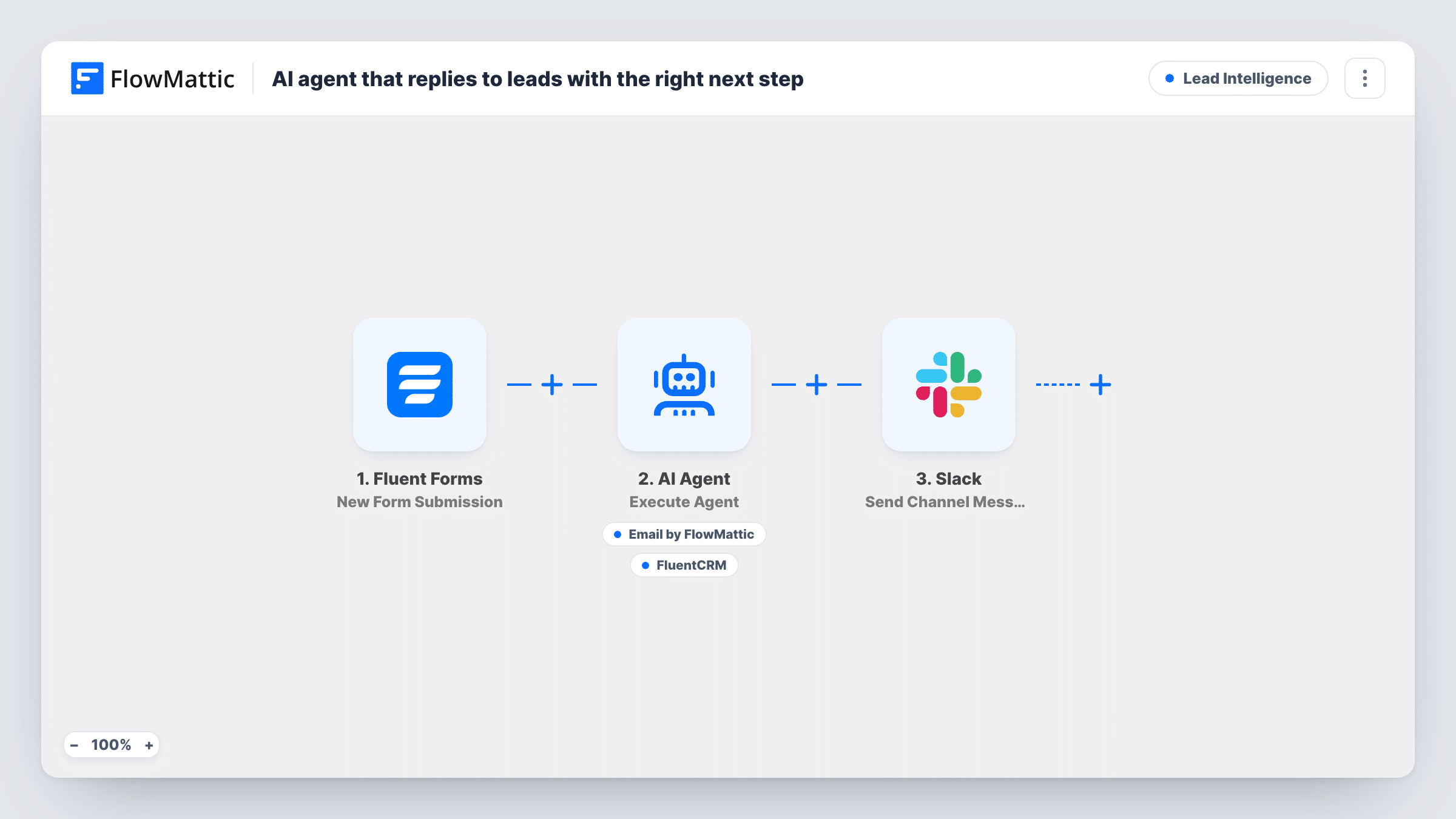
An AI agent reads each Fluent Forms enquiry, emails the lead the single best next step for their request, records its decision as a FluentCRM note, and a Slack message tells your team.
 Fluent Forms
 AI Agent
 Email
Email
 FluentCRM
 Slack
Slack5 steps Setup ~8 min Used on 497 sites Growth Free to import
What this workflow does
Someone who asks a question through your site wants a useful answer soon, not a generic receipt. Often the best reply is one clear next step: a call, a page to read, a person to talk to. This workflow lets an AI agent pick that step for each enquiry and write back straight away.
A new Fluent Forms entry starts the run. The AI Agent gets the sender's name, email and message. It is told to reply with the single best next step for their request and then note the decision in the CRM. Its email tool sends to the lead's address with a subject and body the agent writes. Its FluentCRM tool adds a note, titled and written by the agent, to the contact with that email.
Two points to plan for. The agent knows nothing about your offers, links or team unless you add them to its instructions. And nothing here creates the FluentCRM contact, so the note depends on the lead already being in FluentCRM. After the agent, a fixed Slack message names the person whose enquiry got an AI reply. It posts on every run, so use Task History to confirm the email went out. The model is OpenAI's GPT-4o.
Service businesses with mixed enquiries
One contact form gets pricing questions, booking requests and support issues. Each sender gets a reply pointing to the one step that fits, drawn from options you list in the instructions.
Keeping a record for sales follow-up
Leads who already sit in FluentCRM get a note explaining what the agent suggested, so a rep picking up the thread knows what the lead was told.
Out-of-hours replies
Enquiries that arrive overnight still get a considered answer, and the Slack channel shows the team in the morning who was contacted.
How this workflow runs
What happens at each step once the workflow is on, and what you need before you import it.
 Fluent Forms New Form Submission
Begins with each new Fluent Forms submission. The name, email and message fields are passed on, so your form needs fields with those names.
- AI Agent Execute Agent
The AI Agent reads the sender's details and message, chooses the single best next step, replies by email and records its decision in FluentCRM.
 Email Send Email
The agent's email tool. It sends to the address on the form, with a subject and body the agent writes. Configure your SMTP settings for Email in FlowMattic.
- FluentCRM Add Note to Contact
The FluentCRM tool the agent can call. It adds a note to the contact matching the form's email, with a title and text from the agent. The contact must already exist in FluentCRM.
- Slack Send Channel Message
Runs after the agent and posts a fixed message to Slack naming the person whose enquiry got an AI reply. Link your Slack workspace and choose where the message goes.
What you need
- FlowMatticCore
- Fluent Forms PluginPlugin
- AI ProviderAccount
- FluentCRM PluginPlugin
- Slack AccountAccount
After importing, map your own data. To keep the template universal, not every step is pre-filled. Open each step in the builder and connect your accounts and fields (channels, lists, sheets, recipients) before you switch the workflow on.
Make it yours
Changes worth making after you import it.
- List your real next steps in the agent's instructions, such as your booking page URL, key help articles and who handles which request, so replies point somewhere real.
- Add a FluentCRM Create or Update Contact step before the agent so every lead exists as a contact and the agent's note always has somewhere to go.
- Send yourself a few test enquiries of different kinds and read the replies before going live, adjusting the instructions until the tone and choices fit.
Questions about this workflow
What does the AI agent offer as the next step?
Whatever it judges best from the message and its instructions. As imported, the instructions name no links or offers, so add yours or it will suggest steps in general terms.
What if the lead isn't in FluentCRM yet?
The note is added to the contact matching the email, and this workflow never creates that contact. Add a Create or Update Contact step before the agent to cover new leads.
Does the Slack alert mean the reply was sent?
Not for certain. The Slack step runs after the agent on every submission with fixed text. Check Task History to see whether the agent called its email tool on that run.
Can I review the AI reply before the lead gets it?
Not as imported; the agent sends the email itself. To review first, remove the email tool and tell the agent to post its draft reply in Slack, then send it yourself.
More Lead Intelligence workflows
Other ready-to-import templates from the same category.






Import this workflow into your WordPress site
Download the JSON, import it from the Workflows screen and connect your accounts. Every run stays on your server, with no per-task fees.
30-day money-back guarantee Unlimited workflows and runs Self-hosted