

Route tasks by priority into the right lane
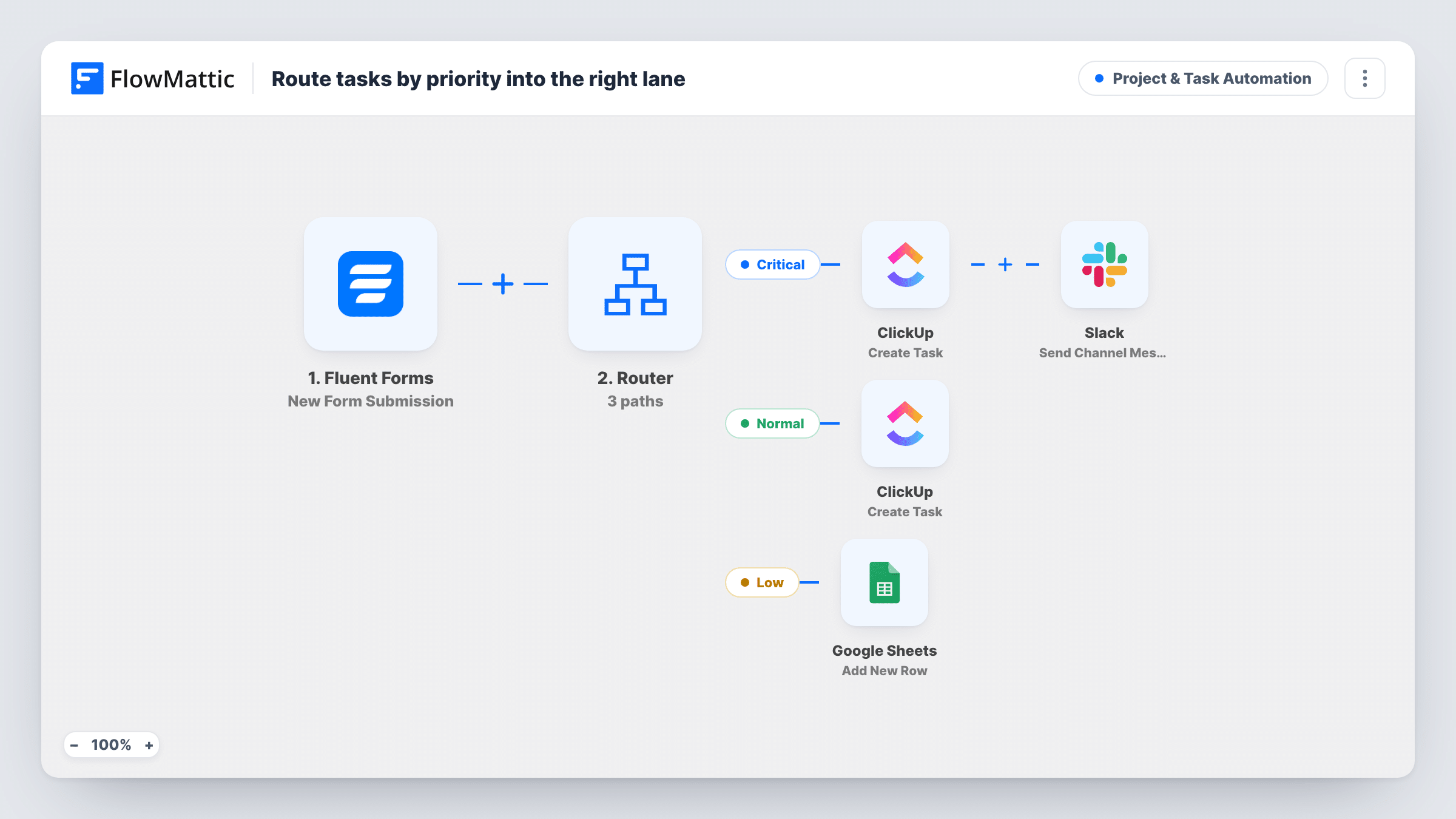
Task requests from a Fluent Forms form are routed by priority: critical ones become urgent ClickUp tasks with a Slack alert, normal ones become ClickUp tasks, and low ones are logged in Google Sheets.
 Fluent Forms
 Router
 ClickUp
 Slack
Slack
 Google Sheets
6 steps Setup ~12 min Used on 789 sites Productivity Free to import
What this workflow does
When every request lands in the same task list, urgent work gets buried under nice-to-haves. This workflow reads the priority someone picks on your request form and puts each request where it belongs: urgent work in front of the team at once, normal work in the task list, and low-priority ideas in a backlog sheet.
Each request sent through your Fluent Forms form starts a run. A Router then checks a field named priority for the words "critical", "normal" and "low". Use these as the values of a dropdown or radio field so each request fits one route.
Critical requests create a ClickUp task titled "[URGENT]" plus the subject, with the message as the description, and post "Critical task created" with the subject to Slack. Normal requests create a ClickUp task with the subject and message only. Low requests go to Google Sheets through an Add New Row step that ships unmapped, so after import you pick the sheet and map the columns.
The field names priority, subject and message are examples from the template. Rename them to your form's fields, then send one test request per priority and check Task History to confirm each route.
Internal IT or ops request form
Staff submit requests on an internal form, and outages marked critical reach the team's Slack channel while routine asks wait in ClickUp.
Client change requests for an agency
Clients pick a priority when requesting website changes, so urgent fixes are flagged in ClickUp and low-priority ideas are kept in a sheet for the next planning session.
Product feedback triage
A small product team routes bug reports marked critical to its task board with an alert, while low-priority suggestions build up in a backlog spreadsheet.
How this workflow runs
What happens at each step once the workflow is on, and what you need before you import it.
 Fluent Forms New Form Submission
Starts each time your Fluent Forms request form is submitted. The priority, subject and message fields feed the Router and the action steps.
- Router 3 paths
Sends the request down one route by its priority field: Critical if it contains "critical", Normal if it contains "normal", Low if it contains "low". A value with none of these words takes no route.
- ClickUp Create Task
On the Critical route, creates a ClickUp task named "[URGENT]" plus the request subject, with the message as its description. Finish the ClickUp step's setup after import.
- Slack Send Channel Message
Also on the Critical route, posts "Critical task created" with the subject to the Slack channel you pick, so the team knows straight away.
- ClickUp Create Task
On the Normal route, creates a ClickUp task using the request's subject as its name and the message as the description, with no Slack alert.
- Google Sheets Add New Row
On the Low route, adds a row to a Google Sheet as a backlog. The step ships unmapped: connect Google, pick the spreadsheet and map the subject, message and any other fields.
What you need
- FlowMatticCore
- Fluent Forms PluginPlugin
- ClickUp AccountAccount
- Slack AccountAccount
- Google Sheets AccountAccount
After importing, map your own data. To keep the template universal, not every step is pre-filled. Open each step in the builder and connect your accounts and fields (channels, lists, sheets, recipients) before you switch the workflow on.
Make it yours
Changes worth making after you import it.
- Make priority a required dropdown with exactly the values critical, normal and low, so every request matches one route and none are left out.
- Add the requester's name and email to the ClickUp task descriptions, so whoever picks up the task knows who to ask for details.
- Map a date column in the Google Sheets step, so you can sort the low-priority backlog by when each idea came in.
- For a private Slack channel, switch the alert to the Send Private Channel Message action instead of Send Channel Message.
Questions about this workflow
What priority values must my Fluent Forms field use?
The routes look for "critical", "normal" and "low" in a field named priority. Use those values, or change the words in each route's condition to match your form.
Can one request go down two routes?
Only if its priority value contains two of the words, because the Router runs every matching route. A dropdown with the three single words keeps each request on one route.
What happens to a request with no priority or a different value?
It matches none of the routes, so no task, alert or row is created. Making the field required with fixed options prevents that.
Do low-priority requests ever reach ClickUp?
Not as imported. They are only written to the Google Sheet. Add a ClickUp Create Task step to the Low route after the sheet step if you want them on the board too.
More Project & Task Automation workflows
Other ready-to-import templates from the same category.

Import this workflow into your WordPress site
Download the JSON, import it from the Workflows screen and connect your accounts. Every run stays on your server, with no per-task fees.
30-day money-back guarantee Unlimited workflows and runs Self-hosted