

Route trial signups by company size for the right onboarding
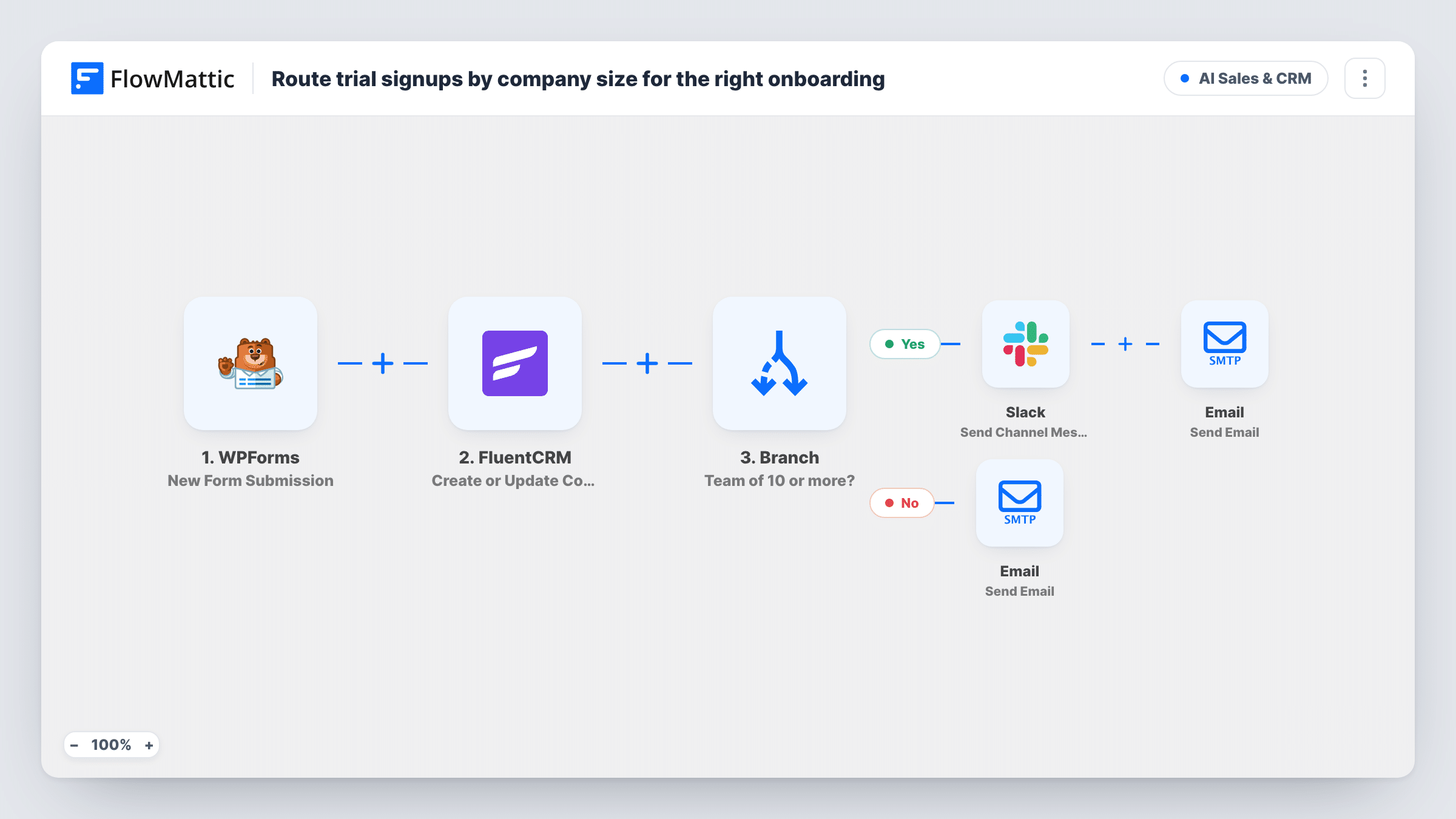
Each WPForms trial signup is added to FluentCRM, then a Branch checks team size: teams of more than 10 trigger a Slack alert and a personal welcome, smaller teams get a quick-start email.
 WPForms
 FluentCRM
 Branch
 Slack
Slack
 Email
Email6 steps Setup ~12 min Used on 1.3k sites Revenue Ops Free to import
What this workflow does
A trial from a company with a large team is worth a person's time. A solo signup usually just wants to get started. Treating both the same either swamps your onboarding staff or leaves big prospects with a generic email. This workflow splits trial signups by the team size they enter on your form.
A WPForms submission starts the run, and FluentCRM creates or updates a contact from the email, with the name field as the first name. A Branch then checks whether team size is greater than 10. If it is, Slack gets a message naming the company and seat count with a prompt to assign an onboarding rep, and the signup is emailed that a specialist will reach out. If not, the signup gets a welcome email with a quick-start message.
Each signup follows exactly one path. Note that greater than 10 means a team of exactly 10 takes the self-serve path; change the value to 9 if you want ten-person teams treated as large. The quick-start email mentions a guide but carries no link, so add yours before going live.
SaaS free trials with a team-size question
Your trial form asks how many people will use the product. Larger teams are flagged to sales in Slack straight away, and individuals start on their own.
Agencies offering a pilot project
Bigger clients who request a pilot get a promise of personal setup help, while freelancers get a guide they can follow alone.
Keeping every trial in your CRM
Whatever the team size, each signup is stored in FluentCRM, so you can email all trial users later from one place.
How this workflow runs
What happens at each step once the workflow is on, and what you need before you import it.
 WPForms New Form Submission
Runs when someone submits your WPForms trial form. The email, name, company and team size fields are used later, so your form needs fields with those names.
- FluentCRM Create or Update Contact
Creates or updates a FluentCRM contact using the submitted email, with the name field placed in the first name. This runs for every signup before the Branch.
- Branch Branch
Checks whether the team size is greater than 10. Teams of 11 or more go to the yes path; 10 or fewer, or a blank answer, go to the no path.
- Slack Send Channel Message
On the yes path, posts to Slack with the company name and seat count, asking the team to assign an onboarding rep. Link Slack and select where the alert should appear.
 Email Send Email
Still on the yes path, emails the signup that a specialist will reach out to help their team get set up. Make sure someone does follow up.
- Email Send Email
On the no path, emails the signup a welcome with a quick-start message. The body refers to a guide, so add the link to your getting-started page.
What you need
- FlowMatticCore
- WPForms PluginPlugin
- FluentCRM PluginPlugin
- Slack AccountAccount
After importing, map your own data. To keep the template universal, not every step is pre-filled. Open each step in the builder and connect your accounts and fields (channels, lists, sheets, recipients) before you switch the workflow on.
Make it yours
Changes worth making after you import it.
- Make team size a required number field in WPForms so every signup has a value the Branch can compare, rather than an empty answer falling through to the no path.
- Add a Delay and a second email on the no path, such as a check-in after a few days, so self-serve trials get more than one touch.
- Map the person's name into the Slack message on the yes path so the rep knows who to contact without opening FluentCRM.
Questions about this workflow
Which path does a team of exactly 10 take?
The no path. The Branch tests greater than 10, so only 11 or more count as a team. Change the value in the Branch if you want a different cut-off.
Are small-team signups added to FluentCRM too?
Yes. The FluentCRM step runs before the Branch, so every signup is created or updated as a contact whatever the team size.
Does this assign a rep automatically?
No. Its Slack alert only prompts your team to pick an onboarding rep. The workflow does not pick a person or create a task; add a task step on the yes path if you want that.
Can I use a WPForms dropdown for team size?
Only if its values are numbers. The Branch compares the answer as greater than 10, so text options such as 11-50 won't compare as you'd expect.
More AI Sales & CRM workflows
Other ready-to-import templates from the same category.





Import this workflow into your WordPress site
Download the JSON, import it from the Workflows screen and connect your accounts. Every run stays on your server, with no per-task fees.
30-day money-back guarantee Unlimited workflows and runs Self-hosted