

Validate submissions and quarantine the bad ones
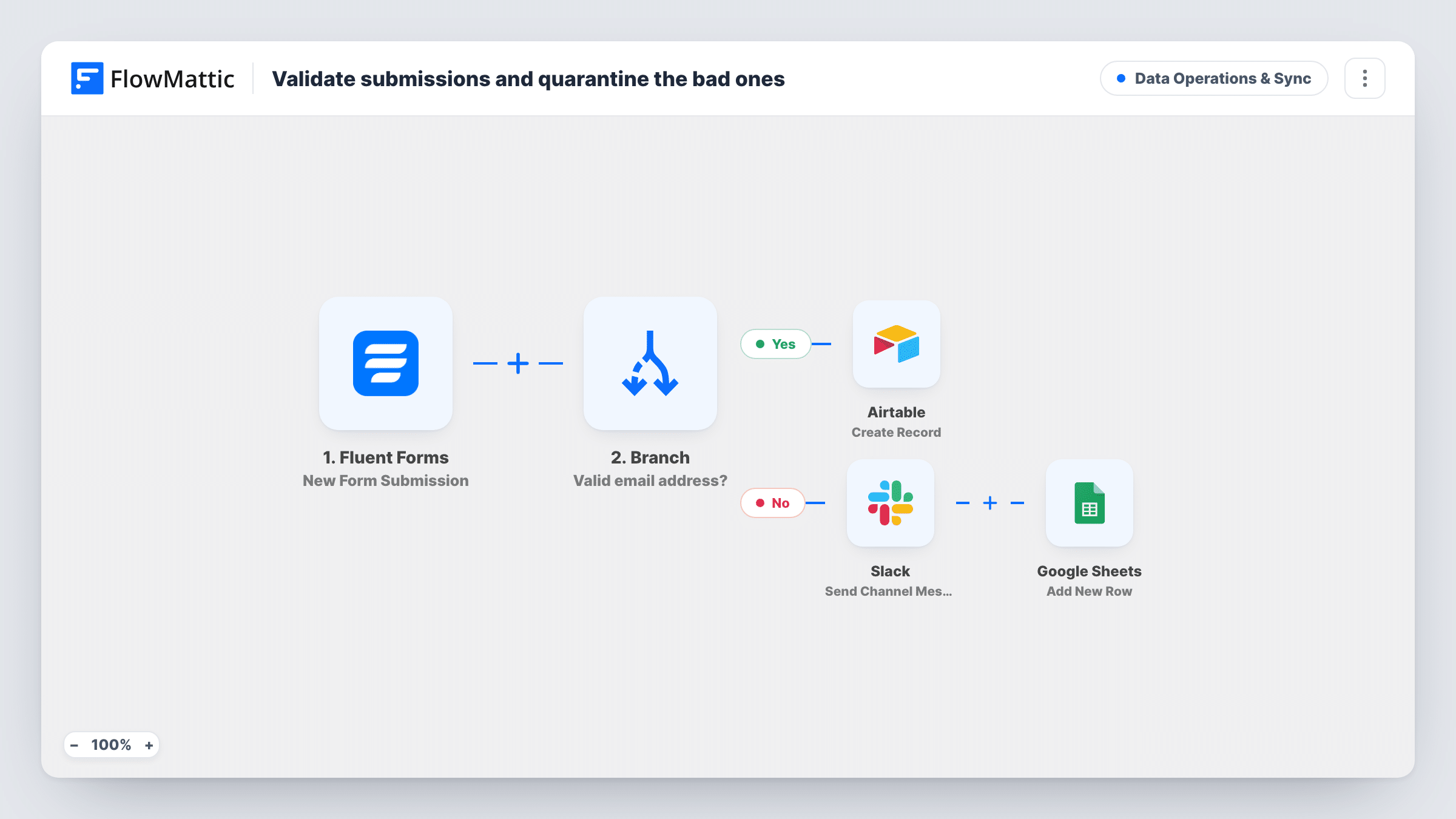
A Branch checks the email address on each Fluent Forms submission. Entries with a valid address become Airtable records, and the rest raise a Slack alert and are set aside in a Google Sheets row for review.
 Fluent Forms
 Branch
 Airtable
 Slack
Slack
 Google Sheets
5 steps Setup ~8 min Used on 449 sites Data Ops Free to import
What this workflow does
A form that feeds your database straight away will also feed it junk: mistyped addresses, test entries and spam. Cleaning that out of Airtable later is slow. This workflow sorts each entry on arrival, so your base only receives submissions with a usable email address and the doubtful ones wait somewhere else.
When a visitor submits a Fluent Forms form, a Branch looks at the email field and asks one question: is this a valid email address? On the Yes path, FlowMattic creates a record in Airtable with the fields you map. On the No path, two things happen in order. Slack gets a channel message saying an invalid submission from the person's name needs review, and the entry is added as a row in Google Sheets.
A Branch has exactly two outcomes, so every entry takes one path, never both. Nothing is deleted. Fluent Forms still saves the entry as it always does, and the sheet acts as a holding area where someone can fix an address and move the person into Airtable by hand.
Clean CRM base fed by a contact form
Your sales team works from an Airtable base. Only enquiries with a valid address reach it, while the rest sit in a review sheet instead of cluttering the pipeline.
Catching typos in registration forms
A registrant enters an address with a missing @ sign. Slack tells the organiser straight away, and the sheet row holds their other answers so someone can follow up another way.
Watching for spam bursts
When bots hit your Fluent Forms form with junk addresses, the Slack alerts and the growing review sheet show it quickly, and your Airtable base stays untouched.
How this workflow runs
What happens at each step once the workflow is on, and what you need before you import it.
 Fluent Forms New Form Submission
Runs each time a visitor submits a Fluent Forms form on your site. The email, name and every other answer are passed on to the Branch and the steps after it.
- Branch Branch
Checks whether the submitted email field holds a valid email address. Yes sends the entry to Airtable. No sends it to the Slack alert and then the review sheet.
- Airtable Create Record
On the Yes path, creates a new record in the Airtable base and table you choose. Connect your Airtable account and map the form answers into the record.
- Slack Send Channel Message
On the No path, posts a message to the Slack channel you choose saying an invalid submission from the person's name needs review. You link the Slack workspace that should receive these alerts when you import.
- Google Sheets Add New Row
Still on the No path, adds the rejected entry as a new row in a Google Sheets spreadsheet. Map the form answers to columns so a reviewer can see what was submitted.
What you need
- FlowMatticCore
- Fluent Forms PluginPlugin
- Airtable AccountAccount
- Slack AccountAccount
- Google Sheets AccountAccount
After importing, map your own data. To keep the template universal, not every step is pre-filled. Open each step in the builder and connect your accounts and fields (channels, lists, sheets, recipients) before you switch the workflow on.
Make it yours
Changes worth making after you import it.
- Add a Filter before the Branch that stops entries whose email contains your own domain, so test submissions you make while building the form never reach Airtable or the review sheet.
- Include the submitted email address in the Slack message text, so the reviewer can spot the typo without opening the spreadsheet.
- After import, send one entry with your own address and one with a broken address. Check Task History to confirm each one took the path you expect before you go live.
Questions about this workflow
What does the Branch count as a valid email address?
It runs FlowMattic's valid email check on the email field. Send a test with a typical typo, such as a missing @ sign or a blank field, and watch which path it takes in Task History.
Can a Fluent Forms entry end up in both Airtable and the review sheet?
No. A Branch has a Yes path and a No path, and each run follows only one of them. Valid entries go to Airtable. Invalid ones go to Slack and then Google Sheets.
Does a failed check stop Fluent Forms from saving the entry?
No. The workflow starts after the form is submitted, so Fluent Forms keeps the entry as usual. The Branch only decides where FlowMattic sends a copy.
Will Airtable records be created for submissions made before I import this?
No. The trigger fires on new submissions only. Earlier entries stay in Fluent Forms and are not checked or copied.
More Data Operations & Sync workflows
Other ready-to-import templates from the same category.




Import this workflow into your WordPress site
Download the JSON, import it from the Workflows screen and connect your accounts. Every run stays on your server, with no per-task fees.
30-day money-back guarantee Unlimited workflows and runs Self-hosted