

Run a win-back play the moment an order is refunded
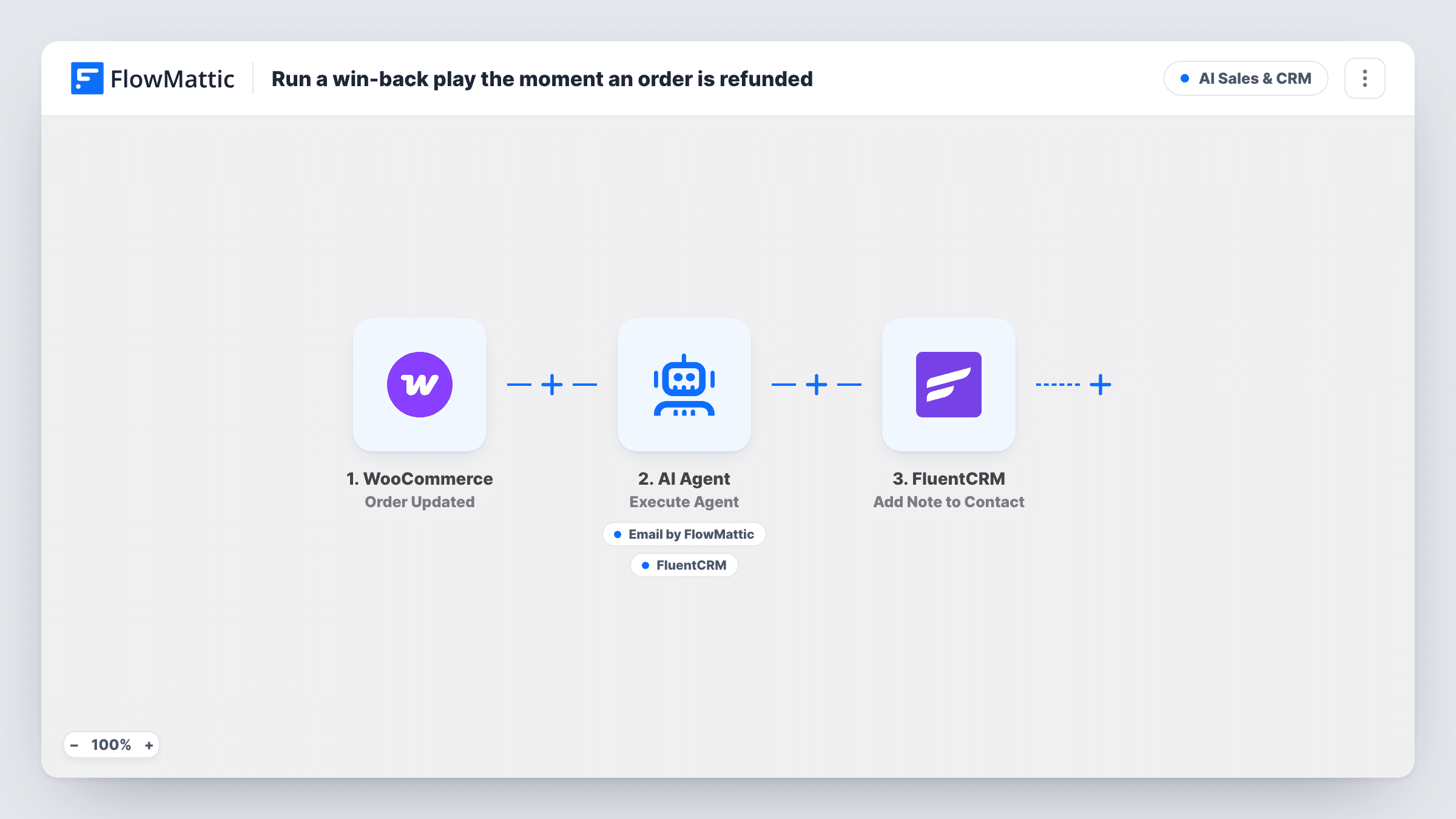
When a WooCommerce order’s status is refunded, an AI agent writes and sends the customer a win-back email and can tag them in FluentCRM, and a note about the refund is added to their contact.
 WooCommerce
 Filter
 AI Agent
 Email
Email
 FluentCRM
6 steps Setup ~12 min Used on 3.1k sites Revenue Ops Free to import
What this workflow does
A refund often ends the relationship quietly. The customer got their money back and nobody asks what went wrong or offers a reason to try again. This workflow reacts to a refunded order with a personal email and marks the customer in your CRM for whatever win-back sequence you run.
The WooCommerce Order Updated trigger fires whenever an order is updated. A Filter right after it lets the run continue only when the order status is exactly refunded, which WooCommerce sets for full refunds. Partial refunds that leave the order in another status don't pass.
The AI Agent step, on OpenAI GPT-4o, gets the customer's name, email and order number. It is told to write a warm win-back email with a modest incentive, send it, and tag the customer into the win-back sequence. Its email tool always sends to the billing address, and the agent writes the subject and body. Its FluentCRM tool adds tags it chooses to the contact with that email. A final FluentCRM step adds a note titled Win-back triggered with the order number.
Before you turn it on, put your real offer and tag name in the system prompt. As imported the agent has no coupon tool, so it could promise an incentive you haven't set up. Both FluentCRM steps act on an existing contact only. Also, a later edit to an already refunded order, such as changing its address, still shows refunded and starts another run.
A second chance after a sizing return
A clothing store refunds a customer whose order didn't fit. The agent's email acknowledges it and offers the discount you wrote into the prompt for another try.
Feeding a FluentCRM win-back sequence
A store that already syncs buyers into FluentCRM tags refunded customers so an automation in FluentCRM sends its own follow-ups over the next weeks.
Refund history on the contact
Support can open a customer in FluentCRM and see a note that a refund on a given order started a win-back email.
How this workflow runs
What happens at each step once the workflow is on, and what you need before you import it.
 WooCommerce Order Updated
Starts a run on every WooCommerce order update, whatever changed. The order's status, billing name, billing email and order number are passed on.
- Filter Continue If Condition Meet
Lets the run continue only when the order status exactly matches refunded. Orders updated to any other status stop here, along with every later step.
- AI Agent Execute Agent
Runs an AI agent on OpenAI GPT-4o, told to write a warm win-back email with a modest incentive, send it, and tag the customer for the win-back sequence. It gets the customer's name, email and order number.
 Email Send Email
Agent tool that sends an email to the order's billing address through FlowMattic's Email module. The agent writes both the subject and the body.
- FluentCRM Add Tags to Contact
Agent tool that adds tags to the FluentCRM contact with the billing email. The agent picks the tags, so name your exact win-back tag in the system prompt. A customer who isn't a contact gets no tag.
- FluentCRM Add Note to Contact
Adds a note titled Win-back triggered to the FluentCRM contact, saying a refund on the order started the win-back play. FlowMattic describes this action as working on an existing contact.
What you need
- FlowMatticCore
- WooCommerce PluginPlugin
- AI ProviderAccount
- FluentCRM PluginPlugin
After importing, map your own data. To keep the template universal, not every step is pre-filled. Open each step in the builder and connect your accounts and fields (channels, lists, sheets, recipients) before you switch the workflow on.
Make it yours
Changes worth making after you import it.
- Write the actual offer into the system prompt, such as a coupon code you created in WooCommerce and its expiry, so the agent doesn't make up an incentive.
- If some refunded customers may not be in FluentCRM, add a FluentCRM Create or Update Contact step between the Filter and the AI Agent step so both the tag and the note have a contact to land on.
- Put a Delay of a day or two between the Filter and the AI Agent step if you'd rather the win-back email didn't arrive in the same hour as WooCommerce's refund notice.
Questions about this workflow
Does a partial WooCommerce refund start the win-back email?
Usually not. The Filter needs the status to be exactly refunded, and WooCommerce typically sets that only when the whole order is refunded. A partial refund that keeps the order completed is stopped by the Filter.
Can the same customer get the win-back email twice?
Yes, if a refunded order is updated again, because the trigger fires on every update and the Filter only checks the current status. A second refunded order from the same customer also starts a new run.
What incentive does the AI agent offer?
Whatever it writes, unless you tell it. The prompt asks for a modest incentive but gives no code or amount, so add the exact offer to the system prompt before going live.
What if the customer isn't in FluentCRM?
The email is sent by the agent's email tool, which doesn't use FluentCRM. The tagging tool and the note step need an existing contact with the billing email, so for someone who isn't a contact FluentCRM has nothing to tag or annotate. Task History shows what each of them returned.
More AI Sales & CRM workflows
Other ready-to-import templates from the same category.







Import this workflow into your WordPress site
Download the JSON, import it from the Workflows screen and connect your accounts. Every run stays on your server, with no per-task fees.
30-day money-back guarantee Unlimited workflows and runs Self-hosted