

AI agent that writes tactful dunning emails for cancelled subscriptions
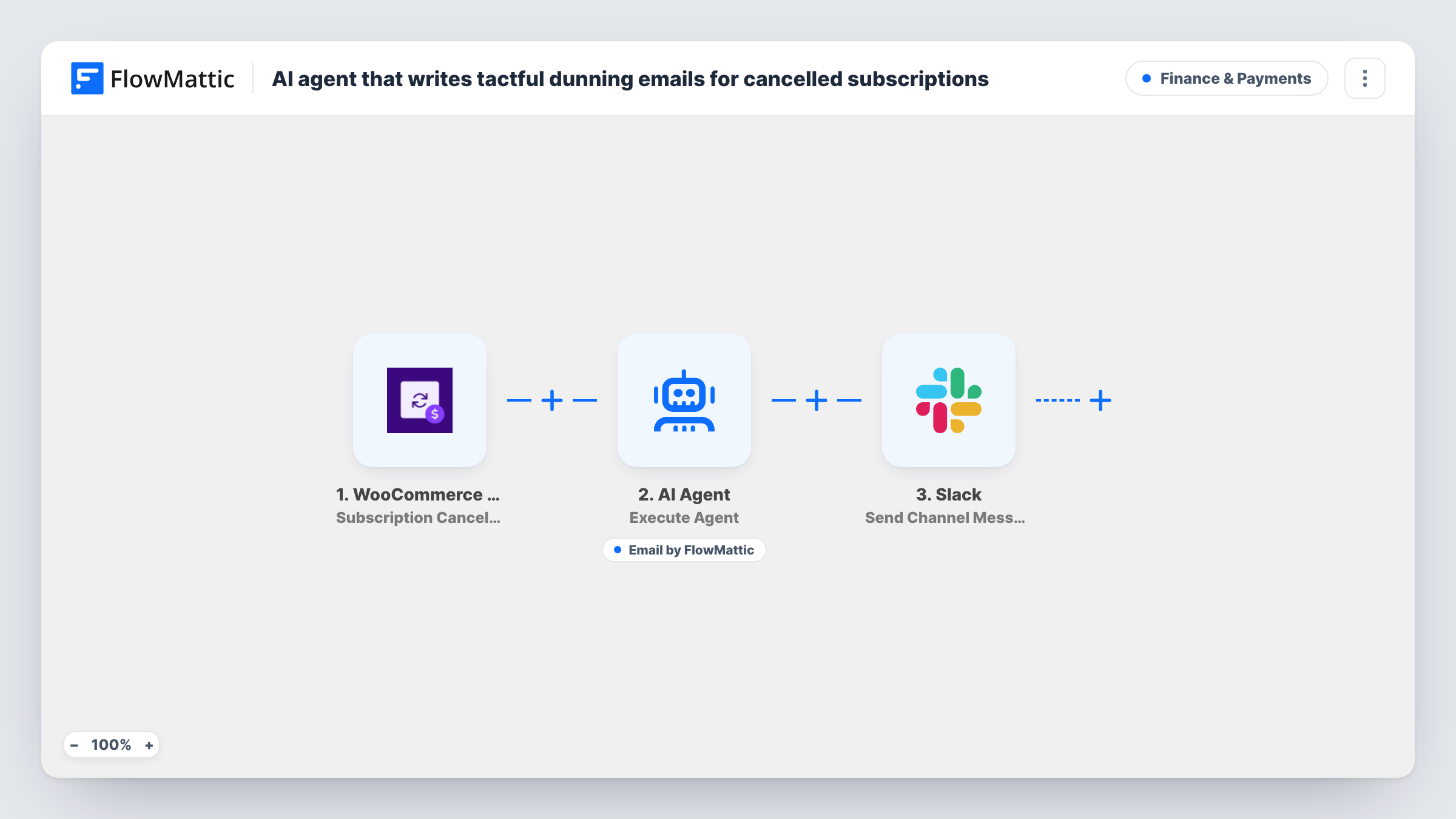
When a WooCommerce subscription is cancelled, an AI agent writes a polite email to that customer offering help or a pause and sends it, then your team gets a Slack message saying it went out.
 WooCommerce Subscriptions
 AI Agent
 Email
Email
 Slack
Slack4 steps Setup ~8 min Used on 2.5k sites Finance Free to import
What this workflow does
A cancellation is often the last chance to keep a customer, but a generic "sorry to see you go" email reads as automated, and writing a personal one for every cancellation takes time you rarely have. This workflow has an AI agent write a considered note for each cancelled subscription and send it straight away.
The WooCommerce Subscriptions trigger runs when a subscription is cancelled. FlowMattic passes the customer's email, the plan name, the amount and the currency to the AI Agent. Its instructions ask for a tactful, non-pushy email that acknowledges the cancellation, offers help or a pause, and invites the customer back. The agent has one tool, Email's Send Email, addressed to the customer, and it writes the subject and body itself before sending.
After the agent finishes, a Slack message tells your channel which customer was emailed. The template uses OpenAI's GPT-4o as the agent's model; connect your own AI account on import.
Box subscriptions
A monthly snack box store reaches each customer who cancels with a note that names their plan and mentions they can pause instead of leaving.
Software memberships
A plugin shop selling yearly licences as subscriptions sends a personal message offering help with whatever made the customer cancel.
Keeping the team informed
The account manager sees every cancellation in Slack and can follow up by phone with the customers who matter most.
How this workflow runs
What happens at each step once the workflow is on, and what you need before you import it.
 WooCommerce Subscriptions Subscription Cancelled
Runs when a subscription is cancelled in WooCommerce Subscriptions. The customer's email, plan, amount and currency are passed to the AI Agent.
- AI Agent Execute Agent
The AI Agent reads the cancellation details and its instructions, then writes a short, tactful email offering help or a pause and inviting the customer back. Connect your AI provider here.
 Email Send Email
The agent's tool for sending. The email goes to the customer's address from the subscription, and the agent fills in the subject and body. Set up your SMTP details for Email on import.
- Slack Send Channel Message
Posts a message to the Slack channel you choose, naming the customer whose cancellation email was sent. Connect your Slack workspace and pick the channel.
What you need
- FlowMatticCore
- WooCommerce Subscriptions PluginPlugin
- AI ProviderAccount
- Slack AccountAccount
After importing, map your own data. To keep the template universal, not every step is pre-filled. Open each step in the builder and connect your accounts and fields (channels, lists, sheets, recipients) before you switch the workflow on.
Make it yours
Changes worth making after you import it.
- Edit the agent's instructions to match what you can offer. If your store has no pause option, take that line out so the email does not suggest one.
- Add a Delay before the AI Agent if you would rather the email arrive a few hours after the cancellation instead of at the same moment.
- Run a test cancellation on a staff account first and read the email the agent writes before you turn the workflow on for customers.
Questions about this workflow
Does the AI decide whether to send the email?
Its instructions tell it to write the email and send it, using the Send Email tool. Every cancellation should get one, and you can check each run in Task History.
Which AI model does it use?
The template is set to OpenAI's GPT-4o. You connect your own provider account, and you can choose a different model in the agent step.
Does it stop the cancellation or offer a discount?
No. The subscription stays cancelled. The email only offers help or a pause and invites the customer back, as written in the agent's instructions.
What does the Slack message contain?
A short line with the customer's email saying the AI email was sent. It does not include the email text.
More Finance & Payments workflows
Other ready-to-import templates from the same category.





Import this workflow into your WordPress site
Download the JSON, import it from the Workflows screen and connect your accounts. Every run stays on your server, with no per-task fees.
30-day money-back guarantee Unlimited workflows and runs Self-hosted