

Sync verified contacts to the CRM and park unverified ones
Fluent Forms sign-ups that arrive marked as verified go straight into FluentCRM. The rest are held back in a Google Sheets row, so your CRM only takes contacts you trust.
 Fluent Forms
 Branch
 FluentCRM
 Google Sheets
4 steps Setup ~8 min Used on 807 sites Data Ops Free to import
What this workflow does
A CRM fills up fast with half-finished sign-ups and addresses nobody confirmed. Once they are in, they get your campaigns and skew your numbers. This workflow lets a form submission into the CRM only when it carries a verified flag, and sets the others aside where you can review them.
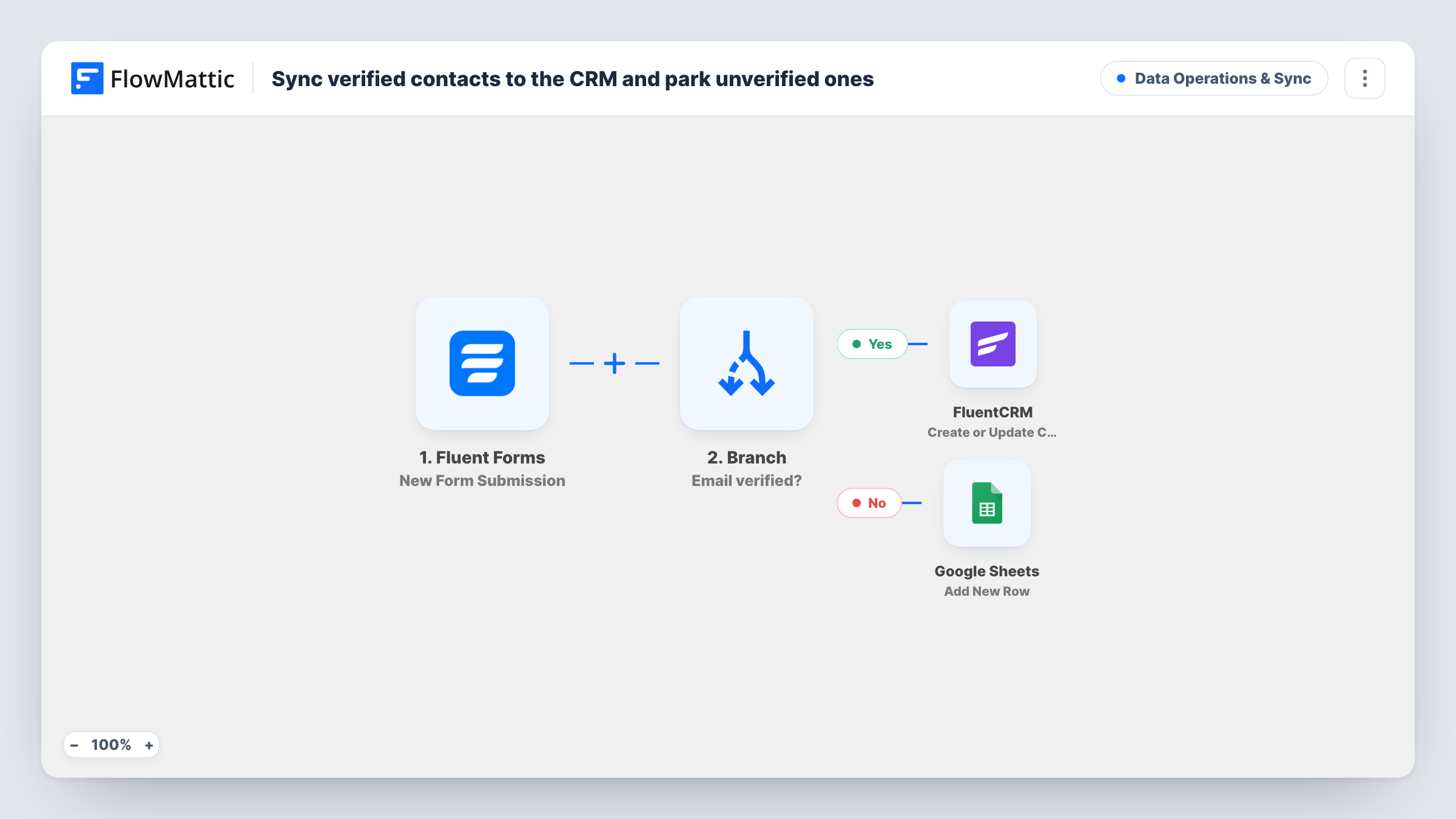
Each run starts with a Fluent Forms submission. A Branch then reads a field named verified from that submission and checks whether it contains yes. On the Yes path, FluentCRM creates the contact, or updates it if the email already exists, using the submitted email and name. On the No path, the submission goes to Google Sheets as a new row instead, and FluentCRM is not touched.
Fluent Forms does not set this flag by itself. Your form has to send a verified field, for example a hidden field your own verification step fills in, or a confirmation question. Without it, every sign-up lands in the sheet.
Gated content with a confirmation step
Your form adds a verified value once the visitor confirms their address. Confirmed readers become FluentCRM contacts, and the unconfirmed ones wait in a sheet for a reminder.
Event sign-ups checked by staff
Staff mark each registration as verified before it is submitted. Checked attendees enter FluentCRM for event emails, and the others sit in a sheet for follow-up.
Keeping test entries out of the CRM
Entries without the verified flag, such as ones you send while building the form, end up in the sheet and never reach your FluentCRM list.
How this workflow runs
What happens at each step once the workflow is on, and what you need before you import it.
 Fluent Forms New Form Submission
Runs when a Fluent Forms form is submitted. The sample entry has name, email and a verified field, and all of them can be used in the steps that follow.
- Branch Email verified?
Checks whether the submission's verified field contains yes. If it does, the run takes the Yes path to FluentCRM. If not, it takes the No path to the sheet.
- FluentCRM Create or Update Contact
On the Yes path, creates a FluentCRM contact from the submitted email, with the name field mapped to the first name. If the email is already a contact, that contact is updated.
- Google Sheets Add New Row
On the No path, adds a row to Google Sheets for the unverified sign-up. Nothing is mapped yet, so map the name, email and any other answers you want in the row.
What you need
- FlowMatticCore
- Fluent Forms PluginPlugin
- FluentCRM PluginPlugin
- Google Sheets AccountAccount
After importing, map your own data. To keep the template universal, not every step is pre-filled. Open each step in the builder and connect your accounts and fields (channels, lists, sheets, recipients) before you switch the workflow on.
Make it yours
Changes worth making after you import it.
- The full name goes into the first name field and last name is left blank. If your form has separate name parts, map them to first and last name in the FluentCRM step.
- Add an action after the Google Sheets step on the No path, such as an email to whoever owns the list, so someone knows an unverified sign-up is waiting for review.
- Submit one entry with verified set to yes and one without, then check Task History to confirm each took the path you expect.
Questions about this workflow
Does Fluent Forms verify the email address?
Not in this workflow. The Branch only reads a field called verified from the submission. Your form, or something before it, has to set that field to yes.
What if the contact already exists in FluentCRM?
The step is Create or Update Contact, so an existing contact with the same email is updated rather than added twice.
Do unverified sign-ups ever reach FluentCRM?
Not as imported. They only go to the sheet. If someone verifies later, you can add them by hand or let a new submission with the flag take the Yes path.
What if my field is named something else?
Edit the Branch condition and pick your own field from the trigger data. The value it looks for can be changed as well.
More Data Operations & Sync workflows
Other ready-to-import templates from the same category.







Import this workflow into your WordPress site
Download the JSON, import it from the Workflows screen and connect your accounts. Every run stays on your server, with no per-task fees.
30-day money-back guarantee Unlimited workflows and runs Self-hosted