

Post each new sale from the sales sheet to a Slack finance channel
Each new row added to your Google Sheets sales sheet is posted to a Slack channel as one line naming the customer, the amount paid and the product.
 Google Sheets
 Slack
Slack2 steps Setup ~5 min Used on 1.7k sites Finance Free to import
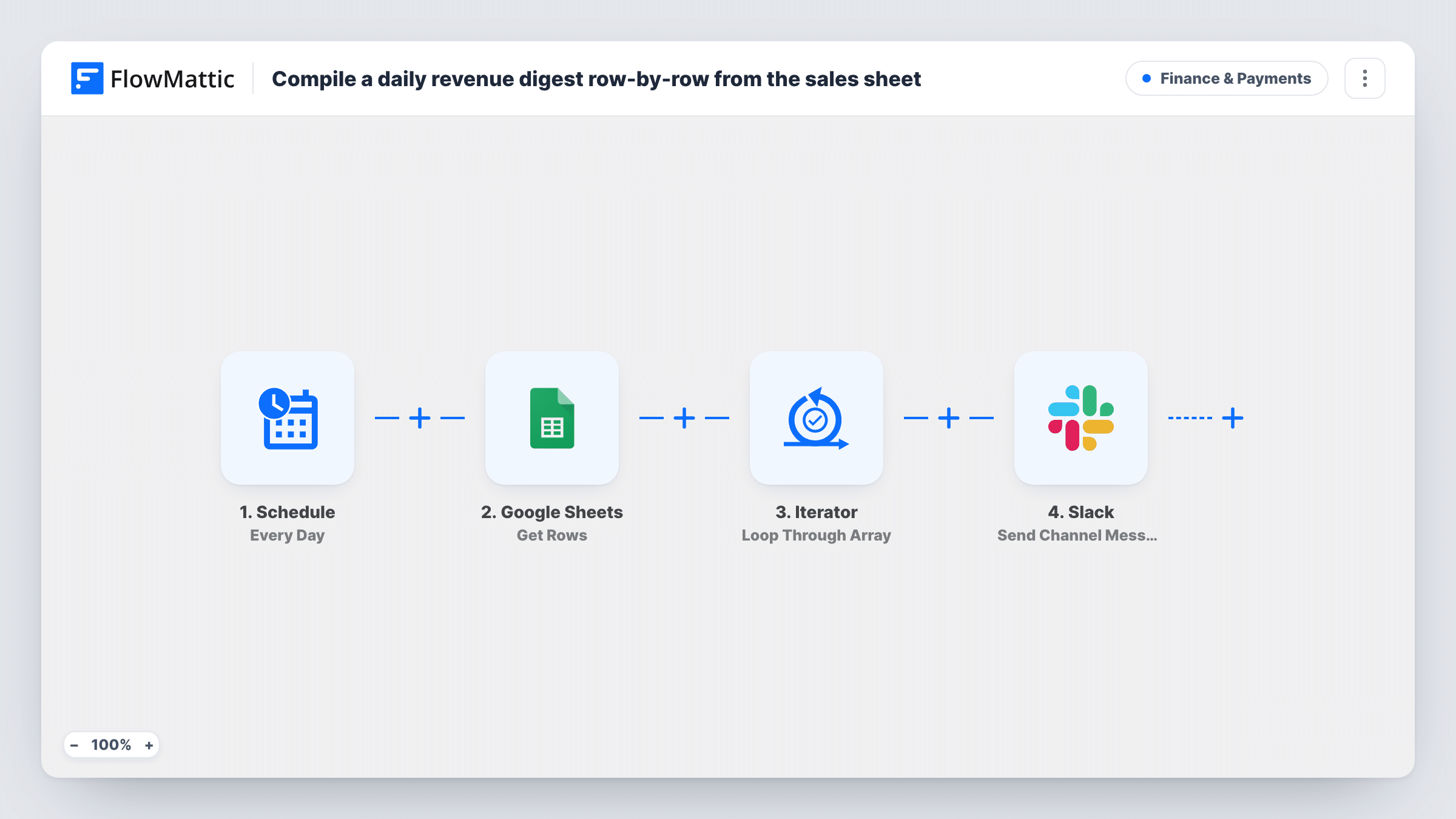
What this workflow does
Finance teams often keep a sales sheet but live in Slack during the day. Rather than refreshing the spreadsheet to spot new entries, this workflow posts each sale into a channel the moment its row appears, so the people who reconcile payments see it where they already work.
The Google Sheets New Spreadsheet Row trigger fires when a row is added to the sheet you connect. The template expects three columns, named customer, amount and product, and reads those values from each new row.
The Slack step then sends a channel message in the form "Sale: customer paid amount for product", filled with that row's values. After import, connect Slack and pick the finance channel. If your headers have other names, remap the three fields in the message to your own columns.
Every new row produces one message, so the sheet should hold sales only. Rows that were already in the sheet before you turned the workflow on are not posted. Task History shows each run and the reply Slack sent back.
Live sales feed for the finance channel
A bookkeeper sees each sale in #finance as it is logged, and can match it against the bank feed without opening the spreadsheet.
Payments logged by a form or another tool
A team whose checkout or invoicing tool already appends sales to a Google Sheet gets a Slack line for each one without changing that setup.
Manual sales entered by the sales team
Reps who type phone or in-person sales into the shared sheet have each entry announced in Slack, so the finance lead knows to invoice it.
How this workflow runs
What happens at each step once the workflow is on, and what you need before you import it.
 Google Sheets New Spreadsheet Row
Fires when a new row is added to the Google Sheet you connect. The row's customer, amount and product columns are passed to the Slack message.
- Slack Send Channel Message
Posts a message to the Slack channel you choose, in the form "Sale: customer paid amount for product". Pick the channel after import and remap the three values if your column names differ.
What you need
- FlowMatticCore
- Google Sheets AccountAccount
- Slack AccountAccount
After importing, map your own data. To keep the template universal, not every step is pre-filled. Open each step in the builder and connect your accounts and fields (channels, lists, sheets, recipients) before you switch the workflow on.
Make it yours
Changes worth making after you import it.
- Keep the column headers as customer, amount and product, or change the three mapped values in the Slack message to match the headers you use.
- For a private finance channel, switch the step to Slack's Send Private Channel Message action, since this template uses Send Channel Message.
- Add a Filter between the Google Sheets trigger and the Slack step that continues only when the amount is greater than a figure you pick, so only larger sales are posted. That column and figure are examples to change.
- Add the date or the invoice number column to the message text, so the finance team can find the matching row quickly.
Questions about this workflow
Which columns does my Google Sheets sales sheet need?
The message reads columns named customer, amount and product. Use those headers, or remap the three values in the Slack step to the headers your sheet already has.
Will rows already in the sheet be posted to Slack?
No. The trigger fires on rows added after the workflow is turned on. Existing rows don't start a run.
Can the message go to one person instead of a channel?
Yes. Swap the step for Slack's Send Direct Message action and pick the person. The rest of the workflow stays the same.
What happens if a row is added with the amount left blank?
The workflow still runs and posts the message with an empty spot where the amount would be. A Filter on the amount column between the trigger and the Slack step stops those rows.
More Finance & Payments workflows
Other ready-to-import templates from the same category.






Import this workflow into your WordPress site
Download the JSON, import it from the Workflows screen and connect your accounts. Every run stays on your server, with no per-task fees.
30-day money-back guarantee Unlimited workflows and runs Self-hosted