

Create a CRM contact for every row in your import sheet
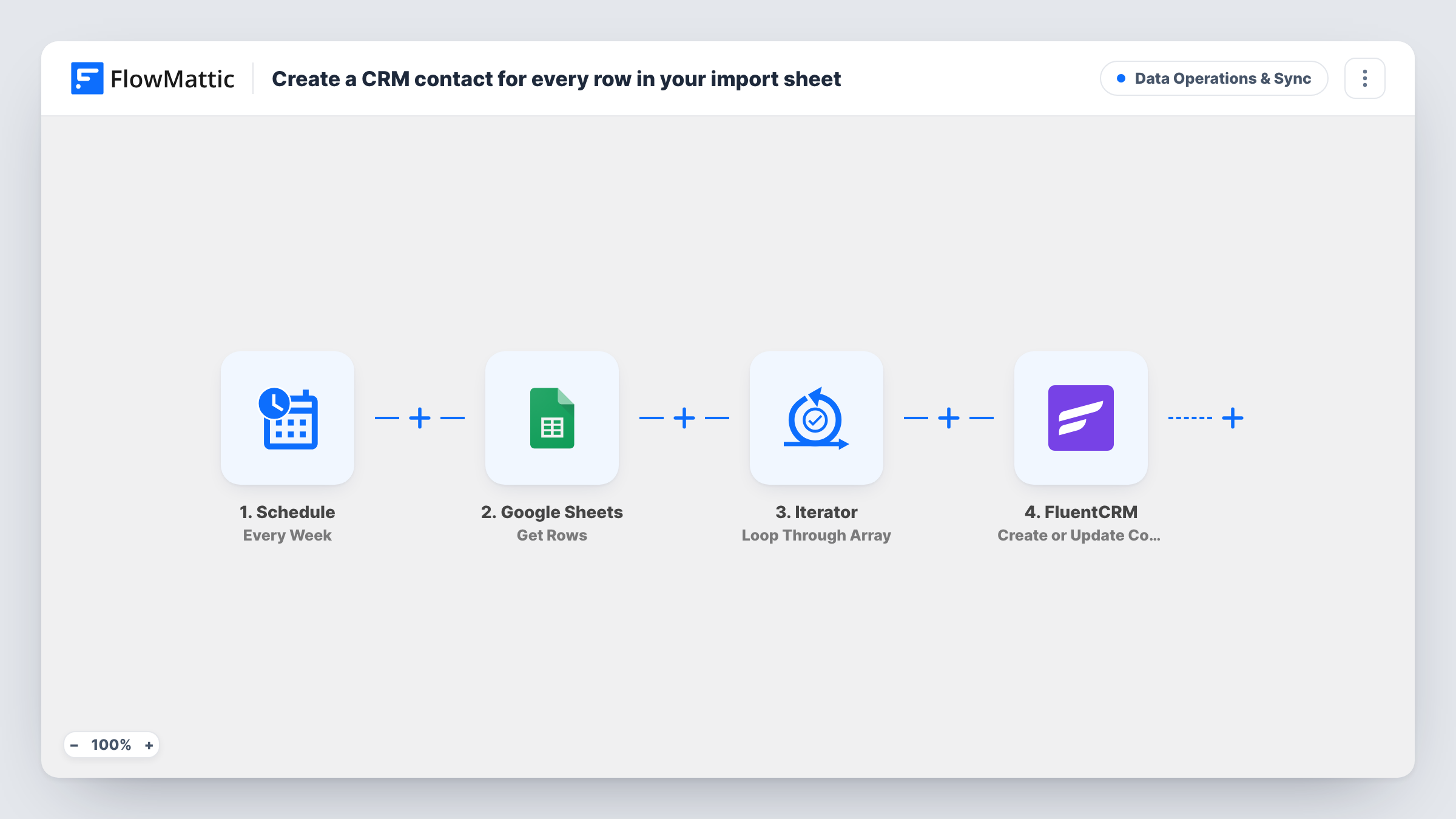
Once a week, this workflow reads every row of an import sheet in Google Sheets, loops through them with an Iterator, and creates or updates a FluentCRM contact from each row’s email, first name and last name.
 Schedule
 Google Sheets
 Iterator
 FluentCRM
4 steps Setup ~8 min Used on 3.0k sites Data Ops Free to import
What this workflow does
Contact lists often start life in a spreadsheet: a sign-up sheet from an event, a list a colleague pasted together, an export from an old tool. Getting those people into FluentCRM usually means a CSV import each time the sheet grows. This workflow does the import for you on a weekly cycle, one row at a time.
A Schedule trigger fires once a week. The Google Sheets Get Rows action then reads the rows of your import sheet and hands them on as a list. An Iterator loops through that list, and for each row the next step runs once.
That step is Create or Update Contact in FluentCRM. The template maps three columns: email to the contact email, first to the first name and last to the last name. A person who is already in FluentCRM is updated rather than added again, so running the same sheet every week does not create duplicates.
FluentCRM runs on your WordPress site, so the contacts are created there. Your column headers need to match the names the mapping expects, or you remap the fields after import.
Weekly event sign-up sheet
Volunteers add attendees to a shared Google Sheet at each meetup. Every week the new names reach FluentCRM, ready for the follow-up email.
Sales rep contact lists
Reps paste contacts they met into one import sheet. The weekly run creates them in FluentCRM without anyone uploading a CSV.
Moving off an old mailing tool
Export the old list into a sheet in batches. Each weekly run brings that batch into FluentCRM and refreshes names for anyone already there.
How this workflow runs
What happens at each step once the workflow is on, and what you need before you import it.
 Schedule Every Week
Fires on a weekly cycle. Pick the day and time after import, for example Monday morning after the sheet has been filled.
- Google Sheets Get Rows
Reads the rows from your import spreadsheet in Google Sheets and passes them on as a list. Link the Google account that owns the import sheet, then point the step at it.
- Iterator Loop Through Array
Loops through the rows from Google Sheets so the FluentCRM step runs once for each row. Inside the loop, each row's columns are available by name.
- FluentCRM Create or Update Contact
Creates a FluentCRM contact for the current row, or updates the existing one with the same email. The template maps the email, first and last columns to email, first name and last name.
What you need
- FlowMatticCore
- Google Sheets AccountAccount
- FluentCRM PluginPlugin
After importing, map your own data. To keep the template universal, not every step is pre-filled. Open each step in the builder and connect your accounts and fields (channels, lists, sheets, recipients) before you switch the workflow on.
Make it yours
Changes worth making after you import it.
- Rename your sheet's headers to email, first and last, or remap the FluentCRM fields to your own column names after the first test run.
- Add a Filter inside the loop that skips rows where the email is empty, so blank lines in the sheet don't cause failed steps.
- Open the FluentCRM step after import to see which other contact fields it offers, and map extra sheet columns to them if your import sheet carries more than names.
- Switch the Schedule to daily if the sheet changes often, since the update action keeps reruns from adding duplicates.
Questions about this workflow
Will the weekly run duplicate contacts already in FluentCRM?
No. The step is Create or Update Contact, so a row whose email already exists in FluentCRM updates that contact instead of adding a new one.
Does every row in the Google Sheet get processed each time?
Yes. Get Rows reads the sheet and the Iterator loops through what it returns, so rows from earlier weeks are sent again and their contacts updated.
What columns does the import sheet need?
The template expects columns named email, first and last. Other headers work too, as long as you remap them in the FluentCRM step.
Does this tag the FluentCRM contacts or add them to a list?
Not as imported. Only email, first name and last name are mapped. Open the FluentCRM step to see what else it lets you set, and run a test row to confirm the result in FluentCRM.
More Data Operations & Sync workflows
Other ready-to-import templates from the same category.






Import this workflow into your WordPress site
Download the JSON, import it from the Workflows screen and connect your accounts. Every run stays on your server, with no per-task fees.
30-day money-back guarantee Unlimited workflows and runs Self-hosted